

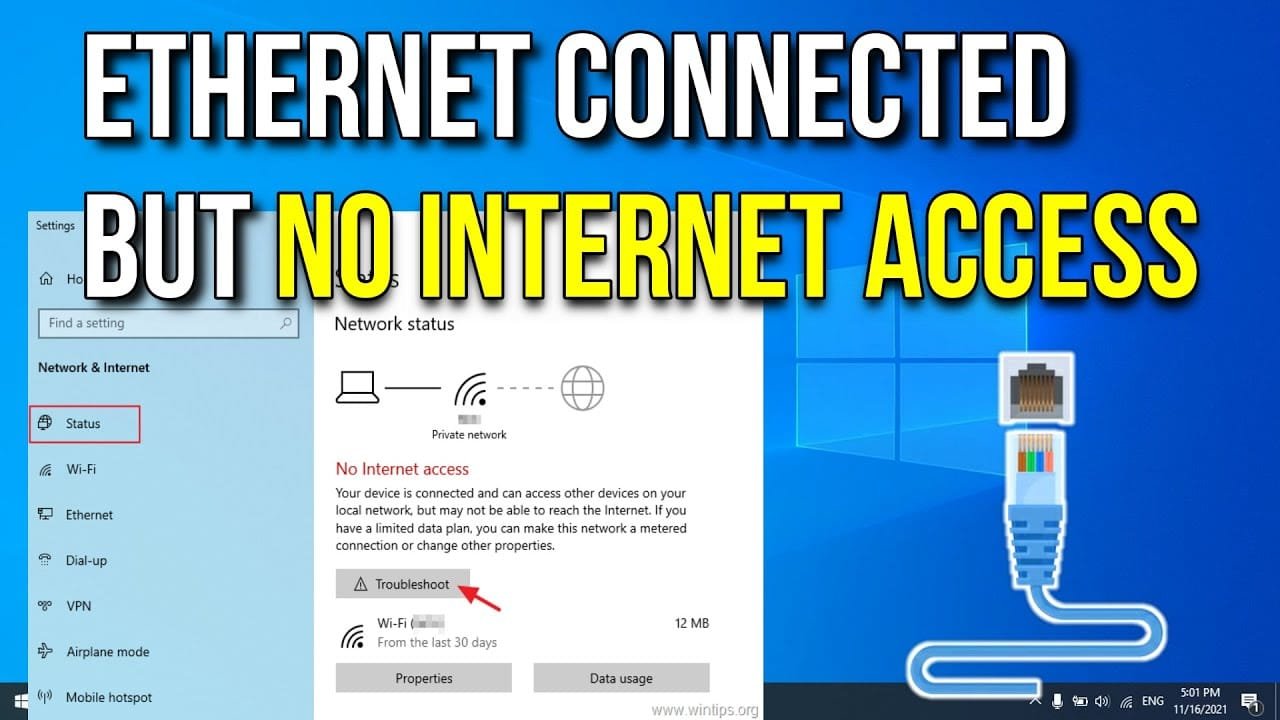
A Mesh WiFi No Internet is a common issue that can disrupt your device performance. If you are experiencing a Mesh WiFi No Internet, this 2026 step-by-step diagnostic guide will help you troubleshoot and resolve the problem quickly.
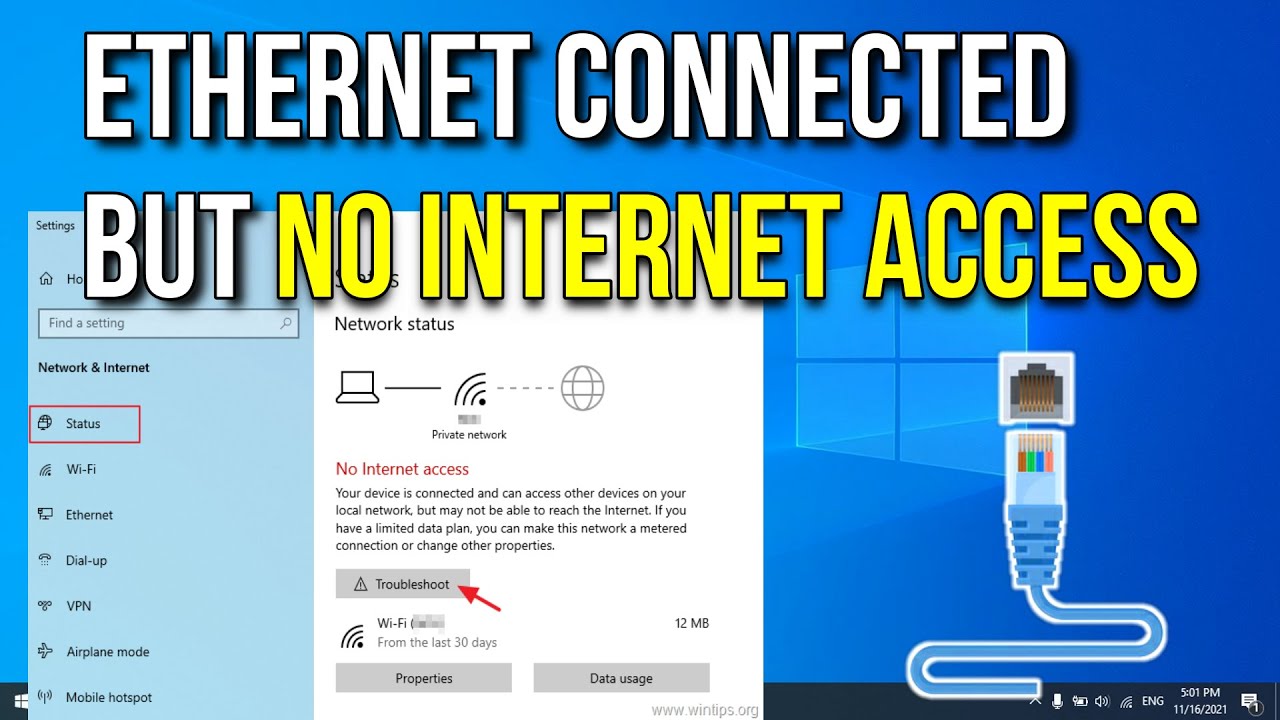
Understanding the Mesh WiFi No Internet Cause
When your mesh WiFi system shows no internet connection, it can be frustrating. This often means your devices are connected to the WiFi network but cannot reach the wider internet. Therefore, troubleshooting is essential.
Several factors can contribute to this problem. It could be a simple modem issue or a more complex configuration error within your mesh network. Identifying the root cause is the first step to a swift resolution.
Initial Troubleshooting Steps
Begin by performing a power cycle on your modem and router. Unplug both devices from their power sources. Wait for at least 60 seconds before plugging the modem back in. Once the modem is fully online, plug your router back in.
Check all physical cable connections. Ensure the Ethernet cable connecting your modem to your router is securely plugged in at both ends. A loose cable is a frequent culprit for Mesh WiFi No Internet.
Checking Your Modem and Router Status
Observe the indicator lights on your modem and router. Solid lights usually indicate a stable connection, while blinking or red lights often signal a problem. Consult your device manual for specific light meanings.
If your modem indicates no internet connection, the issue might be with your Internet Service Provider (ISP). Contact your ISP to check for outages in your area or for any service-related problems.
Firmware Updates for Mesh Systems
Outdated firmware can cause various connectivity issues, including Mesh WiFi No Internet. Access your mesh system’s administration interface, usually through a web browser or a dedicated app.
Look for a firmware update option. If an update is available, download and install it. This process can take several minutes, so ensure your devices remain powered on.
Resetting Your Mesh WiFi System
As a last resort, you might consider resetting your mesh WiFi system to its factory default settings. This will erase all custom configurations, so be prepared to set up your network again.
The reset process typically involves pressing a small reset button on each mesh unit for a specific duration. Refer to your mesh system’s manual for precise instructions on how to perform a factory reset.
Advanced Diagnostics and Solutions
If the above steps do not resolve the Mesh WiFi No Internet issue, consider advanced diagnostics. Check your device’s network settings to ensure they are set to obtain an IP address automatically.
Sometimes, interference from other electronic devices can disrupt your WiFi signal. Try moving your mesh nodes away from microwaves, cordless phones, or Bluetooth devices.
When to Seek Professional Help
If you have exhausted all troubleshooting steps and still face Mesh WiFi No Internet, it might be time to contact your ISP or the manufacturer of your mesh WiFi system for further assistance.
They can provide specialized support and may identify hardware failures or deeper network configuration problems that are beyond typical user-level fixes.
Preventative Best Practices
To minimize future Mesh WiFi No Internet occurrences, keep your firmware updated regularly. Perform periodic reboots of your modem and router to maintain optimal performance.
Ensure your mesh nodes are placed strategically to provide optimal coverage and minimize signal interference. Consider using wired connections for stationary devices that require high bandwidth.

Diagnostic Comparison Table
| Symptom | Possible Cause | Solution |
|---|---|---|
| No Internet Access | Modem Offline | Check modem lights, reboot modem, contact ISP. |
| No Internet Access | Loose Cables | Securely connect all Ethernet cables. |
| No Internet Access | Outdated Firmware | Update mesh system firmware via app or web interface. |
| No Internet Access | ISP Outage | Check ISP status page or contact support. |
📺 Video Guide: How to fix Ethernet Connected But No Internet Access | LAN Wired Connected But No Internet Access
Video walkthrough courtesy of Open Box Tech on YouTube. Follow along with the visual steps above.
Frequently Asked Questions
Why is my mesh WiFi connected but no internet?
This usually indicates a problem between your router and the internet source (modem or ISP). Common culprits include modem issues, router misconfiguration, or ISP disruptions.
How do I reset my mesh WiFi system?
Most mesh systems have a reset button on each unit. You typically need to press and hold this button for 10-30 seconds. Always consult your specific model’s manual for exact instructions.
Can a VPN cause internet connection issues?
Yes, a misconfigured VPN or issues with the VPN server can sometimes lead to connectivity problems, including a Mesh WiFi No Internet situation. Try disabling the VPN to test.
What does a red light on my mesh router mean?
A red light generally signifies a problem. It could indicate a lack of internet connection, a hardware fault, or a failure to connect to the network. Check your device’s manual for specifics.
Should I update my mesh WiFi firmware?
Absolutely. Keeping your mesh WiFi firmware updated is crucial for security, performance, and compatibility. Updates often fix bugs that could cause Mesh WiFi No Internet issues.
How to fix Orbi red light error?
An Orbi red light error often points to an internet connection problem. Try rebooting your modem and router, checking cables, and ensuring your ISP service is active. For detailed steps, refer to our Orbi Red Light Error guide.
How to fix GPU driver error 43?
GPU driver error 43 is a Windows error related to graphics card drivers. It’s unrelated to mesh WiFi issues but can be resolved by updating or reinstalling drivers. You can find solutions here: GPU Driver Error 43 Fix.
What is VPN error code 0x80070002?
VPN error code 0x80070002 is a Windows error often related to update or installation issues, sometimes affecting VPN client functionality. Our guide provides comprehensive troubleshooting: VPN Error Code 0x80070002.
How to fix nvlddmkm sys error?
The nvlddmkm sys error is a blue screen error typically caused by NVIDIA graphics driver issues. It requires specific troubleshooting steps for graphics drivers. Learn more at nvlddmkm sys error fix.
How to fix monitor error E3?
Monitor error E3 is specific to certain monitor models and usually indicates a communication issue. Troubleshooting involves checking connections and monitor settings. Find solutions here: Monitor Error E3 Fix.
How to fix audio crackle Bluetooth?
Audio crackle with Bluetooth devices can stem from interference, outdated drivers, or device issues. Our guide offers solutions for this common audio problem: Fix Audio Crackle Bluetooth.
How to fix dxgmss2 sys blue screen?
The dxgmss2 sys blue screen error is related to DirectX graphics drivers. Resolving it often involves updating or reinstalling graphics drivers. See our guide: Fix dxgmss2 sys blue screen.
How to fix OpenVPN error 10060?
OpenVPN error 10060 typically indicates a connection timeout issue. Troubleshooting involves checking network configurations and firewall settings. Our guide covers this: OpenVPN error 10060.
Conclusion
Resolving Mesh WiFi No Internet issues requires a systematic approach. By following these diagnostic steps, you can effectively identify and fix the problem, restoring your internet connectivity.
Remember to perform regular maintenance and keep your firmware updated to prevent future connectivity disruptions. A stable mesh WiFi network is essential for modern home networking.







[…] future issues. For more complex connectivity problems, consider checking out our guide on Mesh WiFi No Internet, as network issues can sometimes impact console […]
[…] Before applying advanced fixes, compare your hardware symptoms against our diagnostic matrix below. Similar home automation issues often share overlapping characteristics with other IoT failures, such as those detailed in our Mesh WiFi No Internet Diagnostic Guide. […]
[…] Review settings via Mesh WiFi No Internet: 2026 Complete Diagnostic Guide. […]