A dxgmmss2 sys blue screen is a common issue that can disrupt your device performance. If you are experiencing a dxgmms2 sys blue screen, this 2026 step-by-step diagnostic guide will help you troubleshoot and resolve the problem quickly.
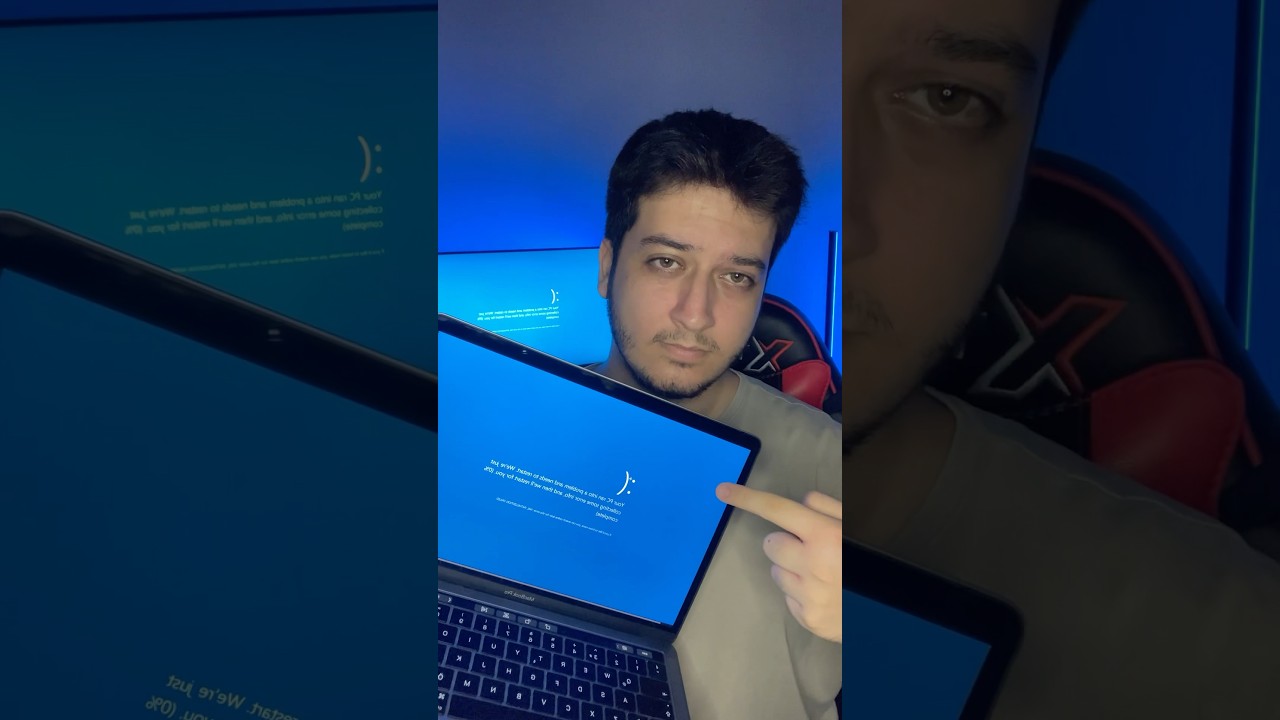
The dxgmms2.sys error, often appearing as a Blue Screen of Death (BSOD), is frequently linked to your graphics card drivers. However, other factors can contribute to this frustrating problem. Therefore, a systematic approach is essential for effective troubleshooting.
This guide will walk you through the most common causes and solutions for the dxgmms2 sys blue screen crash. We will cover driver updates, hardware checks, and system file integrity. Furthermore, we will explore preventative measures to avoid future occurrences.
- Introduction to the dxgmms2.sys Blue Screen
- Understanding the dxgmms2 sys Blue Screen Cause
- Step-by-Step dxgmms2 sys Blue Screen Solutions
- Advanced Troubleshooting Techniques
- Preventative Best Practices
- Frequently Asked Questions
Understanding the dxgmms2 sys Blue Screen Cause
The dxgmms2.sys file is a critical component of the DirectX Graphics Kernel subsystem in Windows. When this file causes a blue screen, it indicates a problem with how your graphics card is interacting with the operating system. Specifically, it often points to issues with the graphics driver.
However, the dxgmms2 sys blue screen can also be triggered by overheating components, particularly the GPU. Additionally, corrupted system files or even faulty RAM modules can sometimes manifest as this particular error. Therefore, it’s important to consider multiple possibilities.
In some cases, a recent Windows update or the installation of new hardware might conflict with existing drivers, leading to the dxgmms2 sys blue screen. Identifying the exact trigger is key to a swift resolution.
Step-by-Step dxgmmss2 sys blue screen Solutions dxgmms2 sys Blue Screen Solutions
Initially, the most common fix for a dxgmms2 sys blue screen is to update your graphics drivers. Visit the website of your GPU manufacturer (NVIDIA, AMD, or Intel) and download the latest drivers for your specific model. Perform a clean installation if the option is available.
Next, if updating drivers doesn’t help, consider rolling back to a previous driver version. Sometimes, the newest drivers can introduce new bugs. You can do this through the Device Manager in Windows.
Furthermore, ensure your Windows operating system is up to date. Install all pending Windows updates, as these often include stability improvements and bug fixes that could resolve the dxgmms2 sys blue screen.
Check for overheating. Monitor your GPU and CPU temperatures using monitoring software. If they are too high, clean your PC’s fans and heatsinks, and ensure proper airflow. You might also consider reapplying thermal paste.
Additionally, run a memory diagnostic tool. Faulty RAM can cause system instability. Windows has a built-in tool called ‘Windows Memory Diagnostic’ that you can access by searching for it in the Start menu.
Finally, verify the integrity of your system files. Open Command Prompt as an administrator and run the command `sfc /scannow`. This will scan for and attempt to repair corrupted Windows system files, which might be causing the dxgmms2 sys blue screen.
Advanced Troubleshooting Techniques
If the basic steps haven’t resolved the dxgmms2 sys blue screen, you might need to delve deeper. One advanced technique is to perform a clean boot of Windows. This starts the system with a minimal set of drivers and startup programs, helping to isolate software conflicts.
You can also try uninstalling and reinstalling your graphics drivers using a tool like Display Driver Uninstaller (DDU) in Safe Mode. This ensures a completely clean slate for your graphics drivers. For example, this method is highly effective for persistent driver-related issues.
Moreover, consider testing your graphics card in another compatible PC if possible. This helps determine if the GPU itself is failing. Similarly, testing your RAM modules individually can help pinpoint a faulty stick.
In rare cases, a problematic Windows update might be the culprit. You can try uninstalling recent Windows updates through the Control Panel. This is a more drastic step, but it can be effective if a specific update is causing the dxgmms2 sys blue screen.
Preventative Best Practices
To prevent future dxgmms2 sys blue screen errors, always keep your graphics drivers updated from the official manufacturer’s website. Avoid using third-party driver update utilities, as they can sometimes install incorrect or unstable drivers.
Furthermore, maintain good airflow within your PC case. Regularly clean dust from fans and heatsinks to prevent overheating. Ensure your graphics card is properly seated in its PCIe slot.
In addition, be cautious when installing new software or hardware. Always check for compatibility and read reviews. If you experience issues after an installation, consider rolling back the changes or uninstalling the new component.
Regularly run system file checker (`sfc /scannow`) and memory diagnostics. These proactive checks can catch potential problems before they lead to a critical error like the dxgmms2 sys blue screen.
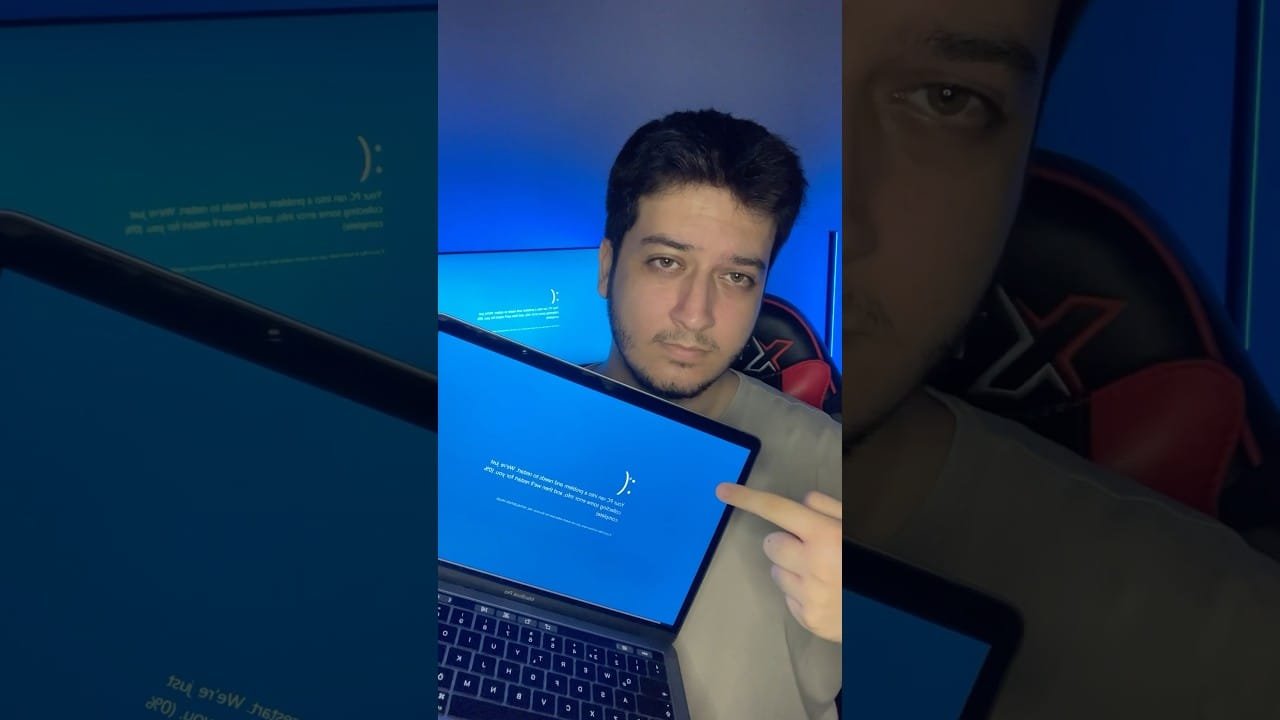
📺 Video Guide: I Fixed the WORST Blue Screen Error on Windows! (BSOD) #shorts
Video walkthrough courtesy of F5Reload on YouTube. Follow along with the visual steps above.
Frequently Asked Questions
Q1: What is the dxgmms2.sys file?
A: The dxgmms2.sys file is a system file related to the DirectX Graphics Kernel in Windows. It is essential for your graphics card to function correctly.
Q2: Can a faulty power supply cause this error?
A: Yes, an unstable or insufficient power supply can lead to various system errors, including the dxgmms2 sys blue screen, especially under heavy load on the GPU.
Q3: Should I format my hard drive to fix the dxgmms2 sys blue screen?
A: Formatting your hard drive should be a last resort. Try all other troubleshooting steps first, as formatting erases all data. A clean Windows installation might be a less destructive alternative.
Diagnostic Comparison Table
| Symptom | Likely Cause | Primary Solution | Secondary Solution |
|---|---|---|---|
| dxgmmss2 sys blue screen | Outdated/Corrupt GPU Drivers | Update GPU Drivers | Rollback GPU Drivers |
| dxgmmss2 sys blue screen | GPU Overheating | Clean PC Fans/Heatsinks | Monitor Temperatures |
| dxgmmss2 sys blue screen | Faulty RAM | Run Memory Diagnostic | Test RAM Modules Individually |
| dxgmmss2 sys blue screen | Corrupt System Files | Run SFC /scannow | DISM Commands |
By systematically working through these steps, you should be able to resolve the dxgmms2 sys blue screen crash and restore stability to your PC. Remember to always back up important data before making significant system changes.
For other system stability issues, you might find our guide on Windows memory management errors helpful. Additionally, if you encounter network-related problems, our article on OpenVPN error 10060 could provide solutions.
If you’re experiencing issues with other devices, consider these guides: PS5 E203 Error Fix, Smart TV Error 101 Fix, and ASUS ZenWiFi Red Light Fix.