

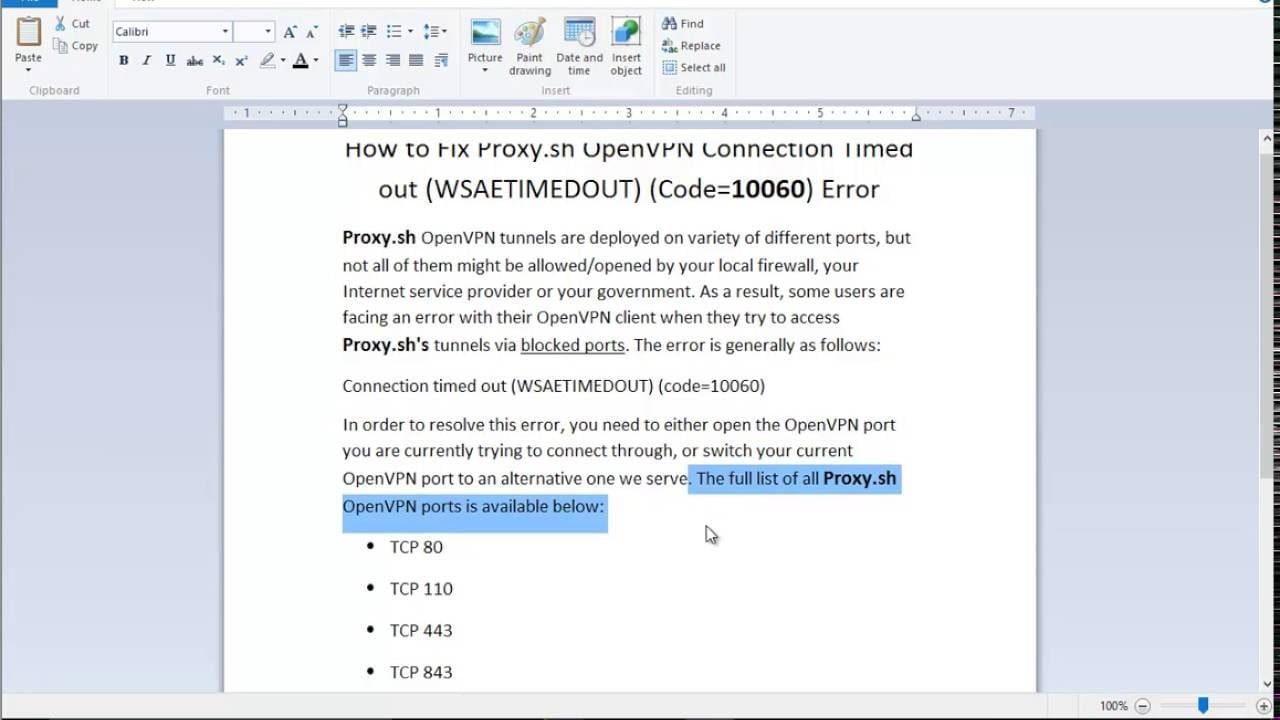
An OpenVPN error 10060 is a common issue that can disrupt your device performance. If you are experiencing an OpenVPN error 10060, this 2026 step-by-step diagnostic guide will help you troubleshoot and resolve the problem quickly.
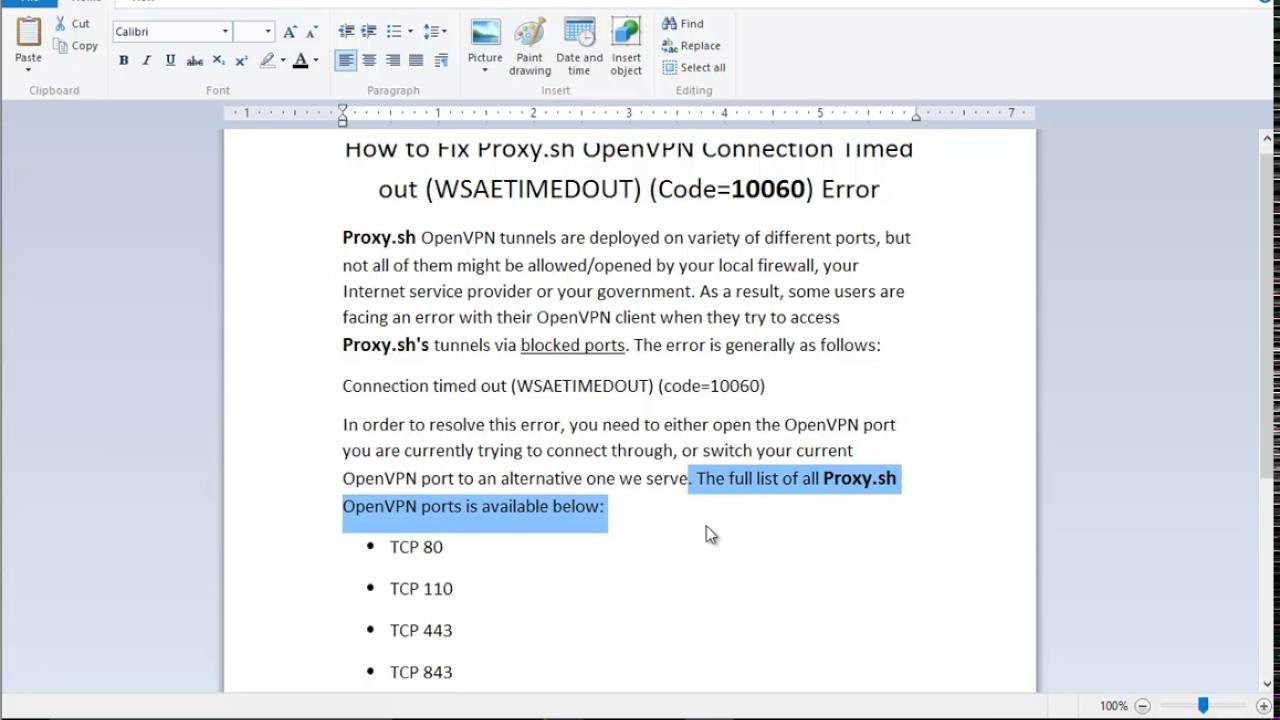
Initially, this connection failure occurs when the client fails to receive a response from the server. Consequently, the connection attempt times out, leaving users unable to access their secure network resources safely.
Fortunately, resolving this network timeout is straightforward when you follow a structured troubleshooting methodology. In this comprehensive guide, we will explore the primary causes and provide actionable solutions to restore your connectivity.
Furthermore, network security configurations often play a significant role in these connection issues. Therefore, understanding how your local system interacts with remote servers is essential for a permanent resolution.
In addition, we will cover advanced troubleshooting steps for complex network environments. Specifically, we will examine firewall rules, configuration files, and routing tables to ensure a seamless connection process.
Table of Contents
- Understanding the OpenVPN error 10060 Root Causes
- Step-by-Step OpenVPN error 10060 Solutions
- 1. Verify Server Status and IP Address
- 2. Configure Windows Firewall and Antivirus
- 3. Modify the OpenVPN Configuration File
- 4. Reset TCP/IP Stack and Flush DNS
- Advanced OpenVPN error 10060 Troubleshooting
- 5. Switch Protocols from UDP to TCP
- 6. Configure Router Port Forwarding
- Resolving OpenVPN error 10060 on Mobile Devices
- Diagnostic Comparison Table
- Preventative Best Practices
Understanding the Hardware System Root Causes
When trying to establish a connection, encountering the OpenVPN error 10060 indicates a connection timeout. Specifically, this means the client sent a request, but the destination server did not respond within the allocated timeframe.
There are several reasons why this communication failure happens. For example, the remote server might be offline, or network congestion could be delaying the packets. Additionally, local security software often blocks these outgoing connections entirely.
Furthermore, incorrect port forwarding on your router can prevent the handshake from completing successfully. If you are using advanced hardware, you might need to check your router configuration. For instance, resolving an ASUS ZenWiFi Red Light Fix often involves similar network troubleshooting steps.
In addition, internet service providers (ISPs) sometimes block specific VPN ports to restrict traffic. Therefore, understanding the underlying network path is crucial for diagnosing this timeout issue effectively.
Finally, outdated client software can cause compatibility issues with modern server protocols. Consequently, keeping your software updated is a fundamental step in maintaining a stable connection.

Step-by-Step Hardware System Solutions
To resolve the OpenVPN error 10060, you should first check your firewall settings. However, before diving into complex configurations, we must systematically isolate the root cause of the connection failure.
Consequently, we have compiled a series of proven diagnostic steps. By following these instructions in order, you can identify whether the issue lies with your local machine, your router, or the remote server.
Furthermore, we recommend performing these steps on a stable internet connection. For example, switching from a wireless connection to a wired Ethernet cable can eliminate local interference as a potential variable.
In addition, please ensure you have administrative privileges on your device. Specifically, modifying system-level network settings and firewall rules requires elevated permissions to execute successfully.
Finally, keep a record of any changes you make during this process. Therefore, if a specific adjustment does not resolve the issue, you can easily revert it to maintain system stability.
1. Verify Server Status and IP Address
Initially, you must confirm that the target OpenVPN server is active and reachable. If the server is offline, no amount of local troubleshooting will resolve the connection timeout.
To verify this, try pinging the server IP address from your command prompt. However, keep in mind that some secure servers disable ping responses for security reasons. Therefore, you should also check the server status page if available.
Next, double-check the server IP address and port number in your configuration file. Specifically, a simple typo in the destination address is a highly frequent cause of this error. Consequently, ensuring absolute accuracy here is vital.
If you are managing multiple network devices, ensure your local routing tables are correct. Sometimes, operating system errors can corrupt network routing. For example, addressing a Windows memory management issue can sometimes resolve broader system instability affecting network drivers.
Furthermore, try connecting to an alternative server location if your provider offers one. If the alternative connection succeeds, the primary server is likely experiencing temporary downtime.
2. Configure Windows Firewall and Antivirus
In many cases, local security software mistakenly blocks the OpenVPN client from accessing the internet. Therefore, you must configure your Windows Defender Firewall to allow OpenVPN traffic through both public and private networks.
To do this, open the Control Panel and navigate to System and Security. Next, select “Allow an app through Windows Firewall” and locate the OpenVPN executable. Consequently, checking both boxes will permit unrestricted traffic.
Furthermore, third-party antivirus programs often feature aggressive web shields that interfere with VPN protocols. For example, temporary disabling these shields can help you determine if they are the primary culprit. If the connection succeeds, you should add an exception for OpenVPN.
Finally, ensure that the specific UDP or TCP port used by your VPN is open. You can consult the official OpenVPN Community Resources to identify standard port configurations. Opening these ports on your local router is often necessary.
In addition, some security suites require a full system restart to apply new firewall rules. Therefore, reboot your computer after making these adjustments to ensure they take effect properly.
3. Modify the OpenVPN Configuration File
Sometimes, the default settings in your configuration file are incompatible with your current network environment. Consequently, modifying your configuration file can permanently eliminate the OpenVPN error 10060.
To begin, locate your configuration file, which typically ends with the .ovpn extension. Next, open this file using a standard text editor like Notepad with administrative privileges.
Specifically, look for the line that defines the connection protocol, usually labeled as “proto udp”. If you experience frequent timeouts, changing this line to “proto tcp” can establish a more stable connection.
Furthermore, you can add specific timeout parameters to force the client to keep trying. For example, adding the line “keepalive 10 60” instructs the client to send ping packets every ten seconds.
In addition, ensure that the “resolv-retry infinite” directive is present in the file. Consequently, this setting prevents the client from giving up on DNS resolution during temporary network drops.
Finally, save the changes and restart the OpenVPN GUI application to apply the new configuration. Therefore, this simple adjustment often resolves persistent handshake timeouts.
4. Reset TCP/IP Stack and Flush DNS
Corrupted network caches can prevent your operating system from resolving the VPN server’s address correctly. Therefore, resetting your TCP/IP stack and flushing your DNS cache is an excellent diagnostic step.
Initially, open the Command Prompt as an administrator by right-clicking the start menu. Next, type “ipconfig /flushdns” and press enter to clear the local DNS resolver cache completely.
Consequently, this forces your system to request fresh routing information from your DNS provider. Furthermore, you should reset the Winsock catalog by typing “netsh winsock reset” in the command prompt.
In addition, reset the TCP/IP stack by executing the command “netsh int ip reset”. This command restores your network protocols to their default installation state, clearing any underlying corruption.
Finally, restart your computer to complete the reset process. For example, this method is highly effective for resolving various persistent network connectivity issues across all Windows devices.
Advanced OpenVPN error 10060 Troubleshooting
If the basic solutions do not resolve the issue, advanced troubleshooting is required. Specifically, we must analyze the network packets and routing tables to identify where the connection is failing.
Consequently, using network diagnostic tools like Traceroute can provide valuable insights. By tracing the path to the server, you can pinpoint exactly which router or node is dropping your packets.
Furthermore, check if your local router has a feature called “VPN Passthrough” enabled. For example, some routers block VPN protocols by default to protect the local network from unauthorized tunnels.
In addition, verify that your local IP subnet does not conflict with the remote VPN subnet. Specifically, if both networks use the common “192.168.1.X” range, routing conflicts will inevitably occur.
Therefore, changing your local router’s subnet to a less common range can resolve these conflicts. Finally, this advanced step ensures that your local traffic is routed correctly to the virtual network.
5. Switch Protocols from UDP to TCP
By default, OpenVPN uses the UDP protocol because of its superior speed and lower latency. However, UDP is a connectionless protocol, meaning it does not guarantee packet delivery.
Consequently, in unstable network environments, UDP packets can be dropped easily, leading to timeouts. Therefore, switching to the TCP protocol can provide a much more reliable connection.
Specifically, TCP requires a formal handshake and verifies that every packet is received correctly. To switch protocols, modify your configuration file as detailed in the previous steps.
Furthermore, some public networks and firewalls actively block UDP traffic while allowing TCP traffic on standard ports. For example, routing your VPN through TCP port 443 can bypass most firewalls.
In addition, this port is used for secure web traffic, making VPN traffic look like standard HTTPS. Finally, this technique is highly effective for bypassing strict network restrictions globally.
6. Configure Router Port Forwarding
Sometimes, your local router blocks incoming responses from the VPN server. Therefore, configuring port forwarding on your router can establish a clear path for network traffic.
Initially, log into your router’s admin panel using your web browser. Next, locate the port forwarding section, which is typically found under advanced network settings.
Consequently, you must create a new rule forwarding the specific port used by your VPN to your local machine’s static IP address. For example, forwarding UDP port 1194 is standard for many configurations.
Furthermore, ensure that UPnP (Universal Plug and Play) is enabled on your router. In addition, this setting allows devices to automatically negotiate port configurations, reducing manual setup errors.
Finally, save your router settings and reboot the device to apply the changes. This step ensures that incoming packets are directed to your computer without delay.
Resolving OpenVPN error 10060 on Mobile Devices
While this issue is common on desktop systems, mobile users can also experience connection timeouts. Specifically, switching between Wi-Fi and cellular networks often triggers routing conflicts.
To resolve this on mobile, initially try disabling your Wi-Fi and connecting solely via cellular data. Consequently, this helps determine if your local wireless router is blocking the connection.
Furthermore, ensure that the OpenVPN Connect app has permission to run in the background. For example, aggressive battery-saving modes on Android can terminate VPN processes unexpectedly. If you encounter other mobile issues, resolving an Android SystemUI Not Responding error can stabilize your device’s overall performance.
In addition, reinstalling the official client application can clear corrupted cache files. Therefore, always download the latest version from the official app store to ensure maximum compatibility.
Finally, verify that your mobile security software is not blocking the VPN tunnel. Specifically, disabling temporary security shields can quickly isolate the root cause of the connection failure.
Diagnostic Comparison Table
To help you quickly identify the most likely cause of your connection issues, we have created a diagnostic comparison table. This resource outlines common symptoms and their corresponding solutions.
| Symptom | Likely Cause | Recommended Action |
|---|---|---|
| Immediate Timeout | Server Offline / Wrong IP | Verify server status and configuration file. |
| Delayed Timeout | Firewall Blocking Traffic | Add OpenVPN to firewall exceptions list. |
| Intermittent Timeout | Network Congestion / ISP Throttling | Switch from UDP to TCP protocol. |
| DNS Resolution Failure | Misconfigured DNS Servers | Change local DNS to Google or Cloudflare. |
By analyzing these symptoms, you can save significant time during the troubleshooting process. Consequently, you will be able to apply the correct fix without unnecessary trial and error.
Furthermore, keep in mind that multiple factors can contribute to network timeouts simultaneously. Therefore, we recommend applying these solutions systematically to ensure all potential issues are addressed.
Preventative Best Practices
To avoid encountering network timeouts in the future, implementing preventative measures is highly recommended. Specifically, keeping your OpenVPN client updated ensures compatibility with the latest security protocols and server configurations.
Furthermore, regularly backing up your working configuration files prevents accidental data loss. If you modify settings and encounter issues, you can easily revert to a known stable state. Therefore, maintaining a backup folder is an excellent habit.
In addition, consider configuring a secondary backup VPN server in your client profile. Consequently, if the primary server experiences downtime, your client will automatically switch to the backup, maintaining your secure connection.
Finally, monitor your local network health consistently. For instance, resolving router issues promptly prevents connection drops. In conclusion, resolving the OpenVPN error 10060 requires a systematic approach to network diagnostics, ensuring your secure tunnel remains stable and reliable.
📺 Video Guide: Fix Proxy.sh OpenVPN Connection Timed out (WSAETIMEOUT) Error 10060
Video walkthrough courtesy of HalfGēk on YouTube. Follow along with the visual steps above.









[…] indicate a failing device. For other network-related issues, you might find our guide on fixing the OpenVPN error 10060 helpful, or perhaps troubleshooting a Smart Lock Not Connecting […]
[…] offer solutions. For instance, if you encounter connectivity problems with OpenVPN, the guide on OpenVPN error 10060 could be […]