

A GPU driver error 43 is a common issue that can disrupt your device performance. If you are experiencing a GPU driver error 43, this 2026 step-by-step diagnostic guide will help you troubleshoot and resolve the problem quickly.
This error message, often appearing in Device Manager, indicates that Windows has stopped the graphics card because it has reported problems. Consequently, you might experience performance issues, graphical glitches, or a complete lack of display output. Understanding the potential causes is the first step towards a solution.
Understanding the GPU Driver Error 43 Cause
The primary reasons for a GPU driver error 43 are usually related to the graphics driver itself. This can include outdated drivers, corrupted driver files, or conflicts with other software. Furthermore, a faulty graphics card or issues with the PCIe slot can also trigger this error.
In some cases, Windows updates might install a driver that is not fully compatible with your hardware. Therefore, it’s crucial to verify driver compatibility before and after updates. This problem can affect both NVIDIA and AMD graphics cards.
Initial Troubleshooting Steps
Before diving into complex solutions, let’s try some basic troubleshooting. Firstly, restart your computer. A simple reboot can often resolve temporary glitches. Secondly, ensure your Windows operating system is up to date.
Additionally, check if any recently installed software might be causing a conflict. If the GPU driver error 43 appeared after a software installation, consider uninstalling that program. Next, physically reseat your graphics card in its PCIe slot.
Updating Graphics Drivers
Outdated or corrupted graphics drivers are the most frequent culprits behind the GPU driver error 43. Therefore, updating your drivers is a critical step. You can do this through Device Manager or by downloading the latest drivers directly from the manufacturer’s website (NVIDIA or AMD).
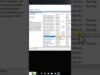
Specifically, navigate to Device Manager, expand ‘Display adapters’, right-click your graphics card, and select ‘Update driver’. Alternatively, visit the NVIDIA or AMD website, find the driver download section, and select your graphics card model and operating system.
Clean Installation of Drivers
Sometimes, a standard driver update isn’t enough. A clean installation removes all previous driver files and settings, preventing potential conflicts. This is often more effective for resolving persistent GPU driver error 43 issues.
To perform a clean installation, download the latest driver package. Then, use a tool like Display Driver Uninstaller (DDU) in Safe Mode to completely remove existing drivers. Finally, install the newly downloaded drivers.
Checking for Windows Updates
Windows updates often include driver updates and bug fixes that can resolve hardware conflicts. Therefore, ensuring your system is fully updated is essential. Sometimes, a specific Windows update might even be the cause of the GPU driver error 43.
Go to Settings > Update & Security > Windows Update and click ‘Check for updates’. Install all available updates, including optional ones, as they might contain important driver packages. After updating, restart your PC.
Advanced Solutions for GPU Driver Error 43
If the above steps haven’t resolved the GPU driver error 43, consider these more advanced solutions. You can try rolling back to a previous driver version if the issue started after an update. This is done via Device Manager.
Furthermore, disabling and then re-enabling the graphics card in Device Manager can sometimes refresh its status. Another approach is to perform a clean boot of Windows to isolate software conflicts. You might also want to check for BIOS/UEFI updates for your motherboard.
Hardware Considerations
In rare cases, the GPU driver error 43 can point to a failing graphics card. If you have tried all software-related fixes and the problem persists, it’s time to consider hardware. Ensure your GPU is properly seated in the PCIe slot and that its power connectors are secure.
Testing the graphics card in another compatible computer can help determine if it’s faulty. If the GPU driver error 43 appears on another system, the card likely needs replacement. For related connectivity issues, check out our guide on the Orbi Red Light Error.
Diagnostic Comparison Table
| Troubleshooting Step | Likelihood of Fixing GPU Driver Error 43 | Complexity |
|---|---|---|
| Restart Computer | Low | Very Easy |
| Update Graphics Drivers | High | Easy |
| Clean Driver Installation | Very High | Medium |
| Check Windows Updates | Medium | Easy |
| Roll Back Driver | Medium | Easy |
| Reseat GPU | Medium | Medium |
| Hardware Fault Diagnosis | High (if software fails) | Hard |
Preventative Best Practices
To minimize the chances of encountering a GPU driver error 43 in the future, follow these best practices. Always download drivers from official manufacturer websites. Avoid installing beta drivers unless you are an advanced user and understand the risks.
Furthermore, keep your Windows operating system updated regularly. Regularly clean your PC’s interior to prevent dust buildup, which can cause overheating and hardware issues. Consider using system restore points before major driver or Windows updates.
📺 Video Guide: Fix NVIDIA Graphic Card Code 43 | Windows Has Stopped This Device Because It Has Reported Problem
Video walkthrough courtesy of Tech Decode on YouTube. Follow along with the visual steps above.
Frequently Asked Questions
What if the GPU driver error 43 persists after all steps?
If the GPU driver error 43 continues to appear despite trying all software and driver solutions, it strongly suggests a hardware problem. This could be with the graphics card itself or potentially the motherboard’s PCIe slot. At this point, testing the GPU in another system or seeking professional hardware diagnostics is recommended.
Can a faulty power supply cause GPU driver error 43?
Yes, an insufficient or unstable power supply unit (PSU) can lead to various hardware errors, including the GPU driver error 43. If your PSU is not providing enough stable power to the graphics card, it may malfunction and report errors to Windows. Ensure your PSU meets the recommended wattage for your GPU.
Does overclocking affect GPU driver error 43?
Overclocking your GPU can sometimes lead to instability and errors, including the GPU driver error 43. If you have overclocked your graphics card, try reverting to its default clock speeds. This can help determine if the overclock is the cause of the problem.
For other system stability issues, you might find our guide on dxgmmss2.sys blue screen helpful. Additionally, if you’re facing memory-related problems, consult our article on Windows memory management.
In conclusion, while the GPU driver error 43 can be frustrating, it is often resolvable with systematic troubleshooting. By following the steps outlined in this guide, you can effectively diagnose and fix the issue, restoring your PC’s graphical performance.








[…] other connectivity issues, you might find our guides on GPU Driver Error 43 or Orbi Red Light Error […]
[…] related display and connectivity issues, you might find our guides on GPU Driver Error 43 Fix and PS5 E203 Error Fix […]
[…] you encounter other driver-related issues, such as the GPU Driver Error 43, the troubleshooting steps might be similar, often involving driver […]
[…] You might also want to check your computer’s display settings. Ensure that the correct resolution and refresh rate are selected for your monitor. Incorrect settings can sometimes cause communication problems that manifest as an error code. For more complex issues, consider checking for GPU driver errors, like the GPU driver error 43 fix. […]