


A nvlddmkm sys error is a common issue that can disrupt your device performance. If you are experiencing a nvlddmkm sys error, this 2026 step-by-step diagnostic guide will help you troubleshoot and resolve the problem quickly.

The nvlddmkm sys error code 0x0000003d specifically points towards a critical issue within the Nvidia Windows Kernel Mode Driver. Consequently, this often results in a Blue Screen of Death (BSOD), halting your system’s operation. Understanding the root cause is the first step towards a solution.
Understanding the nvlddmkm sys error Cause
This particular error, nvlddmkm sys error code 0x0000003d, is almost exclusively tied to Nvidia graphics card drivers. It signifies that the driver has encountered an unrecoverable error. Therefore, it must stop the system to prevent further damage.
Common triggers include corrupted driver files, outdated drivers, or conflicts with other software. Furthermore, sometimes a faulty graphics card or even RAM issues can manifest as this nvlddmkm sys error.
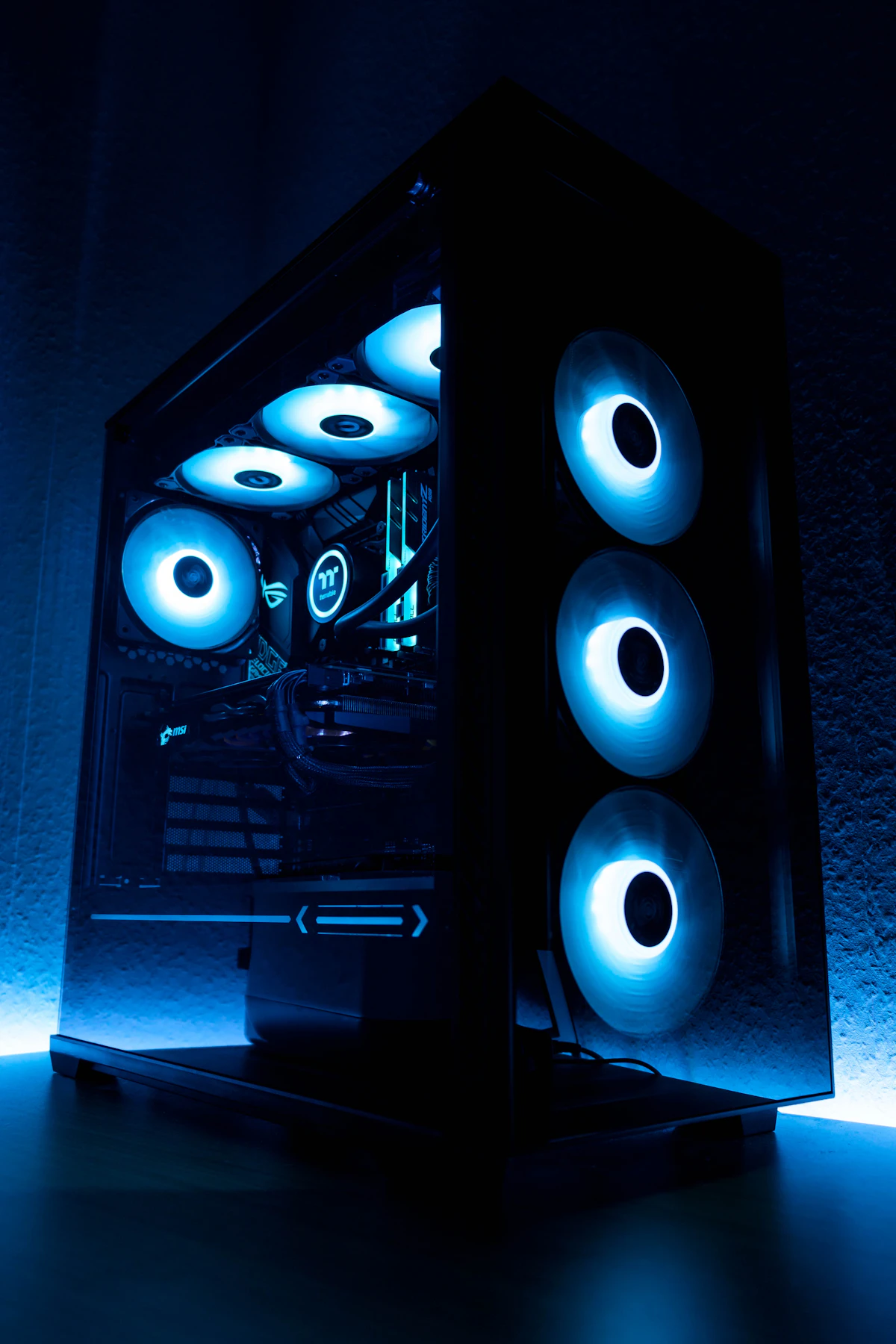
Diagnostic Comparison Table
| Symptom | Likely Cause | Troubleshooting Step |
|---|---|---|
| nvlddmkm sys error BSOD | Nvidia Driver Issue | Update/Reinstall Driver |
| System Instability | Corrupted System Files | Run SFC/DISM |
| Frequent Crashes | Overheating GPU | Check Temperatures |
Initial Troubleshooting Steps
Initially, the simplest solution for the nvlddmkm sys error is often to update your Nvidia graphics drivers. Visit the official Nvidia website and download the latest drivers for your specific GPU model.
However, sometimes the latest driver can be the culprit. If the problem started after a driver update, consider rolling back to a previous version. This can be done through the Nvidia Control Panel or Device Manager.
Clean Driver Installation
For a more thorough fix for the nvlddmkm sys error, perform a clean installation of your graphics drivers. This removes all previous driver files and settings before installing the new ones.
Use a tool like Display Driver Uninstaller (DDU) in Safe Mode to completely remove old drivers. Then, install the latest drivers downloaded from Nvidia’s website. This often resolves persistent nvlddmkm sys error issues.
Checking for Windows Updates
Ensure your Windows operating system is up-to-date. Microsoft frequently releases patches that can resolve compatibility issues with hardware drivers, including those for Nvidia cards.
Navigate to Settings > Update & Security > Windows Update and check for any available updates. Install all recommended and optional updates, especially those related to drivers.
System File Checker (SFC) and DISM
Corrupted Windows system files can also contribute to the nvlddmkm sys error. The System File Checker (SFC) tool can scan for and repair these corrupted files.
Open Command Prompt as an administrator and type `sfc /scannow`. If SFC cannot fix the issue, you can use the Deployment Image Servicing and Management (DISM) tool. Run `DISM /Online /Cleanup-Image /RestoreHealth`.
Verifying GPU and RAM Health
In some cases, the nvlddmkm sys error might indicate a hardware problem. Overheating can cause instability. Monitor your GPU temperatures using software like MSI Afterburner or HWMonitor.
Furthermore, faulty RAM can also lead to BSODs. You can test your RAM using the Windows Memory Diagnostic tool or MemTest86. If either your GPU or RAM fails these tests, consider seeking professional repair or replacement.
Troubleshooting Related Errors
If you encounter other driver-related issues, such as the GPU Driver Error 43, the troubleshooting steps might be similar, often involving driver reinstallation.
Similarly, errors like dxgmmss2 sys blue screen also point to graphics subsystem problems. Addressing the nvlddmkm sys error might resolve these related issues.
Preventative Best Practices
To prevent future occurrences of the nvlddmkm sys error, always keep your graphics drivers updated. However, be cautious and consider waiting a few days after a new driver release to check for user feedback.
Regularly run system file checks and monitor your hardware temperatures. Additionally, avoid installing software from untrusted sources, as malware can sometimes interfere with system drivers.
📺 Video Guide: Too many Blue screens! 😡 #pcrepair #techvideo #pcgaming #pcbuild #pc
Video walkthrough courtesy of GamerTechToronto on YouTube. Follow along with the visual steps above.
Frequently Asked Questions
Q1: Can a faulty power supply cause the nvlddmkm sys error?
A: Yes, an unstable or insufficient power supply can lead to component malfunctions, including the GPU, which might trigger the nvlddmkm sys error.
Q2: Should I format my hard drive to fix this error?
A: Formatting should be a last resort. Try all other software and driver solutions first. A clean OS install is less drastic than a full format.
Q3: How do I know if my Nvidia driver is corrupt?
A: Symptoms include the nvlddmkm sys error, graphical glitches, performance drops, or failure to install drivers correctly. A clean reinstall is the best way to confirm.
Q4: Is it safe to overclock my GPU?
A: Overclocking can push hardware beyond its stable limits, potentially causing errors like the nvlddmkm sys error. It’s best to run at stock speeds if experiencing issues.
Q5: What is the nvlddmkm sys file?
A: Nvlddmkm.sys is the Nvidia Windows Kernel Mode Driver. It’s essential for your graphics card to function correctly within the Windows operating system.
Q6: How to fix nvlddmkm sys error on Windows 11?
A: The troubleshooting steps are largely the same for Windows 11 as for other versions. Focus on driver updates, clean installs, and system file checks.
Q7: Can I disable the nvlddmkm sys driver?
A: Disabling this driver is not recommended as it will prevent your Nvidia graphics card from functioning. The goal is to fix it, not disable it.
Q8: What is the nvlddmkm sys error code 0x0000003d?
A: This specific code indicates a critical driver error, often related to memory management or a driver crash, leading to a BSOD.
Q9: How to fix nvlddmkm sys error after Windows update?
A: After a Windows update, the issue is likely a driver conflict. Roll back the driver or perform a clean installation of the latest compatible Nvidia driver.
Q10: Does updating BIOS fix nvlddmkm sys error?
A: While less common, an outdated BIOS can sometimes cause hardware compatibility issues. Updating your motherboard’s BIOS might resolve the nvlddmkm sys error in rare cases.
Conclusion
The nvlddmkm sys error code 0x0000003d can be frustrating, but it is usually resolvable. By systematically working through driver updates, clean installations, and system checks, you can restore stability to your PC.
Remember to also consider potential hardware issues if software solutions do not resolve the nvlddmkm sys error. For related graphics issues, check out our guide on Windows memory management errors, which can sometimes overlap.
If you’ve tried all these steps and the nvlddmkm sys error persists, it might be time to consult a professional technician or consider contacting Nvidia support for further assistance.







[…] can appear across various devices. For instance, you might encounter related issues such as the nvlddmkm sys error when troubleshooting alternative GPU architectures on your custom […]