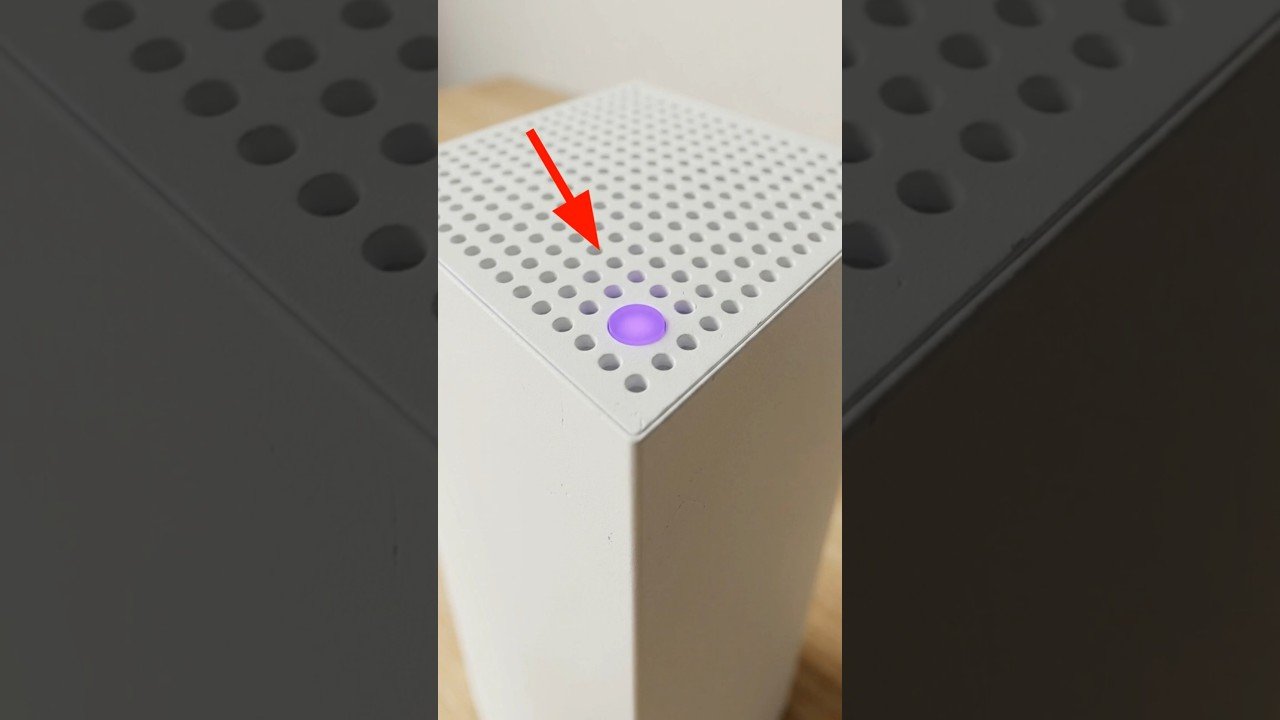
A Linksys Velop red light is a common issue that can disrupt your device performance. If you are experiencing a Linksys Velop red light, this 2026 step-by-step diagnostic guide will help you troubleshoot and resolve the problem quickly.
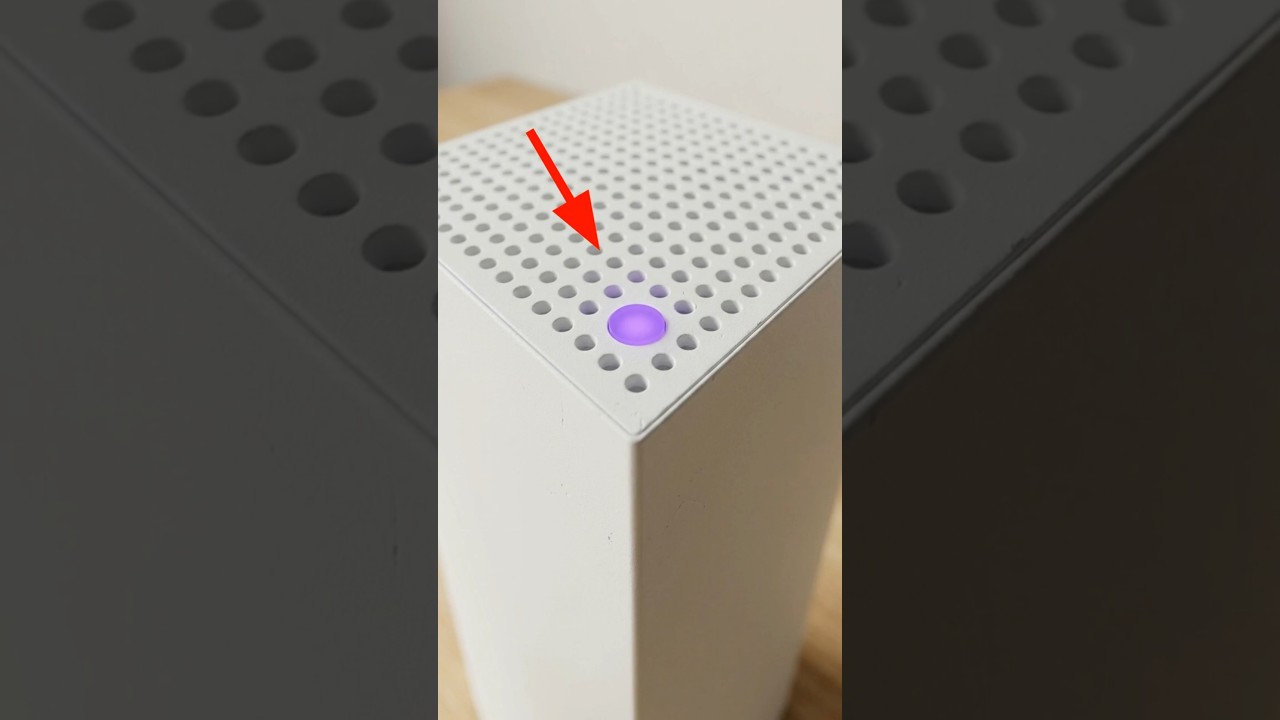
This comprehensive guide covers everything from basic restarts to advanced network configurations. Furthermore, we provide preventative measures to ensure your mesh Wi-Fi system remains stable. Consequently, you can maintain seamless connectivity throughout your home or office.
Table of Contents
- Understanding the Linksys Velop Red Light
- Initial Troubleshooting Steps for Linksys Velop Red Light
- Advanced Solutions for Persistent Connectivity Issues
- Diagnostic Comparison Table: Velop Light Indicators
- Preventing Future Linksys Velop Red Light Problems
- When to Contact Linksys Support
- Frequently Asked Questions
- Conclusion
Understanding the Linksys Velop Red Light
The Linksys Velop system uses LED indicators to communicate its status. A solid red light typically signals a critical issue, primarily a loss of internet connection. This means your Velop node cannot reach the internet, or it has lost connection with the primary node in your mesh network.
Initially, this can be alarming, but understanding the root cause is the first step towards a resolution. Furthermore, it’s crucial to differentiate between a solid red light and other indicators like blinking red or blue lights. Each color and pattern signifies a different operational state or problem.
Initial Troubleshooting Steps for Linksys Velop Red Light
When faced with a Linksys Velop red light, begin with these fundamental troubleshooting steps. These actions often resolve common connectivity glitches without requiring complex technical knowledge. Therefore, they are an excellent starting point for any user.
1. Power Cycle Your Modem and Velop Nodes
A simple power cycle can often clear temporary network issues. First, unplug your modem from its power source. Next, unplug all your Linksys Velop nodes. Wait for at least 60 seconds to ensure a complete power discharge.
Subsequently, plug your modem back in and wait for it to fully boot up and establish an internet connection (usually indicated by stable lights). Finally, plug in your primary Velop node, followed by any secondary nodes. Allow each node to boot completely before moving to the next.
2. Check All Cable Connections
Loose or damaged Ethernet cables are a frequent cause of connectivity problems. Verify that the Ethernet cable connecting your primary Velop node to your modem is securely plugged in at both ends. Furthermore, inspect the cable for any visible damage or kinks.
If you are using Ethernet backhaul for your Velop system, ensure all inter-node connections are also secure. A faulty cable can easily disrupt the network, leading to a persistent Linksys Velop red light. Consider replacing older cables if you suspect they are compromised.
3. Reposition Velop Nodes for Better Signal
Mesh Wi-Fi systems rely on strong signal communication between nodes. If a secondary node displays a Linksys Velop red light, it might be too far from the primary node or another strong signal source. Obstructions like thick walls or large appliances can also interfere.
Try moving the affected node closer to the primary node or to a more open area. Ideally, nodes should be within reasonable range of each other, without too many physical barriers. This improves signal strength and helps re-establish a stable connection.
Advanced Solutions for Persistent Connectivity Issues
If the initial steps do not resolve the Linksys Velop red light, it’s time to delve into more advanced solutions. These methods address deeper network or configuration problems. Consequently, they require a bit more attention to detail.
1. Verify Internet Service Provider (ISP) Status
Sometimes, the issue isn’t with your Velop system but with your internet service itself. Check if your ISP is experiencing an outage in your area. You can do this by visiting their website, checking their social media, or contacting their customer support.
If there’s an outage, your Linksys Velop red light will persist until service is restored. In addition, try connecting a device directly to your modem via Ethernet to confirm if the modem itself is receiving an internet signal. This helps isolate the problem source.
2. Update Velop Firmware
Outdated firmware can lead to various performance and connectivity issues. Linksys regularly releases firmware updates to improve stability and fix bugs. Access your Velop system’s administration panel via the Linksys app or a web browser.
Navigate to the firmware update section and check for available updates. If an update is available, follow the on-screen instructions to install it. Ensuring your system runs on the latest firmware can often resolve unexpected problems, including the Linksys Velop red light.
3. Perform a Factory Reset (Last Resort)
A factory reset should be considered a last resort, as it will erase all your custom settings and configurations. This essentially returns your Velop system to its out-of-the-box state. You will need to set up your network again from scratch.
To perform a factory reset, locate the reset button on the bottom of your Velop node (often a small pinhole). Use a paperclip to press and hold the button for about 10-15 seconds until the light on the node turns red and then flashes. Release the button and allow the node to restart. You may need to reconfigure your network, similar to fixing a streaming stick error code 403 if it was network related.

Diagnostic Comparison Table: Velop Light Indicators
Understanding the different LED indicators on your Linksys Velop nodes can help you quickly diagnose issues. This table provides a quick reference for common light statuses and their meanings. Consequently, you can identify the problem more efficiently.
| LED Status | Meaning | Common Fixes |
|---|---|---|
| Solid Blue | Connected to internet, working well. | No action needed. |
| Solid Red | No internet connection or node out of range. | Power cycle, check cables, reposition nodes, check ISP. |
| Blinking Red | Node is out of range or has a weak signal. | Reposition node closer to primary. |
| Solid Yellow | Node is too far from another node (weak connection). | Move node closer to improve signal. |
| Blinking Blue | Node is starting up or connecting. | Wait for solid blue; if persistent, power cycle. |
Preventing Future Linksys Velop Red Light Problems
Proactive measures can significantly reduce the likelihood of encountering a Linksys Velop red light again. Implementing these best practices ensures a more stable and reliable mesh Wi-Fi network. Therefore, focus on these preventative steps for long-term performance.
1. Optimal Node Placement
Strategic placement of your Velop nodes is paramount. Avoid placing nodes in enclosed spaces, behind large electronics, or near sources of interference like microwaves. Aim for line-of-sight where possible, or at least minimize obstructions between nodes.
Consider using the Linksys app’s signal strength indicator to find the best locations. Proper placement ensures robust communication between nodes, preventing weak signal issues that can lead to a Linksys Velop red light. This also helps avoid issues like a tablet update fail due to network instability.
2. Regular Firmware Updates
Keep your Velop system’s firmware up to date. Firmware updates often include performance enhancements, security patches, and bug fixes that can prevent connectivity problems. Enable automatic updates if available, or schedule regular manual checks.
This ensures your system benefits from the latest improvements and remains resilient against potential issues. A well-maintained system is less likely to display a Linksys Velop red light, providing a smoother user experience. Furthermore, it enhances overall network security.
3. Monitor Network Health
Utilize the Linksys app to monitor your network’s health. The app provides insights into connected devices, network speed, and node status. Regularly checking these metrics can help you identify potential issues before they escalate into a full-blown Linksys Velop red light.
Addressing minor slowdowns or intermittent disconnections early can prevent more significant problems. Furthermore, understanding your network’s typical performance helps you quickly spot anomalies. This proactive approach is key to maintaining a healthy Wi-Fi environment.
When to Contact Linksys Support
Despite all troubleshooting efforts, some issues may require professional assistance. If you have exhausted all the diagnostic steps and your Linksys Velop red light persists, it’s time to reach out to Linksys customer support. Provide them with detailed information about the problem and the steps you’ve already taken.
They can offer advanced diagnostics, specific firmware solutions, or determine if a hardware replacement is necessary. For further assistance, you can visit the official Linksys Velop Support Page. Remember, their expertise is invaluable for complex or persistent issues.
Frequently Asked Questions
Here are some common questions users have about the Linksys Velop red light and related issues. These answers provide quick solutions and clarifications for frequent concerns. Consequently, they can help you resolve minor queries efficiently.
Why is my Linksys Velop node solid red?
A solid red light on your Linksys Velop node typically signifies that the node has lost its internet connection or is out of range from the primary node. This often points to an issue with your internet service provider, modem, or the mesh network’s signal strength.
How do I reset a Linksys Velop system?
To soft reset, unplug the power from your Velop node, wait 10 seconds, then plug it back in. For a factory reset, press and hold the reset button on the bottom of the node for 10-15 seconds until the light turns red and then flashes. This will erase all settings.
What does a blinking red light mean on Linksys Velop?
A blinking red light on a Linksys Velop node indicates that the node is out of range from the primary node or has a weak signal. It’s trying to connect but cannot establish a stable link. Repositioning the node closer to the primary or another strong node can often resolve this.
Conclusion
Resolving a Linksys Velop red light issue is often a straightforward process involving a series of diagnostic steps. By systematically checking your modem, cables, node placement, and firmware, you can restore your network’s functionality. Ultimately, a stable mesh Wi-Fi system is crucial for seamless digital experiences.
If your Linksys Velop red light persists after following this guide, don’t hesitate to contact Linksys support. Their specialized knowledge can provide the ultimate solution. Furthermore, adopting preventative measures will help maintain a robust and reliable network for years to come.
📺 Video Guide: Linksys Velop Solid Purple Light? 4 Fixes to Get Back Online!
Video walkthrough courtesy of TechHelpAndSupport on YouTube. Follow along with the visual steps above.