A VPN error code 0x80070002 is a common issue that can disrupt your device performance. If you are experiencing a VPN error code 0x80070002, this 2026 step-by-step diagnostic guide will help you troubleshoot and resolve the problem quickly.
This particular error often points to problems with Windows Update files or corrupted system files. Consequently, it can prevent your VPN client from installing, updating, or connecting properly. Therefore, understanding the root cause is crucial for effective resolution.
Understanding the VPN Error Code 0x80070002
The 0x80070002 error code, also known as ERROR_FILE_NOT_FOUND, signifies that a file the system is trying to access cannot be found. In the context of VPNs, this often relates to missing or corrupted files needed by the VPN software or by Windows itself for network operations.
Furthermore, this issue can arise after a failed Windows update or if system files have become damaged. It’s important to note that this error isn’t exclusive to VPNs but can affect various software installations and updates.

Diagnostic Comparison Table
| Symptom | Potential Cause | Resolution Step |
|---|---|---|
| VPN fails to install/update | Corrupted Windows Update cache | Run Windows Update Troubleshooter |
| VPN connection drops | Missing system files | Run SFC and DISM scans |
| General network instability | Network configuration issues | Reset network settings |
Step-by-Step VPN error 0x80070002 Solutions VPN Error Code 0x80070002 Solutions
Initially, let’s explore the most common and effective methods to fix the VPN error code 0x80070002. We will start with the simplest solutions and progress to more advanced ones.
1. Run the Windows Update Troubleshooter
The Windows Update Troubleshooter is designed to automatically detect and fix common problems with Windows Update. This is often the first and most effective step when encountering errors like 0x80070002, especially if it’s related to update files.
To run it, go to Settings > Update & Security > Troubleshoot > Additional troubleshooters. Select ‘Windows Update’ and click ‘Run the troubleshooter’. Follow the on-screen prompts.
2. Clear the Windows Store Cache
Sometimes, corrupted cache files can interfere with downloads and updates, including those related to VPN applications. Clearing the cache can resolve this. Press the Windows key + R, type ‘wsreset.exe’, and press Enter.
A blank Command Prompt window will open, followed by the Microsoft Store. Once the Store opens, you can close it. This action clears the cache. Consequently, try installing or updating your VPN again.
3. Reset Network Settings
Network configuration issues can sometimes manifest as file-related errors. Resetting your network adapters can resolve underlying connectivity problems. Go to Settings > Network & Internet > Status.
Scroll down and click ‘Network reset’. Then, click ‘Reset now’ and confirm. Your PC will restart. Therefore, ensure you have your Wi-Fi password handy after the reset.
4. Run System File Checker (SFC) and DISM
Corrupted system files are a frequent cause of the 0x80070002 error. The SFC and DISM tools can scan for and repair these files. Open Command Prompt as an administrator.
First, type `sfc /scannow` and press Enter. Let it complete. Next, type `DISM /Online /Cleanup-Image /RestoreHealth` and press Enter. These scans are vital for system integrity.
5. Check VPN Client and Windows Updates
Ensure both your VPN client software and your Windows operating system are fully updated. Outdated software can lead to compatibility issues and errors like the VPN error code 0x80070002.
For Windows updates, go to Settings > Update & Security > Windows Update. For your VPN, check its official website or the app itself for update options. Keeping software current is a key preventative measure.
6. Reinstall the VPN Software
If none of the above steps work, a complete reinstallation of the VPN client might be necessary. First, uninstall the VPN software through ‘Apps & features’ in Windows Settings. Then, restart your computer.
Download the latest version of your VPN from its official website. Finally, install it and try connecting again. This process ensures a clean installation without any lingering corrupted files.
Preventative Best Practices
To avoid encountering the VPN error code 0x80070002 in the future, it’s essential to maintain your system. Regularly run Windows updates and system file checks. Furthermore, always download software from official sources.
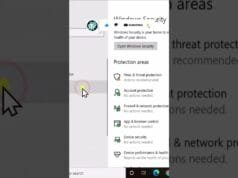
Additionally, ensure you have a reliable antivirus program installed. This helps prevent malware that could corrupt system files. Finally, keep your VPN client updated to the latest version available.
Troubleshooting Related Errors
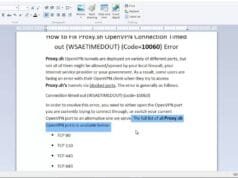
If you are experiencing other network-related issues, several articles on Jompatech might offer solutions. For instance, if you encounter connectivity problems with OpenVPN, the guide on OpenVPN error 10060 could be helpful.
Similarly, issues with network adapters or drivers can cause various problems. You might find relevant information in guides like the one for GPU Driver Error 43 Fix or the nvlddmkm sys error, as driver issues can sometimes cascade into broader system instability.
For router-specific problems, such as a Netgear Orbi red light error, consult the dedicated guide on Orbi Red Light Error. These articles cover a range of technical challenges you might face.
📺 Video Guide: Fix error code 0x80072746 when connecting to PureVPN SSTP
Video walkthrough courtesy of HalfGēk on YouTube. Follow along with the visual steps above.
Frequently Asked Questions
Here are some common questions regarding the VPN error code 0x80070002.
Why does VPN error 0x80070002 occur during updates?
This error typically happens during updates because the update process requires specific files that are either missing, corrupted, or inaccessible due to other system issues. The Windows Update service itself might also be encountering problems.
Can a VPN software conflict cause this error?
While less common, a conflict between your VPN software and other security programs or system services could potentially lead to file access issues. It’s always good practice to ensure your security software is compatible.
Is it safe to reset network settings?
Yes, resetting network settings is generally safe. It removes and reinstalls all network adapters and sets other networking components back to their original settings. You will need to re-enter Wi-Fi passwords and reconfigure any static IP addresses.
However, it’s a powerful troubleshooting step for many network-related problems. For more complex network issues, you might also want to check guides on audio problems like Audio Crackle Bluetooth or system stability issues like Windows memory management, as they can sometimes be related to underlying system health.
In conclusion, resolving the VPN error code 0x80070002 involves systematically checking for corrupted files, update issues, and network configuration problems. By following these steps, you should be able to restore your VPN functionality.