

A VPN error 800 is a common issue that can disrupt your device performance. If you are experiencing a VPN error 800, this 2026 step-by-step diagnostic guide will help you troubleshoot and resolve the problem quickly.
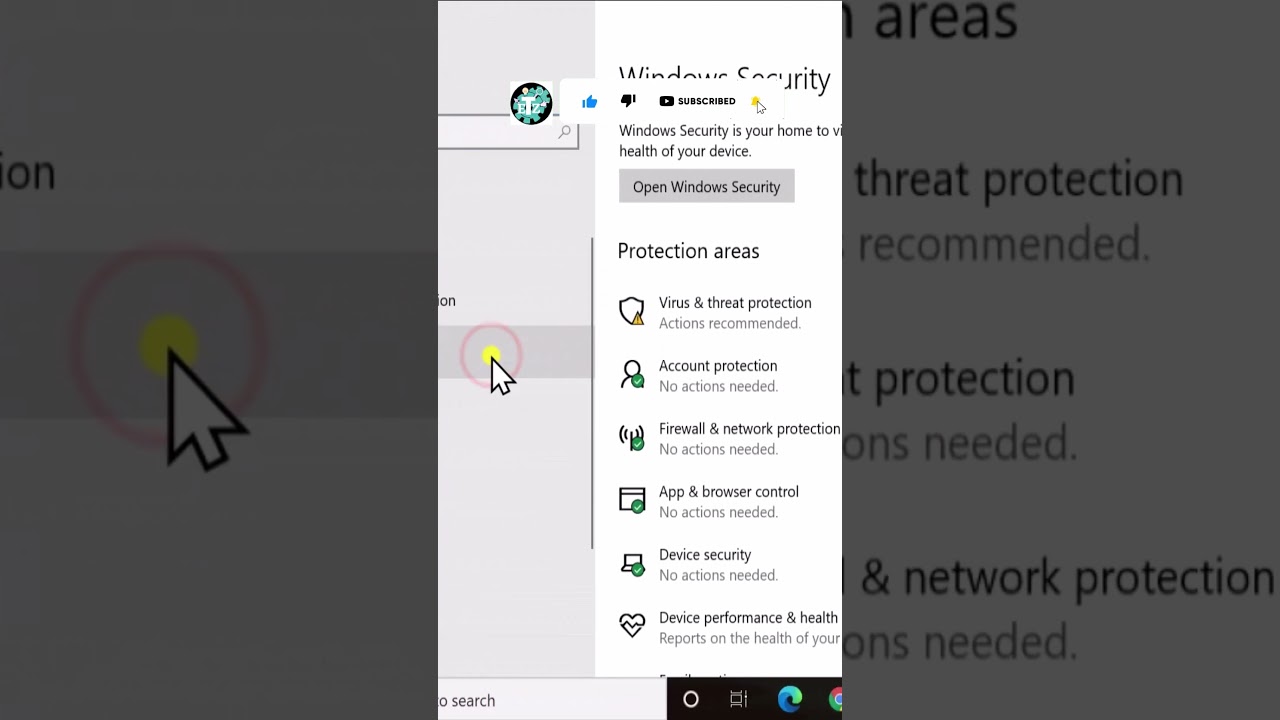
Table of Contents
Understanding the VPN Error 800
The VPN error 800 is a common connectivity issue encountered primarily by Windows users attempting to establish a Virtual Private Network connection. This error code signifies that your VPN client cannot communicate with the remote server. Consequently, it fails to initiate the secure tunnel required for VPN operation.
Several factors can trigger this specific error. For instance, incorrect VPN server addresses, firewall restrictions, or network configuration problems are frequent culprits. Understanding the root cause is the first step towards an effective resolution. Furthermore, this error often points to issues with the PPTP or L2TP/IPsec protocols.
Initial Troubleshooting Steps for VPN Connection Issues
Before diving into complex solutions, it’s crucial to perform some basic checks. Initially, ensure your internet connection is stable and functioning correctly. A simple web search can confirm this. Subsequently, verify that your VPN client software is up-to-date.
Furthermore, restart your computer and network equipment. This can often resolve temporary glitches that might be preventing a successful VPN connection. Sometimes, the simplest solutions are the most effective. If you’re encountering other VPN-related issues, you might find our guide on VPN Error 809 helpful.

Step-by-Step VPN Error 800 Solutions
Addressing the VPN error 800 requires a systematic approach. This section outlines detailed steps to diagnose and resolve the problem. Each solution targets a common cause, guiding you towards restoring your VPN connectivity.
Verify Your Internet Connection
A stable internet connection is paramount for any VPN to function. Therefore, before troubleshooting VPN-specific settings, confirm your device has full internet access. Try browsing several websites or streaming online content.
If your internet is unstable or non-existent, address that issue first. Consequently, a faulty internet connection will always prevent a VPN from establishing. Ensure your Wi-Fi or Ethernet connection is active and reliable.
Check VPN Client Settings and Credentials
Incorrect VPN configuration is a frequent cause of connection failures. Initially, double-check the server address, username, and password entered in your VPN client. Even a minor typo can lead to a connection error.
Furthermore, confirm that the VPN type (e.g., PPTP, L2TP/IPsec) matches what your VPN provider expects. Refer to your VPN provider’s documentation for the correct settings. Inaccurate credentials are a common oversight.
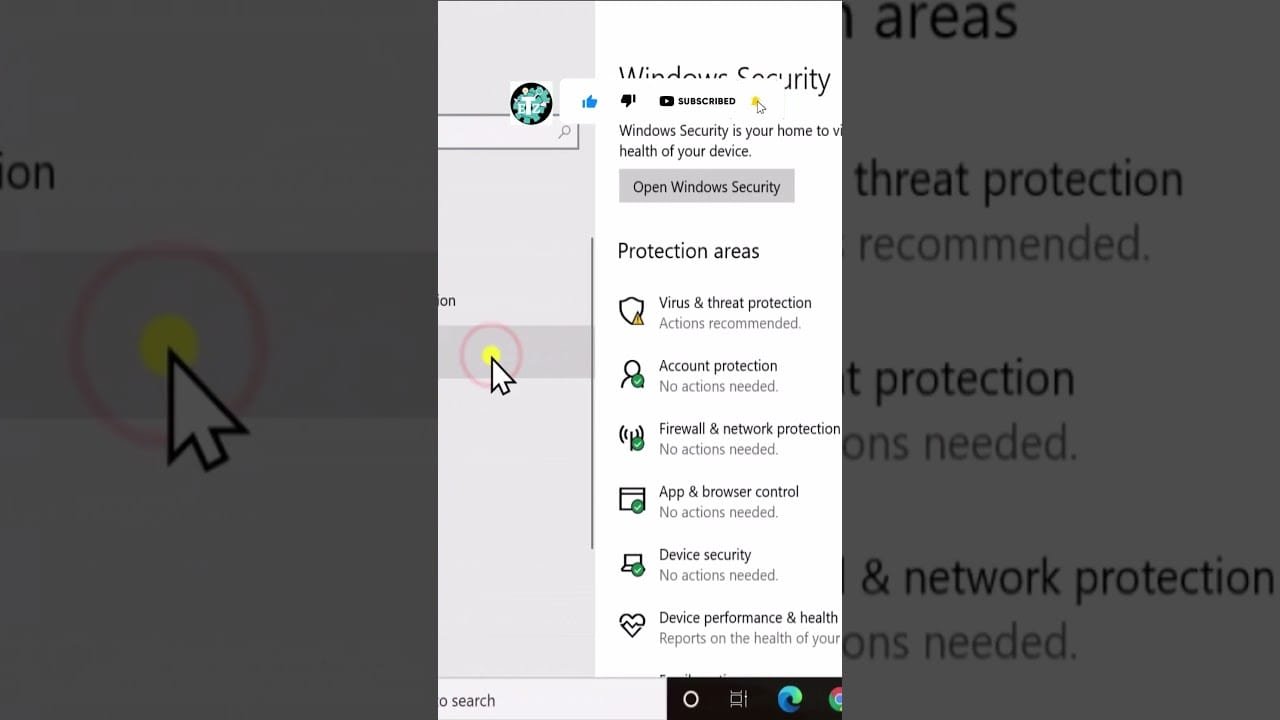
Temporarily Disable Firewall and Antivirus
Security software, while essential, can sometimes interfere with VPN connections. Specifically, your firewall or antivirus program might be blocking the necessary ports or protocols. Temporarily disable them to see if the VPN connects.
If the VPN connects after disabling them, you’ll need to create an exception for your VPN client in your security software. Remember to re-enable your firewall and antivirus immediately after testing to maintain security. This step helps isolate the problem.
Restart Your Router and Modem
Network devices can accumulate temporary errors over time. Therefore, a simple restart of your router and modem can often clear these issues. Power them off completely, wait for about 30 seconds, then power them back on.
Allow all network devices to fully boot up and re-establish their connections before attempting to connect to the VPN again. This process refreshes your network’s IP address and clears any cached data. Often, this resolves transient network problems.
Update Network Adapters and Drivers
Outdated or corrupted network drivers can lead to various connectivity problems, including VPN errors. Consequently, ensure your network adapter drivers are up-to-date. You can typically do this through Device Manager in Windows.
Right-click on your network adapter, select ‘Update driver,’ and choose to search automatically for updated driver software. Alternatively, visit your computer manufacturer’s website for the latest drivers. Keeping drivers current is a good preventative measure for issues like Error Code 0x8007000e and other system-related faults.
Diagnostic Comparison Table
This table provides a quick reference for common causes of VPN connection issues and their corresponding solutions. Use it to rapidly identify potential problems and apply the correct fix.
| Symptom/Error | Likely Cause | Recommended Solution |
|---|---|---|
| VPN Error 800 | No connection to VPN server | Verify internet, check VPN settings, disable firewall. |
| Slow VPN connection | Server overload, distance, network congestion | Try different VPN server, change protocol, upgrade internet. |
| VPN disconnects frequently | Unstable internet, firewall, VPN client issues | Restart router, update drivers, reinstall VPN client. |
| Cannot access local network | Split tunneling enabled, routing issues | Adjust VPN client settings, check network adapter metrics. |
| VPN connects but no internet | DNS issues, VPN server misconfiguration | Change DNS servers, contact VPN provider support. |
Advanced Fixes for Persistent VPN Error 800
If the standard troubleshooting steps haven’t resolved your VPN error 800, it’s time to explore more advanced solutions. These methods delve deeper into network configurations and VPN client specifics. They are particularly useful for stubborn connectivity problems.
Configure Port Forwarding for VPN
Some routers or network configurations might block the ports required for VPN protocols. Consequently, configuring port forwarding on your router can resolve this. For PPTP, ensure TCP port 1723 and GRE protocol 47 are open.
For L2TP/IPsec, open UDP ports 500, 1701, and 4500. Access your router’s administration page to make these changes. Consult your router’s manual or your ISP for specific instructions. This ensures the VPN traffic can pass through your network.
Disable IPv6 on Your Network Adapter
While IPv6 is the newer internet protocol, some VPN services or older network setups might have compatibility issues with it. Therefore, temporarily disabling IPv6 on your network adapter can sometimes resolve the VPN error 800.
Go to Network and Sharing Center, click on your active connection, then Properties. Uncheck ‘Internet Protocol Version 6 (TCP/IPv6)’ and click OK. Test your VPN connection afterward. If it works, IPv6 was likely causing the conflict.
Change VPN Protocol
Different VPN protocols (PPTP, L2TP/IPsec, OpenVPN, IKEv2) use varying methods to establish connections. If one protocol is failing, trying another can often bypass the issue. Your VPN client or operating system’s VPN settings usually allow you to select a different protocol.
For example, if you’re using PPTP and encountering the error, switch to L2TP/IPsec or OpenVPN if available. OpenVPN, in particular, is known for its robustness and ability to bypass strict firewalls. This flexibility can be a lifesaver for connectivity.
Reinstall VPN Client Software
A corrupted VPN client installation can lead to various errors, including the VPN error 800. Consequently, a clean reinstallation can often fix underlying software issues. First, completely uninstall the VPN client from your system.
Ensure all associated files and registry entries are removed. Then, download the latest version of the VPN client from your provider’s official website and perform a fresh installation. This ensures you have a clean, up-to-date setup. For more detailed guidance on VPN troubleshooting, you can refer to Microsoft’s official VPN support page.
Preventative Best Practices
To minimize the chances of encountering a VPN error 800 or similar connectivity problems in the future, adopt these preventative measures. Proactive maintenance is key to a stable and secure VPN experience. These practices help ensure consistent performance.
Firstly, always keep your operating system and VPN client software updated. Developers frequently release patches that fix bugs and improve compatibility. Secondly, regularly review your firewall and antivirus settings to ensure they don’t inadvertently block VPN traffic. Create specific rules for your VPN application.
Furthermore, use strong, unique passwords for your VPN credentials. Periodically restart your router and modem to refresh network connections. Consider using a reputable VPN service known for its reliability and customer support. Finally, be mindful of public Wi-Fi networks, which can sometimes have restrictive firewalls. Maintaining system health, as detailed in our guide on Kernel Power 41 Error, also contributes to overall network stability.
Frequently Asked Questions
Here are answers to some of the most common questions regarding VPN connection issues and the VPN error 800. These insights provide quick solutions and clarify common misconceptions.
What causes VPN error 800?
VPN error 800 is primarily caused by network connectivity issues, misconfigured VPN client settings, firewall or router blocks, or problems with the VPN server itself. It indicates the VPN client cannot establish a secure connection to the remote server, often related to PPTP or L2TP/IPsec protocols.
How can I prevent VPN error 800 in the future?
To prevent VPN error 800, regularly update your VPN client and operating system, ensure your network drivers are current, and maintain proper firewall configurations. Furthermore, use a reliable VPN service, verify server status before connecting, and avoid using public Wi-Fi without additional security measures.
Is VPN error 800 specific to Windows?
While VPN error 800 is most commonly associated with Windows operating systems, particularly when using built-in PPTP or L2TP/IPsec VPN connections, similar connection failures can occur on other platforms due to underlying network issues. The error code itself is a Windows-specific diagnostic.
📺 Video Guide: Restore Default Windows Firewall Settings ( 2026 )
Video walkthrough courtesy of eTechniz on YouTube. Follow along with the visual steps above.









[…] factory resets or contacting your ISP. For more complex network issues, you might find our guide on VPN Error 800 or Kernel Power 41 Error helpful if related problems […]
[…] Yes, sometimes VPNs can interfere with your TV’s network connection and lead to errors like smart tv error 101. If you are using a VPN on your TV or router, try disabling it temporarily to see if the error resolves. For more on VPN issues, see our guide on VPN Error 800. […]