

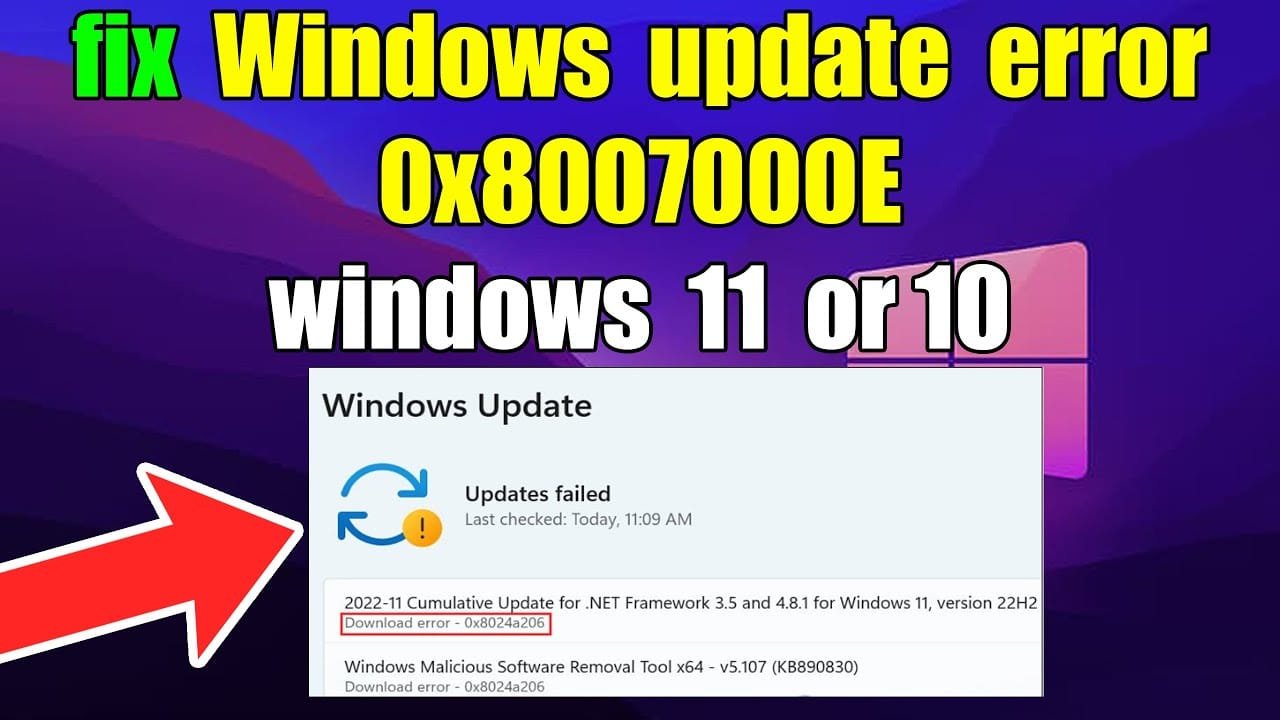
A Error Code 0x8007000e is a common issue that can disrupt your device performance. If you are experiencing a Error Code 0x8007000e, this 2026 step-by-step diagnostic guide will help you troubleshoot and resolve the problem quickly.
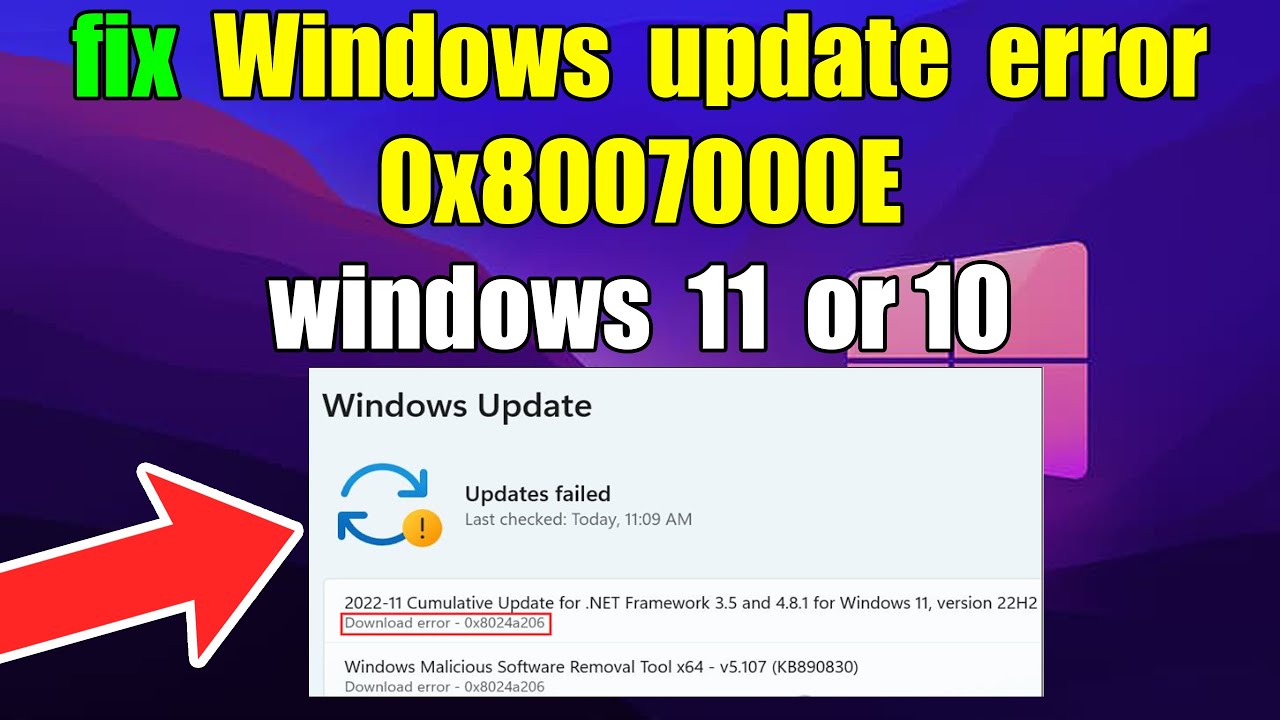
When Windows OS updates fail to install, system stability and security patches are compromised. Consequently, understanding how to address memory structure bottlenecks and repository corruption is critical for modern desktop maintenance.
Table of Contents
- Understanding the Error Code 0x8007000e Cause
- Diagnostic Comparison Table
- Step-by-Step Error Code 0x8007000e Solutions
- Resetting SoftwareDistribution and Catroot2 Caches
- Optimizing Virtual Memory Allocation
- Advanced Methods for Error Code 0x8007000e Resolution
- Preventative Best Practices for OS Optimization
- Frequently Asked Questions
Understanding the Error Code 0x8007000e Cause
Specifically, the system returns hexadecimal stop error 0x8007000e when Windows Update encounters an out-of-memory exception, officially known as ERROR_OUTOFMEMORY. Therefore, the operating system fails to reserve necessary RAM buffers while unpacking cumulative patches.
Furthermore, corrupted cache files stored in temporary directories can obstruct ongoing package verification. If your storage controller or memory pipeline is stressed, system modules frequently stall during operation.
In addition, system maintenance failures share similarities with driver-level failures. For instance, hardware stalls like those detailed in our VIDEO_TDR_FAILURE diagnostic guide highlight how resource exhaustion severely hampers system performance.

Diagnostic Comparison Table
Before executing advanced command-line utility tools, analyze the primary failure symptoms and their associated repair strategies listed below.
| Root Cause | Primary Symptom | Impact Level | Recommended Fix |
|---|---|---|---|
| Corrupted Update Repository | Download hangs at 0% or 99% | Moderate | Purge SoftwareDistribution Cache |
| Insufficient Virtual Memory | Instant crash with code 0x8007000e | High | Expand Paging File Allocation |
| System File Integrity Fault | Servicing stack fails during installation | High | Execute DISM & SFC Scans |
| Network Protocol Interference | Update server timed out connection | Low | Reset Winsock & IP Stacks |
Step-by-Step Error Code 0x8007000e Solutions
Systematically resolving an Error Code 0x8007000e event requires structured troubleshooting. Initially, start by running the built-in diagnostic automated script embedded within Windows Settings.
Navigate directly to Settings > System > Troubleshoot > Other troubleshooters. Next, select Windows Update and click Run. Consequently, the utility scans key services and clears basic registry flags automatically.
However, automated tools may fail to resolve deeply embedded index corruption. Therefore, proceeding to manual cache reset operations offers significantly higher resolution success rates for power users.
Resetting SoftwareDistribution and Catroot2 Caches
To eliminate corrupted update artifacts, you must temporarily halt background update services. Open Command Prompt as Administrator and execute the following commands in sequence:
net stop wuauserv
net stop cryptSvc
net stop bits
net stop msiserver
After stopping these processes, rename the target cache folders so Windows creates fresh repositories. Type these exact commands into your terminal session:
ren C:\Windows\SoftwareDistribution SoftwareDistribution.old
ren C:\Windows\System32\catroot2 catroot2.old
Finally, restart the services by typing the following commands in Command Prompt:
net start wuauserv
net start cryptSvc
net start bits
net start msiserver
Similar connectivity and service handling procedures apply when managing local network interfaces, as highlighted in our Windows VPN Error 809 tutorial.
Optimizing Virtual Memory Allocation
Because this specific error code directly correlates with memory shortages, expanding your paging file size prevents allocation failure. Open sysdm.cpl via the Run dialog box.
Next, navigate to the Advanced tab and click Settings under Performance. Select the Advanced tab again, then click Change under Virtual Memory.
Uncheck “Automatically manage paging file size for all drives”. Choose Custom size, and set the Initial size to 1.5 times your physical RAM size in MB, while setting Maximum size to 3 times your total RAM.
Consequently, your system gains adequate buffer storage to process massive servicing stack archives without triggering unexpected memory exceptions.
Advanced Methods for Error Code 0x8007000e Resolution
In addition to memory adjustments, running integrity verification tools ensures systemic OS health when encountering Error Code 0x8007000e on legacy Windows builds.
Launch an elevated Command Prompt and execute the Deployment Image Servicing and Management (DISM) tool followed by System File Checker (SFC):
DISM.exe /Online /Cleanup-image /Restorehealth
sfc /scannow
Furthermore, if hardware bottlenecks prevent efficient file processing, upgrading local storage pipelines may be required. Read our PCIe NVMe optimization guide to maximize drive transfer speeds during heavy disk operations.
If automated deployment still fails, manually fetch the update standalone installer package directly from the Official Microsoft Support Catalog searching by the specific KB identifier.
Preventative Best Practices for OS Optimization
Preventing future update failures requires proactive maintenance habits. For instance, regularly clearing temporary files via Storage Sense minimizes repository clutter.
Additionally, ensure your primary operating system partition retains at least 20 gigabytes of unallocated disk space before launching annual feature updates.
Finally, temporarily disable third-party antivirus utilities during major patch deployments. Consequently, security software won’t lock temporary servicing folders mid-operation.
Frequently Asked Questions
What causes Windows Update Error Code 0x8007000e?
This error is typically triggered by insufficient system memory allocation (ERROR_OUTOFMEMORY), corrupted cache files within the SoftwareDistribution directory, or conflicting background processes during servicing stack operations.
Will fixing this error delete my personal files?
No. Repairing this update fault only clears temporary system update caches and updates registry paths. Consequently, your personal data, installed software, and user configurations remain entirely safe.
How do I manually install updates if the error persists?
You can download standalone update packages directly from the official Microsoft Update Catalog website by matching the specific KB article number associated with your system architecture.
By applying these procedures, resolving Error Code 0x8007000e becomes straightforward, allowing your system to stay secure and optimized indefinitely.
📺 Video Guide: How to fix Windows update error 0x8007000E windows 11 or 10
Video walkthrough courtesy of IT Networking on YouTube. Follow along with the visual steps above.






[…] both tools offers comprehensive file integrity checks. For other Windows-related issues, such as Error Code 0x8007000e, similar system file checks might be […]