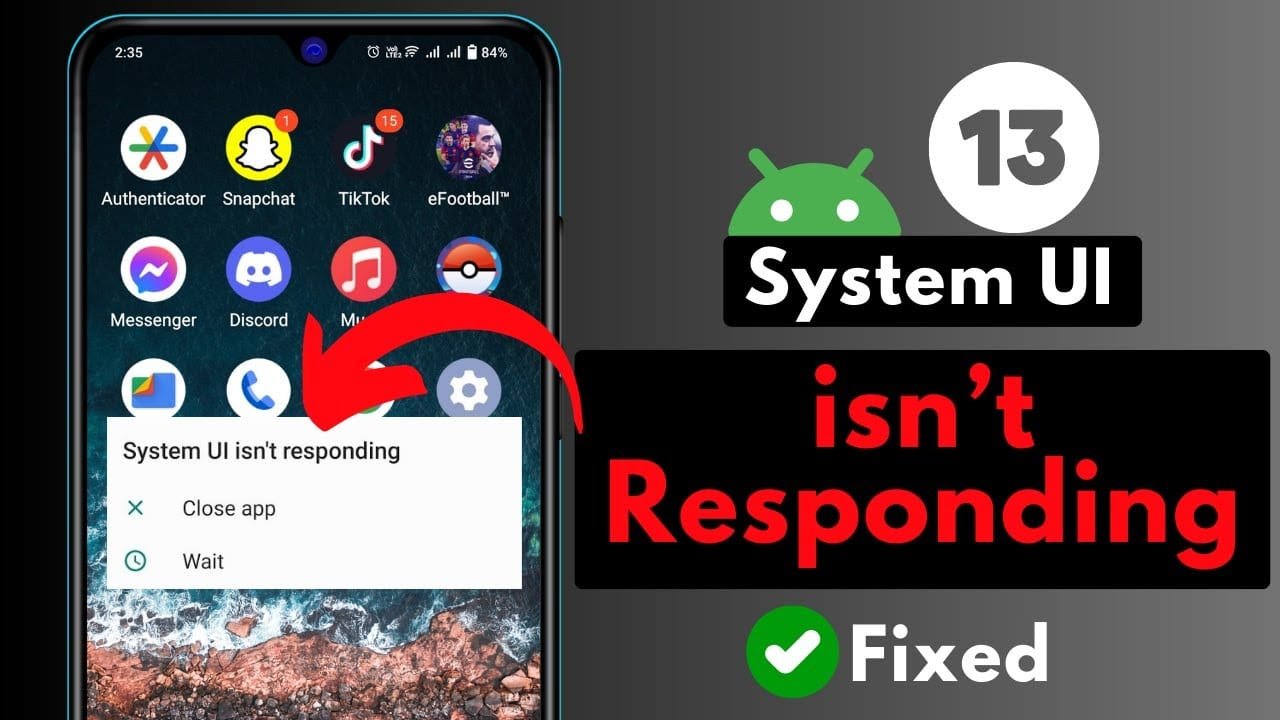
A SystemUI Not Responding is a common issue that can disrupt your device performance. If you are experiencing a SystemUI Not Responding, this 2026 step-by-step diagnostic guide will help you troubleshoot and resolve the problem quickly.
Furthermore, this comprehensive article provides actionable solutions. It covers everything from basic restarts to advanced system diagnostics. Our aim is to restore your Android device to optimal functionality without unnecessary hassle.
Table of Contents
- Understanding Why Android SystemUI Not Responding Occurs
- Initial Troubleshooting Steps for SystemUI Not Responding
- Resolving Persistent Android SystemUI Not Responding Issues
- Diagnostic Comparison Table: Common Causes & Solutions
- Preventative Measures and Best Practices
- Frequently Asked Questions (FAQs)
- Conclusion
Understanding Why Android SystemUI Not Responding Occurs
The Android SystemUI is a critical component. It manages all visual elements on your screen, including the status bar, navigation bar, and recent apps menu. When this system process crashes, your device becomes unresponsive, displaying the dreaded “SystemUI Not Responding” error message.
Several factors can contribute to this frustrating problem. Often, it stems from insufficient RAM or storage, especially on older devices. Overloaded system resources can easily trigger the error, making your phone or tablet unusable.
Moreover, corrupted app data or a problematic third-party application can cause conflicts. These conflicts interfere with the SystemUI’s normal operation. Outdated Android OS versions or specific app bugs are also frequent culprits behind this issue.
Initial Troubleshooting Steps for SystemUI Not Responding
When faced with a SystemUI Not Responding error, begin with these simple yet effective solutions. They often resolve the problem without requiring complex diagnostics. Initially, a quick restart can clear temporary glitches.
Force Restart Your Device
A force restart is the first and most straightforward solution. This action clears temporary memory and restarts all system processes. To perform a force restart, press and hold the power button for about 10-15 seconds until your device reboots.
Furthermore, if your device has a removable battery, consider removing it for a few seconds before reinserting and powering on. This ensures a complete power cycle. Many minor software conflicts are resolved this way.
Clear Cache Partition
Corrupted cache files can significantly impact system stability. Clearing the cache partition removes these temporary files without affecting your personal data. This process is performed through the Android Recovery Mode.
To access Recovery Mode, power off your device completely. Then, press and hold specific button combinations (e.g., Power + Volume Down, or Power + Volume Up) depending on your device model. Navigate using volume keys and select “Wipe cache partition” with the power button. Finally, reboot your system.
Uninstall Recently Installed Apps
New applications, especially those from unofficial sources, can introduce instability. If the SystemUI Not Responding error began after installing a new app, try uninstalling it. Boot your device into Safe Mode to identify problematic apps.
In Safe Mode, only essential system apps run. If the SystemUI functions normally, a recently installed third-party app is likely the cause. Uninstall suspicious applications one by one until the issue is resolved. This method helps isolate the culprit effectively.
Resolving Persistent Android SystemUI Not Responding Issues
If initial troubleshooting does not resolve the SystemUI Not Responding error, more advanced steps are necessary. These solutions delve deeper into the software configuration. They address underlying system-level problems that might be causing the persistent issue.
Update Android OS and Apps
Outdated software is a common cause of system instability. Ensure your Android operating system is updated to the latest available version. Software updates often include bug fixes and performance improvements that can resolve SystemUI issues.
Similarly, keep all your applications updated through the Google Play Store. App developers frequently release updates to fix compatibility issues and improve stability. A Bluetooth Audio Sync Delay, for instance, might also be resolved with system updates.
Check for Malicious Apps and Malware
Malware or rogue applications can severely disrupt Android’s core functions. They might consume excessive resources or interfere with system processes, leading to the SystemUI Not Responding error. Run a scan with a reputable antivirus or anti-malware application.
Consider using Google Play Protect, which is built into Android, to scan your installed apps. Furthermore, review app permissions for any suspicious requests. If you suspect a VPN Error 800 or other network issues, malware could also be a factor.
Factory Reset as a Last Resort
When all other solutions fail, a factory reset can be the ultimate fix for SystemUI Not Responding. This process wipes all data from your device, restoring it to its original factory settings. Consequently, it eliminates any software conflicts or corrupted files.
Before proceeding, ensure you back up all your important data. A factory reset is irreversible and will erase everything. Access this option through your device’s Settings menu under “System” or “Backup & Reset.” This step often resolves even the most stubborn SystemUI problems.

Diagnostic Comparison Table: Common Causes & Solutions
Understanding the root cause of the SystemUI Not Responding error can streamline your troubleshooting process. This table outlines common scenarios and their most effective solutions.
| Problem Symptom / Cause | Likely Cause | Recommended Solution | Impact on Data |
|---|---|---|---|
| Frequent, intermittent freezes | Temporary software glitch, low RAM | Force Restart, Clear App Caches | None |
| Error after new app installation | Conflicting third-party app | Uninstall Recent Apps (Safe Mode) | None (only app data) |
| Persistent unresponsiveness | Corrupted system cache, outdated OS | Clear Cache Partition, Update OS | None |
| Random reboots, severe lag | Malware, severe system corruption | Run Antivirus, Factory Reset | Potential data loss with reset |
| Error after system update | Bug in new OS version, incompatible app | Check for hotfixes, Clear Cache Partition | None |
Preventative Measures and Best Practices
Preventing the SystemUI Not Responding error is often simpler than fixing it. Adopting good device maintenance habits can significantly reduce the likelihood of encountering this frustrating issue. Proactive steps ensure smoother performance.
Firstly, regularly update your Android operating system and all installed applications. Developers frequently release patches that address bugs and improve system stability. Keeping software current minimizes compatibility issues.
Secondly, monitor your device’s storage and RAM usage. Avoid filling your internal storage to capacity, as this can slow down your device and lead to system errors. Periodically clear app caches and uninstall unused applications to free up resources.
Furthermore, be cautious about installing apps from unknown sources. Stick to the Google Play Store for app downloads to minimize the risk of malware or poorly coded applications. These can easily destabilize your SystemUI. For instance, ensuring your Smart Lock Not Connecting issue isn’t due to a rogue app is also crucial.
Finally, restart your device periodically, perhaps once a week. This simple action helps clear temporary files and refresh system processes. It prevents minor glitches from accumulating and escalating into more significant problems like a persistent SystemUI Not Responding error.
Frequently Asked Questions (FAQs)
Here are some common questions regarding the Android SystemUI Not Responding error and its solutions. These answers provide quick insights into typical concerns users have.
What is Android SystemUI?
Android SystemUI is a core system process responsible for displaying user interface elements like the status bar, navigation bar, and notifications. It ensures smooth interaction with your device. When it crashes, the device becomes unresponsive.
Can a full storage cause SystemUI issues?
Yes, a full internal storage can significantly contribute to SystemUI Not Responding errors. Insufficient storage space can prevent the system from creating necessary temporary files or running processes efficiently, leading to crashes and unresponsiveness.
How do I prevent SystemUI from crashing in the future?
To prevent future SystemUI crashes, regularly update your OS and apps, maintain sufficient free storage, clear app caches periodically, and avoid installing apps from untrusted sources. Restarting your device weekly also helps maintain system health.
Conclusion
Encountering the “Android SystemUI Not Responding” error can be incredibly disruptive. However, with the right diagnostic approach and troubleshooting steps, you can effectively resolve this common issue. Remember to start with the simplest solutions, such as a force restart, before moving to more complex fixes.
By following this 2026 complete diagnostic guide, you are well-equipped to tackle any SystemUI Not Responding problem. Regular maintenance and cautious app installation practices will help keep your Android device running smoothly. For more technical insights, consider visiting Android Developers.
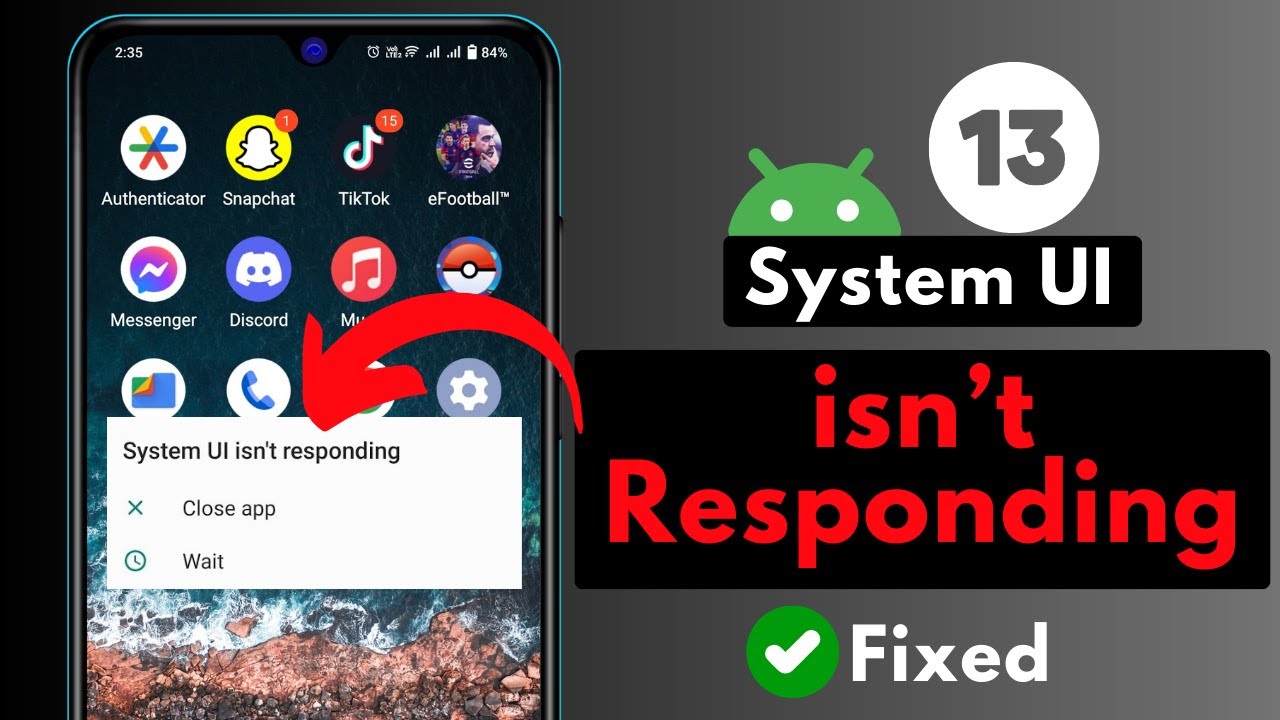
📺 Video Guide: How To Fix System UI isn't Responding Error on Any Android Phone | System UI has Stopped
Video walkthrough courtesy of Sky Tech Studio on YouTube. Follow along with the visual steps above.