A smart lock not connecting is a common issue that can disrupt your device performance. If you are experiencing a smart lock not connecting, this 2026 step-by-step diagnostic guide will help you troubleshoot and resolve the problem quickly.
Understanding Why Your Smart Lock Is Not Connecting
Connectivity issues with smart locks can stem from various sources. Initially, it’s crucial to identify the potential culprits. These often include problems with your home’s Wi-Fi network, Bluetooth interference, or the smart lock’s own hardware or software. Therefore, a systematic approach is best.
Furthermore, the distance between your smart lock and your router plays a significant role. Weak signals can lead to intermittent or complete connection failures. Consequently, understanding these basic principles is the first step in resolving a smart lock not connecting.
Initial Troubleshooting Steps for Smart Lock Connectivity
Before diving into complex solutions, let’s cover the basics. First, check your Wi-Fi network’s status. Is your internet connection stable? If not, this could be the primary reason for your smart lock not connecting. Restarting your router can often resolve temporary network glitches.
In addition, ensure your smart lock is within the optimal range of your Wi-Fi router. Thick walls or large distances can impede the signal. Therefore, consider moving your router closer or using a Wi-Fi extender if range is an issue.
Next, verify the battery level of your smart lock. Low batteries can cause erratic behavior, including connection problems. Most smart locks will provide a low battery warning through their app, but it’s worth checking manually.
Checking Bluetooth and Wi-Fi Settings
Many smart locks utilize Bluetooth for initial setup and sometimes for direct control when Wi-Fi is unavailable. Therefore, ensure Bluetooth is enabled on your smartphone or tablet. Also, check if your smart lock is paired correctly in your device’s Bluetooth settings.
Specifically, if your smart lock relies on Wi-Fi, confirm it’s connected to the correct network. Sometimes, devices can accidentally connect to a guest network or a neighbor’s unsecured Wi-Fi. Double-check the network name (SSID) and password in your smart lock’s app.
However, interference can also be a factor. Devices like microwaves, cordless phones, or even other smart home gadgets can disrupt Wi-Fi and Bluetooth signals. Consequently, try temporarily disabling other wireless devices to see if the smart lock not connecting issue resolves.
Advanced Solutions for Smart Lock Not Connecting
If the basic steps haven’t resolved the smart lock not connecting problem, it’s time for more advanced troubleshooting. One effective method is to perform a power cycle on both your router and your smart lock. Unplug your router, wait for 30 seconds, and plug it back in. Do the same for your smart lock if it has a removable battery pack.
Furthermore, check for firmware updates for your smart lock. Manufacturers regularly release updates to fix bugs and improve performance. Access your smart lock’s app to see if any updates are available and install them promptly.
Another potential solution involves checking your router’s settings. Ensure that your router’s firewall isn’t blocking the smart lock’s connection. You might need to consult your router’s manual or manufacturer for specific instructions on how to adjust these settings.

Diagnostic Comparison Table
| Symptom | Possible Cause | Solution |
|---|---|---|
| Smart lock unresponsive | Low battery, Wi-Fi/Bluetooth issue | Check batteries, restart router/lock |
| App cannot find lock | Bluetooth off, out of range | Enable Bluetooth, move closer |
| Intermittent connection | Signal interference, weak Wi-Fi | Reduce interference, check Wi-Fi strength |
| Lock offline for extended periods | Router issue, power loss | Restart router, check power source |
When to Consider Re-pairing or Resetting
If you’ve exhausted other troubleshooting options, re-pairing your smart lock might be necessary. This involves removing the lock from your smart home app and then adding it back as if it were a new device. This process can often clear up corrupted connection data.
However, a factory reset should be considered a last resort. This will revert the smart lock to its original settings, erasing all user data, codes, and network configurations. Consequently, you will need to set up the device from scratch. Consult your smart lock’s manual for specific reset instructions.
Preventative Best Practices
To avoid future instances of a smart lock not connecting, implement these best practices. Regularly check your smart lock’s battery levels and replace them proactively. Ensure your Wi-Fi network is robust and covers the area where the lock is installed.
Furthermore, keep your smart lock’s firmware and your smartphone’s operating system updated. Periodically restart your router to maintain optimal network performance. Finally, be mindful of potential sources of wireless interference in your home.
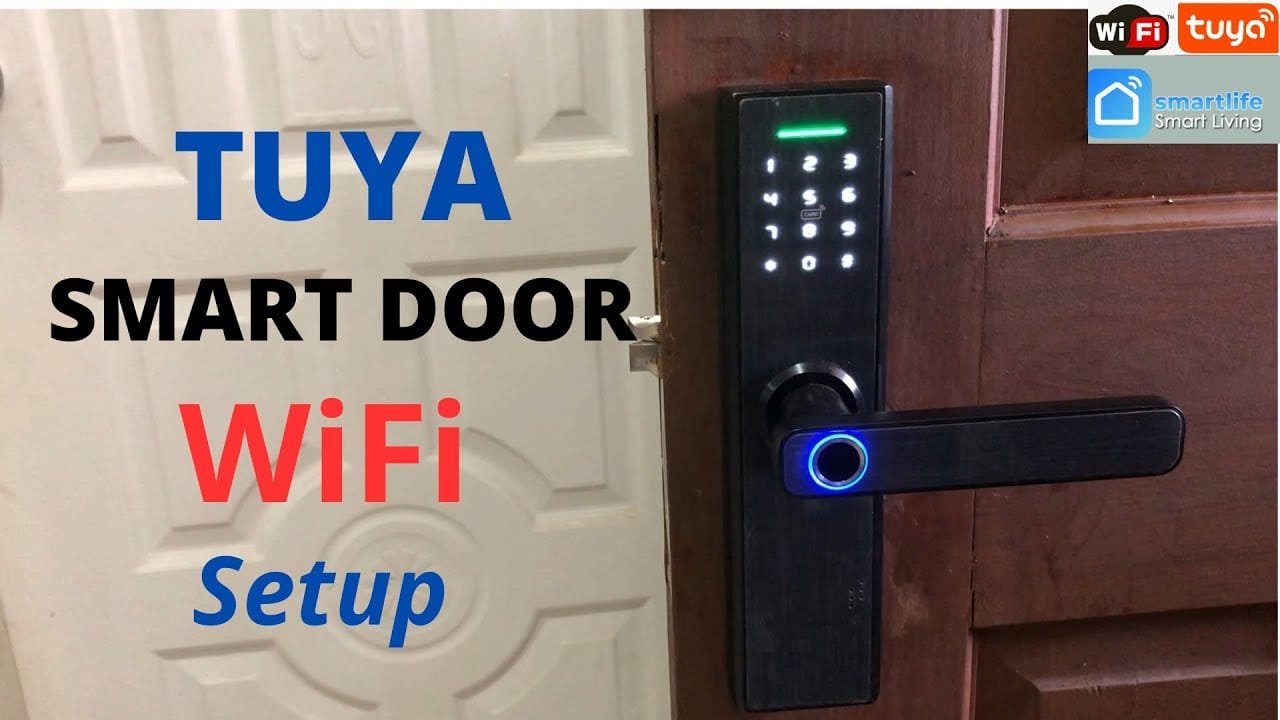
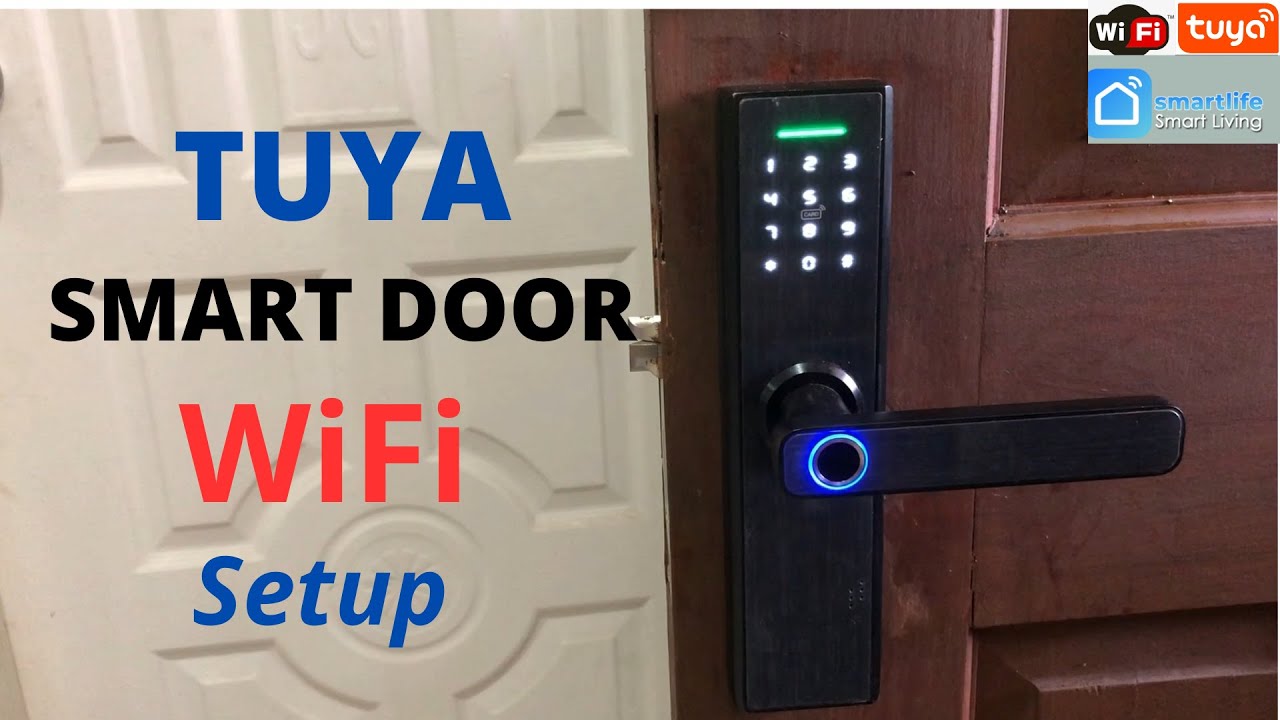
📺 Video Guide: Tuya Smart Door Lock Wifi Setup
Video walkthrough courtesy of Jerrold Ello on YouTube. Follow along with the visual steps above.
Frequently Asked Questions
Why is my smart lock suddenly not connecting?
Sudden connectivity loss can be due to a temporary network outage, a router issue, a depleted battery, or a software glitch. Sometimes, environmental factors like new electronic devices causing interference can also be the cause.
Can a VPN affect my smart lock connection?
While a VPN primarily affects your internet connection, it’s unlikely to directly impact a smart lock’s Bluetooth or direct Wi-Fi connection. However, if your smart lock relies on cloud services that your VPN might inadvertently block, it could cause issues. For instance, if you encounter a VPN Error 800, it might indicate broader network problems.
How do I reset my smart lock?
The reset procedure varies by manufacturer. Typically, you’ll need to access a small reset button on the lock mechanism itself or through the device’s battery compartment. You may also initiate a reset via the companion app. Always refer to your specific model’s manual for precise instructions.
For more complex device issues, such as a monitor no signal or an ASUS ZenWiFi red light, consult our detailed guides. These resources can help you diagnose and fix a wide range of technical problems.
Finally, if you’re experiencing audio sync issues, our guide on Bluetooth audio sync delay can offer solutions. Addressing these varied technical challenges ensures your smart home and devices function seamlessly.