

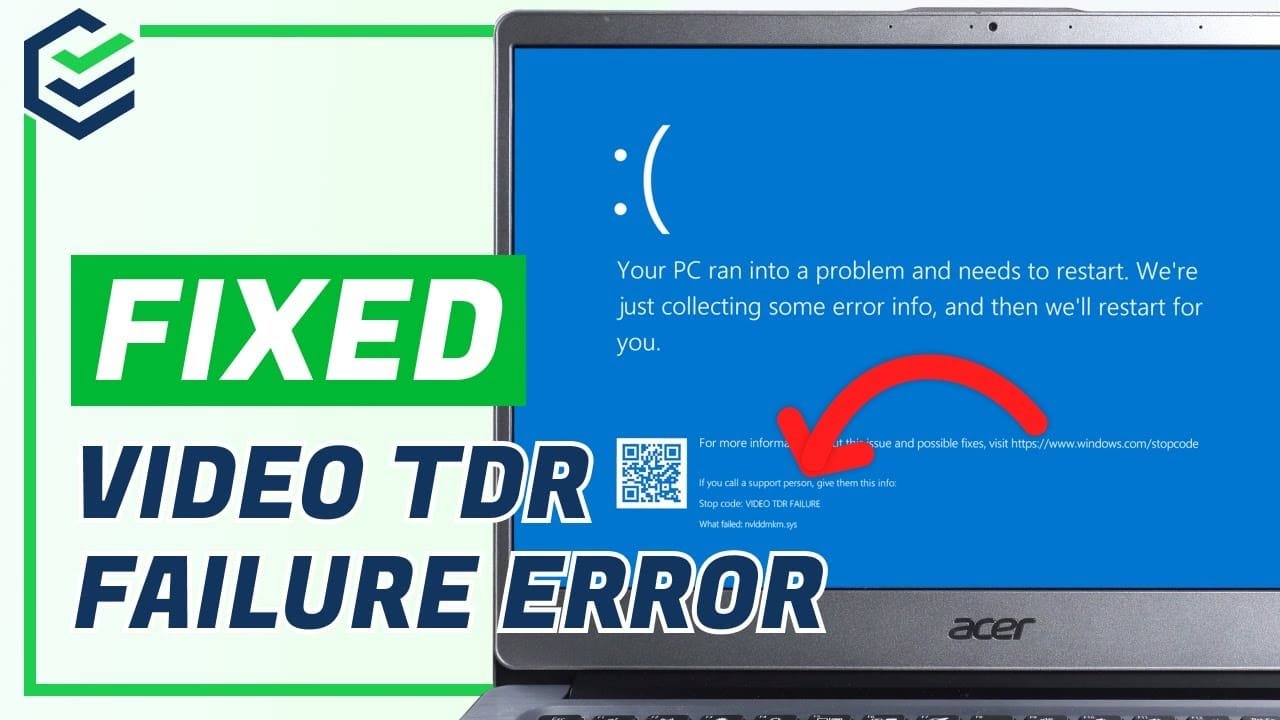
A VIDEO_TDR_FAILURE is a common issue that can disrupt your device performance. If you are experiencing a VIDEO_TDR_FAILURE, this 2026 step-by-step diagnostic guide will help you troubleshoot and resolve the problem quickly.
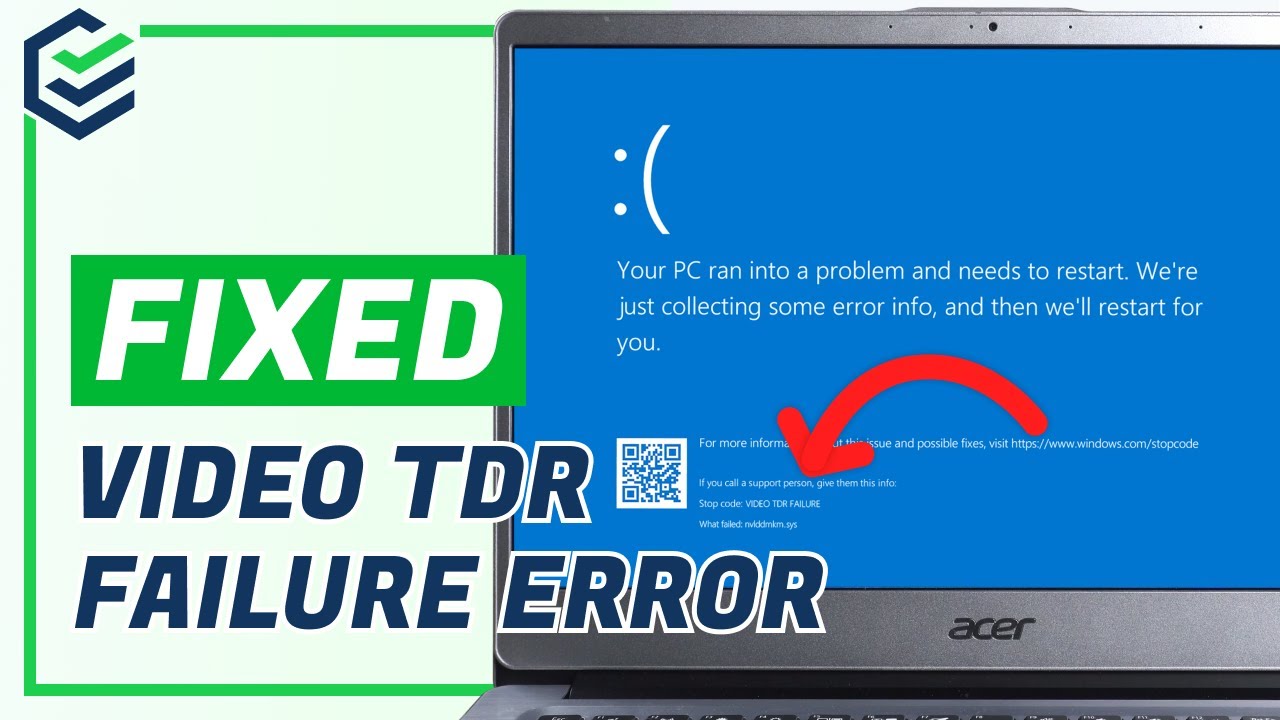
Table of Contents
- Understanding the VIDEO_TDR_FAILURE Stop Code
- Common Causes Behind VIDEO_TDR_FAILURE
- Resolving the VIDEO_TDR_FAILURE Error
- Update Graphics Drivers Safely
- Check System Files and Memory
- Monitor GPU Temperatures and Power
- Adjust TDR Delay Settings
- Diagnostic Comparison Table
- Preventative Measures and Best Practices
- Frequently Asked Questions
Understanding the VIDEO_TDR_FAILURE Stop Code
The VIDEO_TDR_FAILURE stop code, often displayed as a Blue Screen of Death (BSOD), signifies a critical system error. Specifically, it indicates a Timeout Detection and Recovery (TDR) event. This means your graphics driver has ceased responding and failed to recover itself within a predefined time limit set by Windows.
Consequently, the operating system initiates a system crash to prevent further damage or data corruption. This critical error typically points to underlying issues with your graphics card, its drivers, or related system components. Furthermore, it can manifest during demanding tasks like gaming, video editing, or even during routine web browsing, causing significant disruption.
Understanding the nature of this error is the foundational step towards effective troubleshooting. The “VIDEO” part refers to the display adapter, while “TDR” highlights the recovery mechanism failure. Therefore, focusing on graphics-related components is paramount for a lasting solution.
Common Causes Behind VIDEO_TDR_FAILURE
Several factors can trigger a VIDEO_TDR_FAILURE, ranging from software glitches to hardware malfunctions. Primarily, outdated, corrupted, or incompatible graphics drivers are a leading cause. These drivers might not be fully compatible with your current Windows version or recent system updates, leading to conflicts and instability.
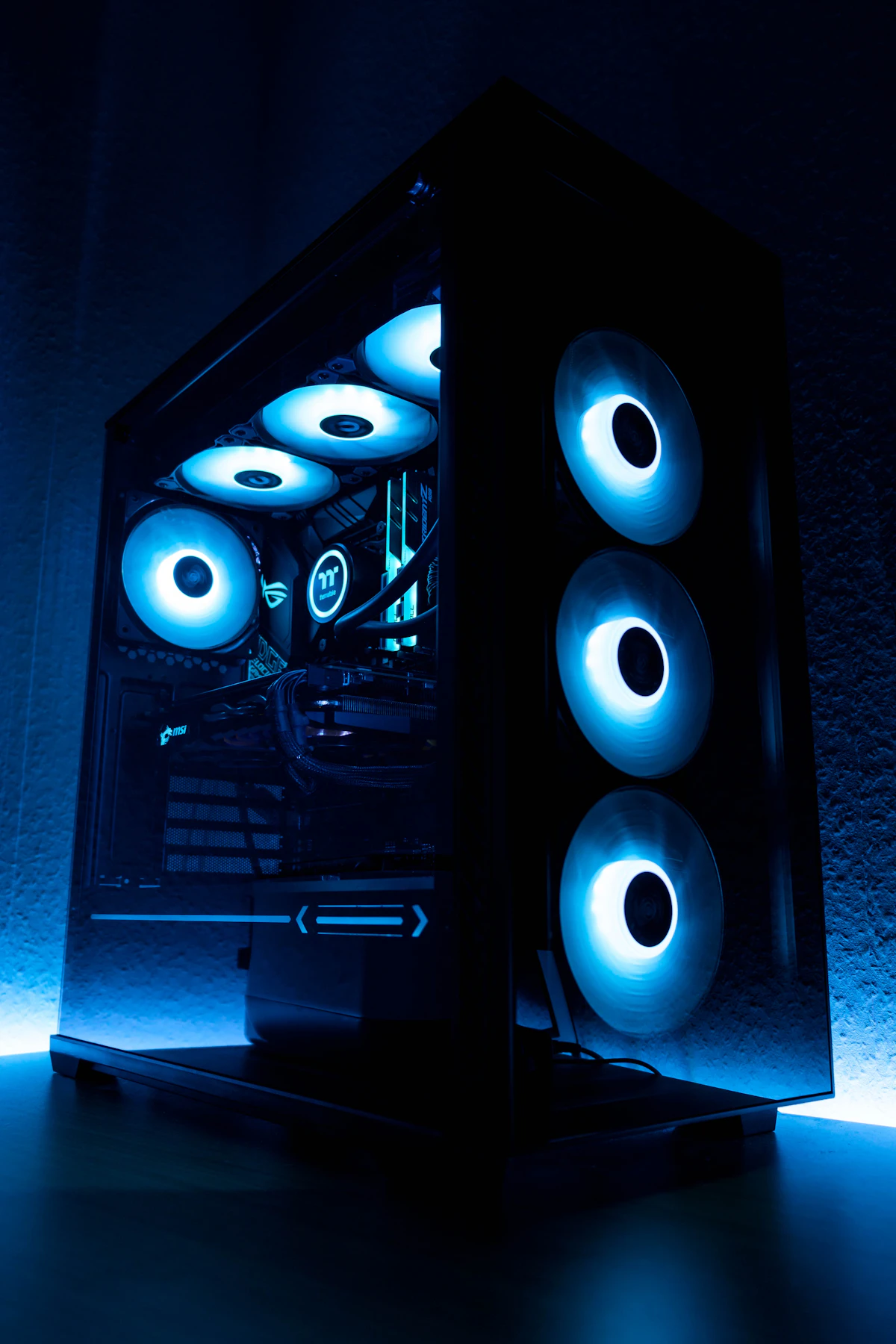
In addition, GPU overheating can severely impact performance and stability. When your graphics card operates at excessively high temperatures, it can become unresponsive, triggering the TDR mechanism. This is particularly common in systems with inadequate cooling or heavy workloads. Monitoring GPU hotspot temperature is crucial for diagnosing thermal issues and preventing such failures.
Insufficient power supply to the GPU is another frequent culprit, especially with high-performance graphics cards. If your Power Supply Unit (PSU) cannot deliver stable and sufficient power, the GPU may falter under load, leading to a TDR error. Moreover, faulty hardware, such as a failing graphics card, damaged RAM modules, or even an unstable motherboard, can contribute to this issue.
Overclocking your GPU or CPU beyond stable limits can also provoke this specific error. While overclocking boosts performance, it can introduce instability if not properly managed. Therefore, identifying the precise root cause is essential for effective and targeted troubleshooting, preventing recurrent issues.
Resolving the VIDEO_TDR_FAILURE Error
Addressing the VIDEO_TDR_FAILURE requires a systematic and patient approach. Initially, ensure your Windows operating system is fully updated. Microsoft frequently releases patches and updates that resolve compatibility issues and improve overall system stability. Next, focus on driver-related solutions, which are often the most effective.
Furthermore, consider reverting any recent hardware changes or software installations. Sometimes, newly installed components, peripherals, or applications can introduce unforeseen conflicts that trigger the error. If the issue persists, a clean installation of graphics drivers is highly recommended to eliminate any corrupted files or lingering conflicts.
It is also wise to temporarily disable any overclocking profiles you might have applied to your GPU or CPU. Unstable overclocks are a known cause of system instability, including TDR errors. Resetting to default clock speeds can quickly rule out this factor as the source of the problem.
Update Graphics Drivers Safely
Outdated, corrupted, or incompatible graphics drivers are a primary cause of this problem. Therefore, updating them is often the first and most effective solution. Begin by downloading the latest stable drivers directly from your GPU manufacturer’s official website. This ensures you receive genuine and optimized software.
For NVIDIA users, visit the GeForce Drivers page; for AMD, check the AMD Drivers & Support section; and for Intel integrated graphics, go to the Intel Download Center. Always select the correct operating system and GPU model. Furthermore, avoid generic driver update utilities, as they can sometimes install incorrect or unstable versions.
Before installing new drivers, it’s crucial to completely uninstall existing ones to prevent conflicts. Use a utility like Display Driver Uninstaller (DDU) in Windows Safe Mode for a thorough removal. This ensures a clean slate. Subsequently, install the newly downloaded drivers, following the on-screen prompts carefully. Reboot your system afterward to finalize the installation.
If the latest drivers cause issues, consider rolling back to a previous stable version. Sometimes, the newest drivers might introduce new bugs or compatibility problems with older hardware configurations. Accessing Device Manager, right-clicking your display adapter, and selecting “Roll Back Driver” can be helpful in such scenarios.
Check System Files and Memory
Corrupted system files or faulty RAM can also contribute to system instability, potentially leading to a TDR error. Therefore, it’s important to run diagnostic tools to check these components. Start by using the System File Checker (SFC) tool to scan for and repair corrupted Windows system files.
Open Command Prompt as an administrator and type sfc /scannow, then press Enter. Allow the scan to complete, which may take some time. If SFC finds issues it cannot fix, follow up with the Deployment Image Servicing and Management (DISM) tool. Use commands like DISM /Online /Cleanup-Image /RestoreHealth to repair the Windows image.
Furthermore, memory issues can often manifest as BSODs, including TDR errors. Run the Windows Memory Diagnostic tool to check your RAM for errors. Type “Windows Memory Diagnostic” into the Start menu search bar and follow the prompts. This tool will require a system restart to perform a comprehensive memory test. If errors are detected, consider testing individual RAM sticks or replacing them.
Monitor GPU Temperatures and Power
Overheating is a significant contributor to system instability and can frequently trigger this type of error. Consequently, monitoring your GPU’s temperature is vital for maintaining system health. Use reliable software like MSI Afterburner, HWMonitor, or GPU-Z to keep a close eye on thermal performance, especially during demanding tasks.
If temperatures are consistently high (e.g., above 80-85°C under load), consider improving your PC’s airflow. This might involve adding more case fans, ensuring proper cable management, or cleaning dust from existing fans and heatsinks. A clean system runs cooler and more efficiently, reducing the likelihood of thermal throttling and TDR errors.
Furthermore, ensure your power supply unit (PSU) provides adequate and stable wattage for your graphics card and entire system. An underpowered GPU can lead to instability, crashes, and the dreaded TDR error, particularly when under heavy load. Check your GPU’s recommended PSU wattage and compare it with your current PSU’s output.
Ensuring all components receive proper power is fundamental for system health and preventing performance bottlenecks. If you suspect PSU issues, testing with a known good power supply or upgrading to a higher wattage unit might be necessary. In some cases, a white VGA light on your motherboard might indicate a GPU power or initialization issue, which could precede a TDR error. Addressing such warnings promptly can prevent further problems.
Adjust TDR Delay Settings
While not a permanent fix, adjusting the TDR delay settings can sometimes provide a temporary workaround or help diagnose the issue. This involves modifying a registry key to give the graphics driver more time to recover before Windows triggers a crash. However, proceed with caution, as incorrect registry edits can cause system instability.
Open the Registry Editor by typing regedit in the Run dialog (Win + R). Navigate to HKEY_LOCAL_MACHINE\SYSTEM\CurrentControlSet\Control\GraphicsDrivers. Here, you can create a new DWORD (32-bit) Value named TdrDelay and set its value data to a higher number, for example, 8 or 10 (representing seconds). This increases the timeout period.
Alternatively, for 64-bit systems, you might create a QWORD (64-bit) Value with the same name and value. Remember to restart your computer after making any registry changes. If increasing the delay resolves the issue, it strongly suggests a driver or hardware component is struggling, but now has more time to recover. This points to a need for deeper investigation rather than just relying on the delay.
Diagnostic Comparison Table
This table provides a quick reference for common symptoms and their potential solutions related to the VIDEO_TDR_FAILURE error, helping you narrow down the problem.
| Symptom | Potential Cause | Recommended Action |
|---|---|---|
| Frequent BSOD with TDR error | Outdated/Corrupt Graphics Drivers | Clean install latest GPU drivers using DDU in Safe Mode. |
| System crashes during gaming/heavy load | GPU Overheating, Insufficient PSU, Unstable Overclock | Monitor temps, improve cooling, check PSU wattage, reset clock speeds. |
| Display flickering or artifacts before crash | Faulty GPU, Driver instability, VRAM issues | Test GPU in another system, roll back drivers, run memory diagnostics. |
| Error appears after Windows Update | Driver Incompatibility, OS conflicts | Roll back Windows update, update drivers, check for driver hotfixes. |
| Error appears after overclocking | Unstable Overclock Settings | Immediately reset GPU/CPU to default clock speeds and test stability. |
| Error persists after all software fixes | Hardware Failure (GPU, RAM, PSU) | Test components individually, consider professional diagnosis or replacement. |
Preventative Measures and Best Practices
Preventing this specific stop code involves proactive maintenance and careful system management. Regularly update your graphics drivers and Windows OS to ensure compatibility and access to the latest bug fixes. However, always download drivers from official sources to avoid malicious or incorrect versions.
Furthermore, maintain good airflow within your PC case. Clean dust from fans and heatsinks periodically to prevent overheating, which is a common trigger for TDR errors. Consider investing in quality case fans if your system struggles with thermals. Proper cable management also contributes to better airflow.
Avoid excessive overclocking, as pushing hardware beyond its stable limits can lead to instability and the TDR error. If you do overclock, do so incrementally and test thoroughly for stability using benchmarks and stress tests. Always prioritize stability over marginal performance gains.
Consider running system file checker (SFC) and DISM commands regularly to check for and repair corrupted system files. These tools are invaluable for maintaining Windows integrity. Finally, ensure your power supply unit is robust enough for your components and provides stable power. A reliable PSU is fundamental for overall system stability and preventing unexpected crashes. For more general troubleshooting advice, refer to Microsoft’s Blue Screen error guide.
Frequently Asked Questions
Here are some common questions regarding the VIDEO_TDR_FAILURE stop code.
What causes a VIDEO_TDR_FAILURE stop code?
A VIDEO_TDR_FAILURE stop code is primarily caused by an unresponsive graphics driver failing to recover within a set time. Common culprits include outdated or corrupted drivers, GPU overheating, insufficient power supply, or hardware malfunctions, leading to system instability.
How can I prevent VIDEO_TDR_FAILURE errors?
To prevent VIDEO_TDR_FAILURE errors, ensure your graphics drivers are always up-to-date, monitor GPU temperatures, maintain adequate system cooling, and verify your power supply unit meets your hardware’s requirements. Regular system maintenance and avoiding overclocking also help.
Is VIDEO_TDR_FAILURE a sign of a failing GPU?
While a VIDEO_TDR_FAILURE can sometimes indicate a failing GPU, it’s more often related to software issues like driver problems or system instability. However, if troubleshooting software doesn’t help, it could point to underlying hardware degradation, warranting further inspection.
📺 Video Guide: [FIXED] How to Fix VIDEO TDR FAILURE Error in Windows 10/11 | Stop Code Fixed
Video walkthrough courtesy of PassFab on YouTube. Follow along with the visual steps above.










[…] similarities with driver-level failures. For instance, hardware stalls like those detailed in our VIDEO_TDR_FAILURE diagnostic guide highlight how resource exhaustion severely hampers system […]
[…] or outdated system firmware are primary culprits. Similar to how graphics driver failures like the VIDEO_TDR_FAILURE disrupt PCs, console crashes point to system file corruption. Consequently, resolving this PS5 […]
[…] VIDEO_TDR_FAILURE stop code often relates to graphics drivers. Our guide on Windows Stop Code VIDEO_TDR_FAILURE explains how to diagnose and fix this […]