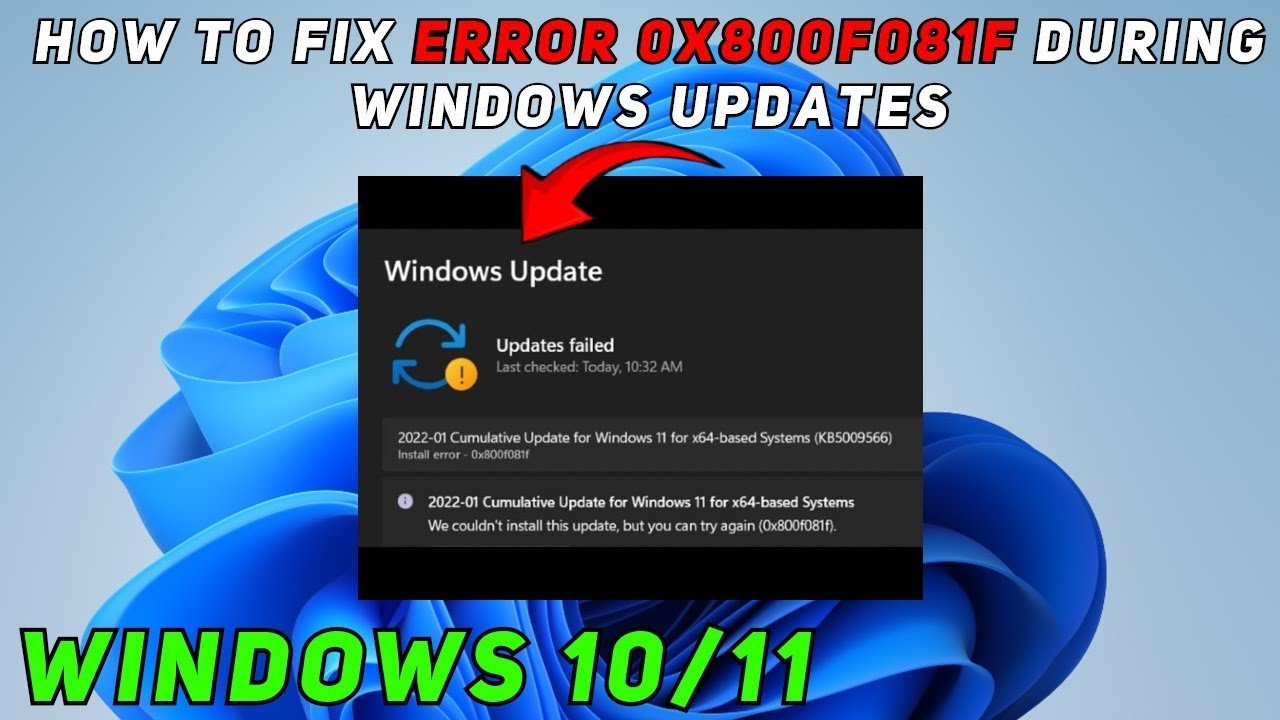
A Error 0x800f081f is a common issue that can disrupt your device performance. If you are experiencing a Error 0x800f081f, this 2026 step-by-step diagnostic guide will help you troubleshoot and resolve the problem quickly.
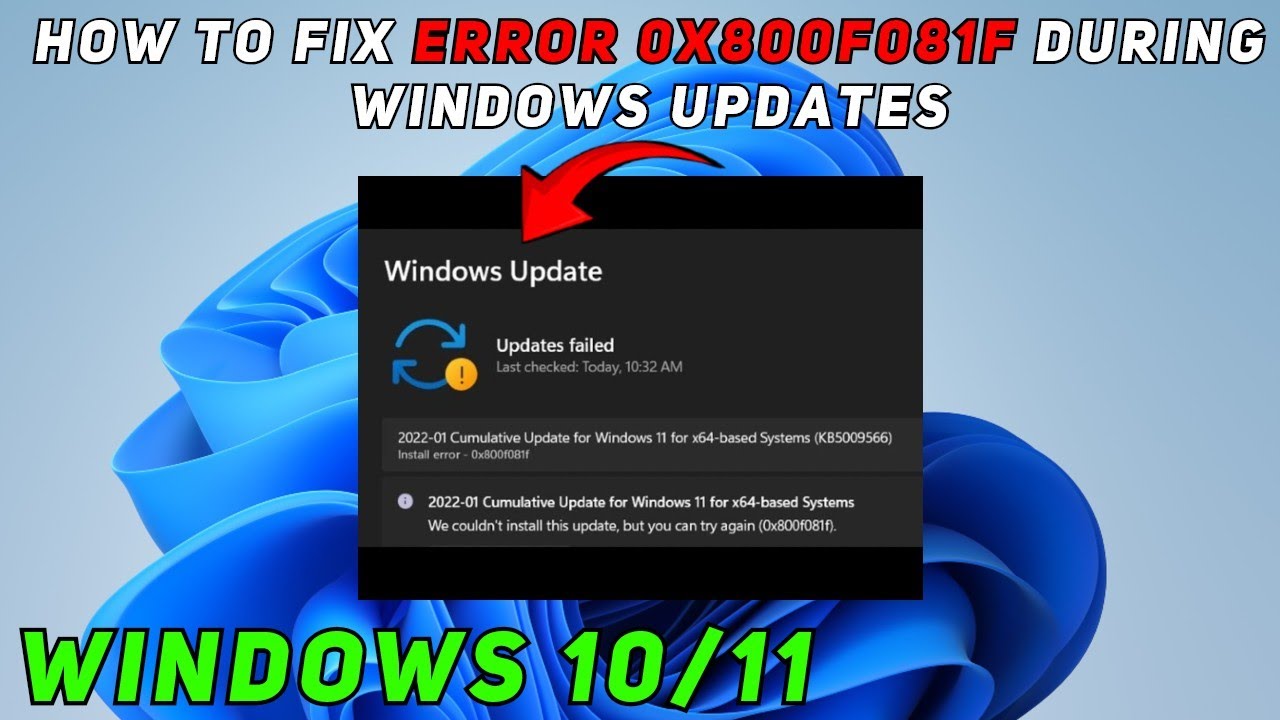
Table of Contents
Understanding the Error 0x800f081f Cause
The Error 0x800f081f typically indicates that Windows Update components are corrupted or missing. Furthermore, it often points to issues with the .NET Framework or problems within the Windows Component Store. Consequently, these underlying issues prevent updates from installing correctly, leading to system instability.
Initially, this error code frequently appears when a required component for an update cannot be found or processed. Moreover, conflicts with third-party antivirus software or firewalls can sometimes trigger this problem. Therefore, identifying the root cause is crucial for effective troubleshooting and a lasting solution.
Another common scenario involves pending updates that have failed to install properly, leaving residual files that interfere with subsequent attempts. Additionally, insufficient disk space or a poor internet connection can contribute to this update failure. Understanding these potential causes helps narrow down the diagnostic process.

Step-by-Step Error 0x800f081f Solutions
Resolving the Error 0x800f081f requires a systematic approach. This section outlines a series of proven steps, starting with the simplest solutions and progressing to more advanced diagnostics. Follow these instructions carefully to restore your system’s update functionality and ensure smooth operation.
Run the Windows Update Troubleshooter
First, utilize the built-in Windows Update Troubleshooter. This convenient tool automatically detects and attempts to fix common update issues. Navigate to your computer’s Settings, then select ‘Update & Security’. From there, click on ‘Troubleshoot’ and then ‘Additional troubleshooters’.
Locate and select ‘Windows Update’ from the list, then click ‘Run the troubleshooter’. Allow the tool to complete its scan and apply any recommended fixes. Subsequently, restart your computer and try running Windows Update again. Often, this simple step can resolve minor glitches causing the update error without further intervention.
Utilize DISM and SFC Commands
Corrupted system files are a frequent cause of the Error 0x800f081f. Therefore, running the Deployment Image Servicing and Management (DISM) tool and System File Checker (SFC) is essential. Open Command Prompt as an administrator to begin this critical repair process.
First, execute `DISM /Online /Cleanup-Image /RestoreHealth`. This powerful command repairs the Windows image by downloading necessary files from Windows Update. Allow it to complete, which may take some time. Next, run `sfc /scannow` to check for and repair any corrupted system files. Finally, restart your PC and attempt the update once more.
These commands are vital for maintaining system integrity. They ensure that your operating system’s core components are healthy and functional. Consequently, many update-related issues, including this specific error, can be resolved by addressing underlying file corruption.
Reset Windows Update Components
Sometimes, the Windows Update components themselves become corrupted, leading to the Error 0x800f081f. Resetting these components can often resolve the issue by providing a fresh start. This process involves stopping related services, clearing the update cache, and then restarting the services.
Open Command Prompt as administrator. Type the following commands, pressing Enter after each: `net stop wuauserv`, `net stop cryptSvc`, `net stop bits`, `net stop msiserver`. Next, delete the contents of the `C:\Windows\SoftwareDistribution` and `C:\Windows\System32\catroot2` folders. You can use `ren C:\Windows\SoftwareDistribution SoftwareDistribution.old` and `ren C:\Windows\System32\catroot2 catroot2.old`.
Finally, restart the services by typing: `net start wuauserv`, `net start cryptSvc`, `net start bits`, `net start msiserver`. After these steps, restart your computer and try updating again. This comprehensive reset effectively refreshes the entire Windows Update mechanism, often clearing stubborn errors.
Manually Install the Update
If automatic updates consistently fail, you can manually install the problematic update. First, identify the Knowledge Base (KB) number of the update from your Windows Update history. This number is crucial for finding the correct standalone package for your system.
Visit the Microsoft Update Catalog website. Search for the identified KB number and download the appropriate standalone package for your system architecture (e.g., x64 for 64-bit systems). Ensure you select the correct version of Windows.
Once downloaded, simply run the executable file to install the update manually. This method often bypasses issues causing the Error 0x800f081f by circumventing the standard update process. Furthermore, it provides a direct way to apply critical patches that might otherwise be blocked.
Check for Corrupted System Files
Beyond DISM and SFC, further investigation into system file integrity might be necessary. Although the previous steps address common corruption, deeper issues can persist. Consider running a chkdsk scan to check for hard drive errors that might contribute to file corruption and prevent updates.
Open Command Prompt as administrator and type `chkdsk /f /r`. You may need to restart your computer for the scan to run before Windows loads. This process identifies and attempts to repair bad sectors on your hard drive, which could indirectly cause update problems by corrupting files. Furthermore, ensure your system drivers are up to date, as outdated drivers can sometimes interfere with system processes.
Diagnostic Comparison Table
To help you quickly identify the most suitable solution for your specific situation, consult this diagnostic comparison table. It outlines common symptoms and the recommended fixes for the Windows update error, guiding you towards the most efficient resolution.
| Symptom/Cause | Recommended Action | Expected Outcome |
|---|---|---|
| General update failure, no specific error message. | Run Windows Update Troubleshooter. | Automatic detection and repair of minor update glitches. |
| Error 0x800f081f, suspected corrupted system files. | Execute DISM and SFC commands. | Repair of core Windows system files and image. |
| Error 0x800f081f persists after basic troubleshooting. | Reset Windows Update Components. | Fresh start for update services and cache. |
| Specific update fails repeatedly with Error 0x800f081f. | Manually install the update via Microsoft Update Catalog. | Bypass automatic update mechanism for successful installation. |
| Persistent issues, system instability, other errors. | Perform a clean boot or consider a Windows repair install. | Elimination of software conflicts or deeper system corruption. |
Preventative Measures for Update Errors
Preventing future update errors, including the Error 0x800f081f, is simpler than fixing them. Regularly maintaining your system can significantly reduce the likelihood of encountering such issues. Proactive steps ensure a smoother computing experience and minimize downtime.
Firstly, ensure your operating system is always up-to-date with the latest service packs and cumulative updates. Secondly, regularly run disk cleanup and defragmentation tools to free up space and optimize performance. Furthermore, keep your antivirus software current and perform full system scans periodically to detect and remove malware. These practices contribute significantly to overall system health and stability.
Consider scheduling automatic maintenance tasks to run during off-peak hours, ensuring your system is always in top condition. Additionally, create system restore points before major updates or software installations. This provides a crucial safety net if an update causes unexpected problems, allowing you to revert to a stable state. For other system-related issues, you might find our guide on Play Store Error 504 helpful, as some troubleshooting steps can overlap in general diagnostic principles.
Finally, always ensure you have a stable and reliable internet connection when performing updates. Interrupted downloads can lead to corrupted files and subsequent errors. Regularly checking for driver updates for your hardware components is also beneficial, as outdated drivers can sometimes conflict with system updates.
Advanced Troubleshooting for Persistent Issues
If the Error 0x800f081f continues to plague your system despite trying the above solutions, more advanced troubleshooting steps may be necessary. These methods delve deeper into system configurations and potential conflicts. Always back up important data before attempting complex solutions to prevent data loss.
Consider performing a clean boot to identify software conflicts. This process starts Windows with a minimal set of drivers and startup programs, isolating potential third-party interferences. If the update succeeds in a clean boot environment, a third-party application or service is likely the culprit. Systematically re-enable services and startup items to pinpoint the offender.
Furthermore, a repair upgrade (also known as an in-place upgrade) can resolve deep-seated system corruption without deleting your personal files. This involves downloading the Windows installation media (ISO file) from Microsoft’s website and running setup from within your currently installed Windows. It essentially reinstalls the operating system while keeping your personal files, applications, and settings intact, often fixing persistent update issues.
Another option is to check your system’s .NET Framework installation. Since this error often relates to missing components, ensuring the .NET Framework is correctly installed and enabled is vital. You can check its status via ‘Turn Windows features on or off’ in the Control Panel. If issues persist, consider a full system reset as a last resort, choosing to keep your files if possible. Similarly, understanding how to diagnose and fix various technical glitches, such as those covered in our BenQ Error 0x01 diagnostic guide, can broaden your general troubleshooting skills for diverse technical problems.
Frequently Asked Questions
Here are some common questions regarding Windows update errors and their solutions. These answers provide quick insights into frequently encountered problems and their resolutions, helping you understand the issues better.
What causes Error 0x800f081f during Windows updates?
Error 0x800f081f typically occurs due to corrupted system files, issues with the Windows Update service components, or problems with the .NET Framework. It can also stem from conflicts with third-party software or incomplete previous updates.
How do I use DISM and SFC commands to resolve Error 0x800f081f?
To use DISM, open Command Prompt as administrator and run `DISM /Online /Cleanup-Image /RestoreHealth`. Afterward, run `sfc /scannow`. These commands scan and repair corrupted system files, which are common culprits for Error 0x800f081f.
Can I manually install a Windows update to bypass Error 0x800f081f?
Yes, manual installation is a viable solution. First, identify the problematic update’s KB number from your update history. Then, download the standalone package from the Microsoft Update Catalog and install it. This often bypasses issues preventing automatic installation.
In conclusion, resolving this persistent Windows update error involves a series of diagnostic and repair steps, from simple troubleshooters to advanced system commands. By systematically applying these solutions, you can effectively restore your Windows Update functionality. Remember to maintain your system regularly to prevent future occurrences and ensure a smooth computing experience.
📺 Video Guide: How to Fix Windows Update Error 0x800f081f on Windows 11/10 in 2025 – Step-by-Step Guide
Video walkthrough courtesy of Tech Fix Arena on YouTube. Follow along with the visual steps above.