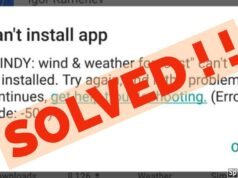
A Play Store Error 504 is a common issue that can disrupt your device performance. If you are experiencing a Play Store Error 504, this 2026 step-by-step diagnostic guide will help you troubleshoot and resolve the problem quickly.

Specifically, this installation blockage manifests when the server fails to complete a request within a designated timeframe. Consequently, users encounter frustrating installation halts during large game updates or routine application downloads on Android smartphones and tablets.
Quick Diagnostic Summary
Primary Cause: HTTP Gateway Timeout or corrupted cache storage.
Estimated Fix Time: 5 to 10 Minutes.
Difficulty Level: Beginner to Intermediate.
Table of Contents

Diagnostic Checklist Before Troubleshooting
Initially, you should verify basic network conditions before modifying internal device parameters. For instance, temporary cellular network congestion frequently triggers unexpected download interruptions.
Furthermore, ensure that your device has at least two gigabytes of available internal storage space. However, if your system storage is critically full, refer to our comprehensive guide on handling a Tablet Update Fail for deep clean strategies.
Finally, restart your Android tablet or mobile phone. A fresh system reboot clears temporary random access memory glitches that might interfere with server handshake requests.
Causes Behind Play Store Error 504
Understanding why you are encountering Play Store Error 504 helps in applying the exact resolution strategy. Technically, Error 504 functions as an HTTP status code indicating an upstream gateway timeout standard across internet protocols.
In addition, local device factors often exacerbate server response delays. Corrupted temporary application caches, outdated Google Play Services binaries, and desynchronized device date and time settings frequently provoke download blocks.
Similarly, underlying system firmware corruptions can prevent package installations altogether. If your phone experiences broader operating system instability alongside app store crashes, consult our guide on resolving a Smartphone Bootloop Error.
Step-by-Step Play Store Error 504 Solutions
Below are tested diagnostic steps organized by effectiveness. Follow these instructions sequentially to restore app download capabilities smoothly.
Method 1: Clear Google Play Store Cache and Data
First, navigate to your device Settings menu and locate the Applications section. Select Google Play Store from the list of installed applications.
Next, tap on Storage and select Clear Cache. Afterwards, select Clear Data to remove temporary configuration files. Perform the exact same step for Google Play Services.
Ultimately, clearing these files eliminates Play Store Error 504 cleanly without deleting your personal photos or application content.
Method 2: Remove and Re-add Google Account
Sometimes, user authentication tokens become corrupted on Google servers. Open your device Settings, then select Accounts and Backup.
Choose your primary Google account and select Remove Account. Therefore, restart your device to commit the account removal fully to the local system database.
Finally, return to Accounts menu and re-add your credentials. This process refreshes secure tokens and resolves persistent download timeouts.
Method 3: Reset Network Preferences
Additionally, incorrect Domain Name System configurations or proxy settings can block store downloads. Open Settings and navigate to General Management.
Tap on Reset Options, then select Reset Network Settings. Consequently, your Wi-Fi networks, cellular data profiles, and Bluetooth pairings will reset to default factory configurations.
For official documentation on Play Store download troubleshooting, visit the authoritative Google Play Help Center.
Diagnostic Comparison Table
To help you evaluate which troubleshooting method fits your scenario, refer to the quick comparison table below.
| Troubleshooting Method | Target Cause | Success Rate | Data Impact |
|---|---|---|---|
| Clear App Cache/Data | Corrupted App Temporary Files | High (75%) | None (Resets store settings) |
| Re-sync Google Account | Expired OAuth Token | Medium (15%) | None (Requires re-login) |
| Reset Network Settings | DNS Timeout & Stale Proxies | Moderate (10%) | Wi-Fi Passwords Cleared |
Advanced System File Maintenance
If basic solutions fail, deeper hardware or display environment factors might require review. For instance, hardware rendering issues can cause display freezes during app installations. Check our guide on Samsung Display Flickering if visual glitches accompany your software freezes.
Furthermore, ensure that your device clock synchronizes automatically with network time. Open Date & Time settings and enable Use Network-Provided Time.
Consequently, secure SSL handshake requests between Google servers and your device will maintain precise timestamp validation during app payload transfers.
Preventing Play Store Error 504 in Future Updates
Proactive maintenance prevents future gateway timeout issues on mobile devices. Regularly update your device operating system software to keep core system frameworks compatible with recent Google Play Services APIs.
In addition, avoid using unverified virtual private network apps during download processes. Free VPN tunnels frequently drop data packets, which directly provokes gateway responses.
Finally, ensure your device retains at least fifteen percent free storage capacity. System operations require temporary buffer space to unpack download packages seamlessly.
Frequently Asked Questions
What causes Play Store Error 504 on Android?
This error occurs primarily due to HTTP gateway timeouts, corrupted Google Play Store cached data, unstable Wi-Fi connections, or conflicting Google account authentication tokens.
Will clearing Play Store data delete my installed applications?
No, clearing Play Store data only resets app preferences, login tokens, and cached files. Your installed applications and personal files remain completely safe.
Why does Error 504 occur specifically during large app updates?
Large app updates require sustained connection stability and uninterrupted read-write operations. Any temporary server failure or packet drop triggers an HTTP gateway timeout.
📺 Video Guide: Android error 504 fixing
Video walkthrough courtesy of vidos on YouTube. Follow along with the visual steps above.