A Smart TV Error 205 is a common issue that can disrupt your device performance. If you are experiencing a Smart TV Error 205, this 2026 step-by-step diagnostic guide will help you troubleshoot and resolve the problem quickly.
This comprehensive guide provides actionable solutions, from basic restarts to advanced network configurations. Furthermore, we will cover preventative measures to ensure your smart TV operates smoothly. Let’s dive into fixing this common connectivity fault.
Table of Contents
- Understanding the Smart TV Error 205
- Initial Troubleshooting Steps for Smart TV Error 205
- Advanced Solutions for Persistent Connectivity Issues
- Diagnostic Comparison Table
- Preventative Best Practices
- Frequently Asked Questions
- Conclusion: Resolving Your Smart TV Error 205
Understanding the Smart TV Error 205
The Smart TV Error 205 typically indicates a problem with your television’s ability to connect to online services or the internet. This specific error often points to network connectivity issues, server-side problems, or temporary glitches within the TV’s operating system. Consequently, users might experience interruptions in streaming, app access, or smart features.
Initially, it’s crucial to understand that this error is rarely a sign of a critical hardware failure. Instead, it’s usually a software or network-related hiccup that can be resolved with systematic troubleshooting. Therefore, identifying the root cause is the first step towards a lasting solution.
Initial Troubleshooting Steps for Smart TV Error 205
Addressing the Smart TV Error 205 often begins with simple checks that can resolve many common issues. These steps are designed to reset temporary faults and re-establish stable connections. Furthermore, they require minimal technical expertise and can be performed quickly.
1. Restart Your Smart TV and Router
Firstly, a simple power cycle can often clear temporary bugs. Turn off your smart TV and unplug it from the power outlet. Simultaneously, unplug your Wi-Fi router and modem. Wait for at least 60 seconds before plugging them back in. Power on your modem and router first, allowing them to fully boot up before turning on your TV. This process refreshes network connections and clears cached data.
2. Check Your Internet Connection
Next, verify that your internet connection is working correctly. Try accessing the internet on another device, such as a smartphone or computer, connected to the same Wi-Fi network. If other devices also cannot connect, the issue lies with your internet service provider or router. Contact your ISP if the problem persists across all devices.
3. Verify Network Settings on Your TV
Furthermore, ensure your TV’s network settings are configured correctly. Navigate to your TV’s settings menu, then select ‘Network’ or ‘Connectivity’. Confirm that your TV is connected to the correct Wi-Fi network and that the signal strength is adequate. Sometimes, re-entering the Wi-Fi password can resolve authentication issues.
4. Clear Cache and Data for Streaming Apps
Specific apps might be causing the Smart TV Error 205. To address this, go to your TV’s app settings, find the problematic streaming application, and clear its cache and data. This action removes corrupted temporary files that might be interfering with the app’s operation. Afterward, restart the app and check if the error is resolved.
Advanced Solutions for Persistent Connectivity Issues
If initial troubleshooting does not resolve the Smart TV Error 205, more advanced steps may be necessary. These solutions delve deeper into network configurations and software integrity. Consequently, they can tackle more stubborn connectivity problems.
1. Update Your Smart TV’s Firmware
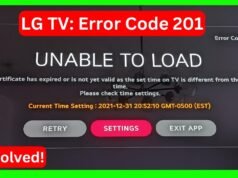
Outdated firmware can lead to various compatibility and performance issues, including error codes. Check for available software updates in your TV’s settings menu, usually under ‘Support’ or ‘About TV’. Download and install any pending updates. This ensures your TV has the latest patches and improvements, which can often fix underlying bugs. For example, similar issues like LG TV Error 201 are often resolved with firmware updates.
2. Change DNS Settings
Sometimes, the default DNS servers provided by your ISP can be slow or unreliable. Changing your TV’s DNS settings to public DNS servers, like Google DNS (8.8.8.8 and 8.8.4.4) or Cloudflare DNS (1.1.1.1 and 1.0.0.1), can improve connectivity. Access your TV’s network settings, select ‘IP Settings’ or ‘DNS Settings’, and manually enter these values. This can significantly enhance network resolution.
3. Factory Reset Your Smart TV
As a last resort, performing a factory reset can resolve persistent issues by restoring your TV to its original settings. Be aware that this will erase all personal data, installed apps, and custom settings. Navigate to ‘Settings’ > ‘Support’ > ‘Self Diagnosis’ > ‘Reset’ (or similar path depending on your TV brand). After the reset, you will need to set up your TV again from scratch. This drastic step often eliminates software conflicts causing the Smart TV Error 205.
4. Check for Router Firmware Updates and Settings
Your router’s firmware also plays a critical role in network stability. Access your router’s administration page via a web browser (usually by typing its IP address, e.g., 192.168.1.1). Look for a firmware update section and install any available updates. Furthermore, ensure no parental controls or firewall settings are inadvertently blocking your TV’s access. Issues like Eero Error 101 often stem from router configuration problems.
Diagnostic Comparison Table
This table provides a quick overview of common causes for the Smart TV Error 205 and their corresponding solutions. Use it to quickly identify potential issues and the most effective fixes. This comparison helps streamline your troubleshooting process.
| Problem Symptom | Likely Cause | Recommended Solution | Complexity |
|---|---|---|---|
| Cannot connect to Wi-Fi | Incorrect password, router issue, signal interference | Restart TV/Router, Re-enter Wi-Fi password, Check router settings | Low |
| Streaming apps not loading | App cache corruption, server outage, slow internet | Clear app cache/data, Check internet speed, Wait for server recovery | Medium |
| Intermittent connectivity | Weak Wi-Fi signal, DNS issues, router overload | Move TV closer to router, Change DNS, Update router firmware | Medium |
| Error persists after basic resets | Outdated TV firmware, deep software glitch | Update TV firmware, Factory reset TV | High |
Preventative Best Practices
To minimize the occurrence of Smart TV Error 205 and other connectivity issues, adopting certain preventative measures is highly recommended. These practices ensure a stable and efficient smart TV experience. Consequently, you can enjoy uninterrupted entertainment.
1. Maintain a Stable Network Connection
Ensure your Wi-Fi network is robust and reliable. Consider upgrading your router if it’s old or frequently drops connections. Furthermore, place your router in a central location, away from obstructions, to maximize signal strength to your smart TV. A strong signal is paramount for consistent performance.
2. Regularly Update Firmware
Always keep your smart TV’s firmware and your router’s firmware up to date. Manufacturers frequently release updates that include bug fixes, security patches, and performance enhancements. These updates can prevent future errors and improve overall system stability. Therefore, enable automatic updates if available.
3. Avoid Network Overload
Too many devices simultaneously streaming or downloading can strain your home network. Try to limit bandwidth-intensive activities when using your smart TV for streaming. Consider using QoS (Quality of Service) settings on your router to prioritize your TV’s traffic. This helps maintain consistent performance.
4. Periodically Power Cycle Devices
Make it a habit to power cycle your smart TV, router, and modem every few weeks. This simple action clears temporary data and refreshes network connections, preventing minor glitches from escalating into significant errors. It’s a quick and effective maintenance routine.
5. Use a Wired Connection if Possible
For the most stable and fastest connection, consider connecting your smart TV to your router using an Ethernet cable. A wired connection eliminates potential Wi-Fi interference and signal degradation, providing a more reliable streaming experience. This is especially beneficial for 4K streaming.
Frequently Asked Questions
Here are some common questions regarding the Smart TV Error 205 and its resolution. These answers provide quick insights into frequently encountered queries. Hopefully, they will clarify any remaining doubts you might have.
Q1: What does Smart TV Error 205 mean?
Smart TV Error 205 usually signifies a problem with network connectivity or a temporary server issue. It prevents your smart TV from accessing online content or services, often due to internet disruptions or server maintenance.
Q2: How can I prevent Smart TV Error 205 in the future?
To prevent Smart TV Error 205, ensure a stable internet connection, regularly update your TV’s firmware, and avoid overloading your network. Furthermore, periodically restart your router and TV to clear temporary glitches and maintain optimal performance.
Q3: Is Smart TV Error 205 specific to certain brands?
No, Smart TV Error 205 is not specific to a single brand. It can occur on various smart TV models, including Samsung, LG, Sony, and others. The error code generally points to a universal network or server-related issue rather than a brand-specific defect.
Conclusion: Resolving Your Smart TV Error 205
Successfully resolving the Smart TV Error 205 is usually a straightforward process involving systematic troubleshooting. By following the steps outlined in this guide, you can diagnose and fix most instances of this common connectivity issue. Remember to start with simple restarts and gradually move to more advanced solutions if necessary.
Maintaining a stable network, keeping your devices updated, and performing regular maintenance are key to preventing future errors. If the problem persists after trying all suggested solutions, consider contacting your TV manufacturer’s support or your internet service provider for further assistance. For more general troubleshooting tips, you can also refer to Google’s Android TV support page.
📺 Video Guide: How To Fix ISP Blocking Service Error Code 202: Simple Fix
Video walkthrough courtesy of Home Automations on YouTube. Follow along with the visual steps above.