A BenQ Error 0x01 is a common issue that can disrupt your device performance. If you are experiencing a BenQ Error 0x01, this 2026 step-by-step diagnostic guide will help you troubleshoot and resolve the problem quickly.
Table of Contents
- Understanding the BenQ Error 0x01 Cause
- Diagnostic Comparison Table
- Step-by-Step BenQ Error 0x01 Solutions
- Advanced Hardware Troubleshooting
- Preventative Best Practices
- Resolving BenQ Error 0x01 via Firmware
- Frequently Asked Questions
Understanding the BenQ Error 0x01 Cause
Initially, we must identify why this specific error occurs on high-end display panels. The BenQ Error 0x01 typically signifies a failure in the initial handshake between the monitor and the graphics processing unit.
Furthermore, this interruption can stem from physical degradation of the internal circuitry. Consequently, the monitor fails to interpret the incoming digital signal, leading to a complete display blackout or a persistent error message.
Specifically, users often report this issue after a sudden power surge or a firmware update gone wrong. Therefore, understanding the underlying communication protocol is essential for a permanent fix.
Moreover, similar to how an LG TV Error 201 indicates connectivity faults, this BenQ code points toward a synchronization mismatch. We will explore these technical nuances in the following sections.
Diagnostic Comparison Table
Before proceeding with complex repairs, please review the following comparison table. This data helps categorize the severity of your current display situation.
| Symptom | Likely Cause | Severity Level | Recommended Action |
|---|---|---|---|
| Intermittent Black Screen | Loose HDMI Cable | Low | Reseat Connections |
| Persistent 0x01 Code | Firmware Corruption | Medium | Factory Reset |
| No Power LED | Internal PSU Failure | High | Professional Repair |
| Flickering Colors | GPU Driver Conflict | Medium | Update Drivers |
Step-by-Step BenQ Error 0x01 Solutions
To begin, you should perform a hard reset of the hardware components. This process clears the temporary cache stored in the monitor’s volatile memory, which often resolves the BenQ Error 0x01 immediately.
Next, disconnect the power cable from the wall outlet and wait for at least sixty seconds. During this time, press and hold the power button on the monitor to drain any residual electricity.
Subsequently, reconnect the power and check if the error persists. If the BenQ Error 0x01 remains, you must inspect your signal cables for any signs of fraying or internal wire breakage.
Additionally, try switching from an HDMI connection to a DisplayPort connection if your hardware supports it. This change often bypasses specific port failures that trigger the error code.
Finally, ensure that your graphics card is seated correctly in the PCIe slot of your computer. A loose GPU can cause signal instability that the monitor interprets as a system-level fault.
Advanced Hardware Troubleshooting
If the basic steps fail, we must look deeper into the hardware environment. For instance, electromagnetic interference from nearby speakers or unshielded power bricks can disrupt the sensitive LVDS signaling.
Consequently, moving your monitor to a different power circuit might eliminate the noise causing the fault. Furthermore, check the pins on your video cables for any bends or corrosion.
In addition, consider testing the monitor with a different source device, such as a laptop or a gaming console. This helps isolate whether the problem lies within the monitor or the PC.
Notably, hardware initialization errors are not unique to monitors. Much like a Bootloop Error 0xc00000e on a smartphone, the monitor may be stuck in a failed boot state.
Therefore, checking the internal capacitors for bulging or leaking is a necessary step for advanced users. However, please exercise caution as opening the chassis will void your manufacturer warranty.
Preventative Best Practices
To prevent future occurrences, always use high-quality, certified cables that meet the latest bandwidth standards. Specifically, HDMI 2.1 or DisplayPort 1.4 cables provide better shielding against signal loss.
Furthermore, connecting your display to a high-quality surge protector is vital. This protects the delicate logic board from voltage spikes that frequently lead to the BenQ Error 0x01.
Additionally, keep your monitor’s ventilation ports clear of dust. Overheating can cause the internal processor to throttle, which eventually leads to communication errors and system crashes.
Moreover, avoid hot-swapping video cables while the monitor is powered on. This practice can cause static discharge that damages the sensitive input ports over time.
Finally, periodically check for software updates from your operating system. Sometimes, a Windows update can introduce display driver bugs that manifest as hardware error codes.
Resolving BenQ Error 0x01 via Firmware
Updating the internal software is a critical step in fixing a persistent BenQ Error 0x01. Manufacturers frequently release patches to improve compatibility with newer graphics cards and operating systems.
Initially, visit the official BenQ Support Center to find the specific firmware for your model. Ensure you have the exact model number located on the back panel.
Next, follow the instructions carefully to transfer the firmware file via a USB drive or a direct connection. Any interruption during this process could permanently brick your display device.
Consequently, ensure your computer is connected to a stable power source during the update. Once the process is complete, the BenQ Error 0x01 should be cleared from the system logs.
Furthermore, after the update, perform a final factory reset through the On-Screen Display (OSD) menu. This ensures that all new settings are applied correctly without any legacy conflicts.
In addition, verify that the refresh rate in your OS settings matches the native capabilities of the monitor. Mismatched timings are a frequent trigger for digital handshake failures.
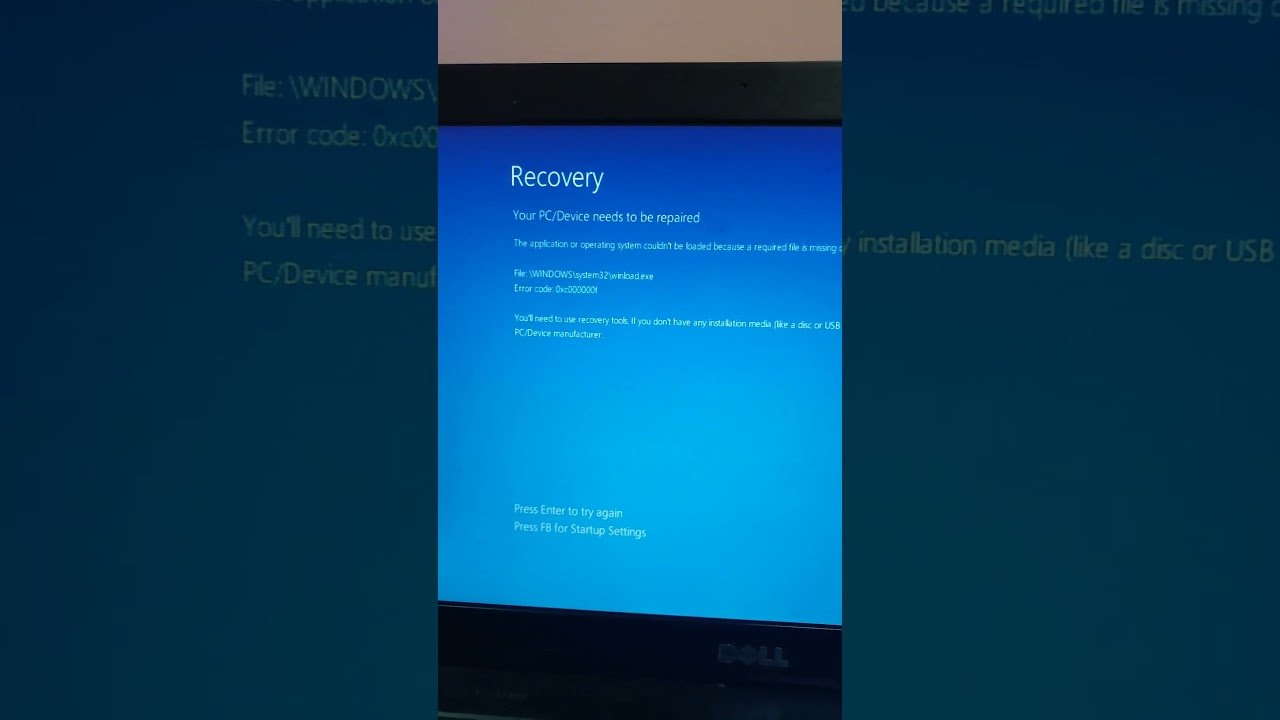
📺 Video Guide: Windows Error, please help me solve it. "your PC/device needs to be repaired. winload.exe missing"
Video walkthrough courtesy of Raj P V on YouTube. Follow along with the visual steps above.
Frequently Asked Questions
Many users ask if this issue is related to the age of the monitor. While older units are more prone to component failure, the BenQ Error 0x01 is often seen in newer models due to firmware bugs.
Another common question involves the use of adapters. Specifically, using passive VGA to HDMI adapters can cause signal degradation that triggers various error codes on modern digital panels.
Therefore, always opt for active converters if you must use legacy hardware. This ensures the signal is properly modulated for the monitor’s internal controller to understand.
Finally, if you have tried all the steps above and the error remains, contact professional support. There may be a defect in the main scaler board that requires expert soldering or replacement.
In conclusion, while the 0x01 code seems daunting, it is usually a manageable issue. By following this guide, you can restore your BenQ monitor to its peak performance in 2026.