

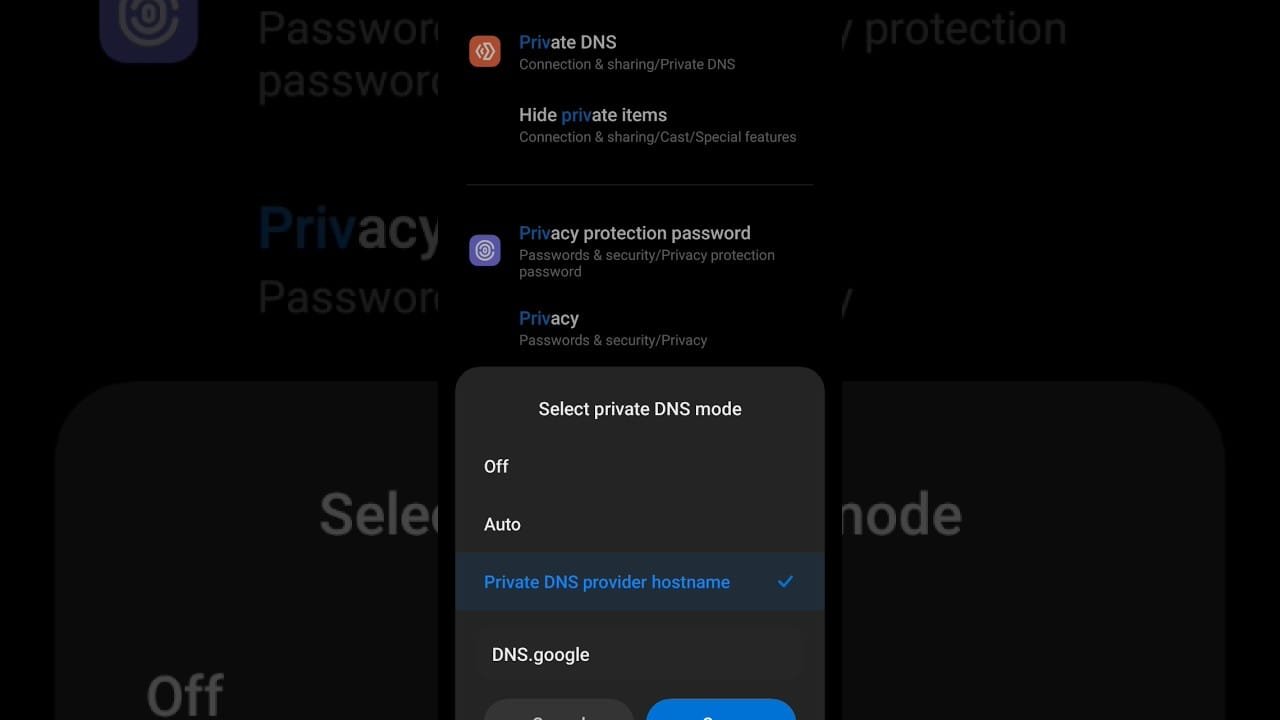
A WireGuard Handshake Failure is a common issue that can disrupt your device performance. If you are experiencing a WireGuard Handshake Failure, this 2026 step-by-step diagnostic guide will help you troubleshoot and resolve the problem quickly.
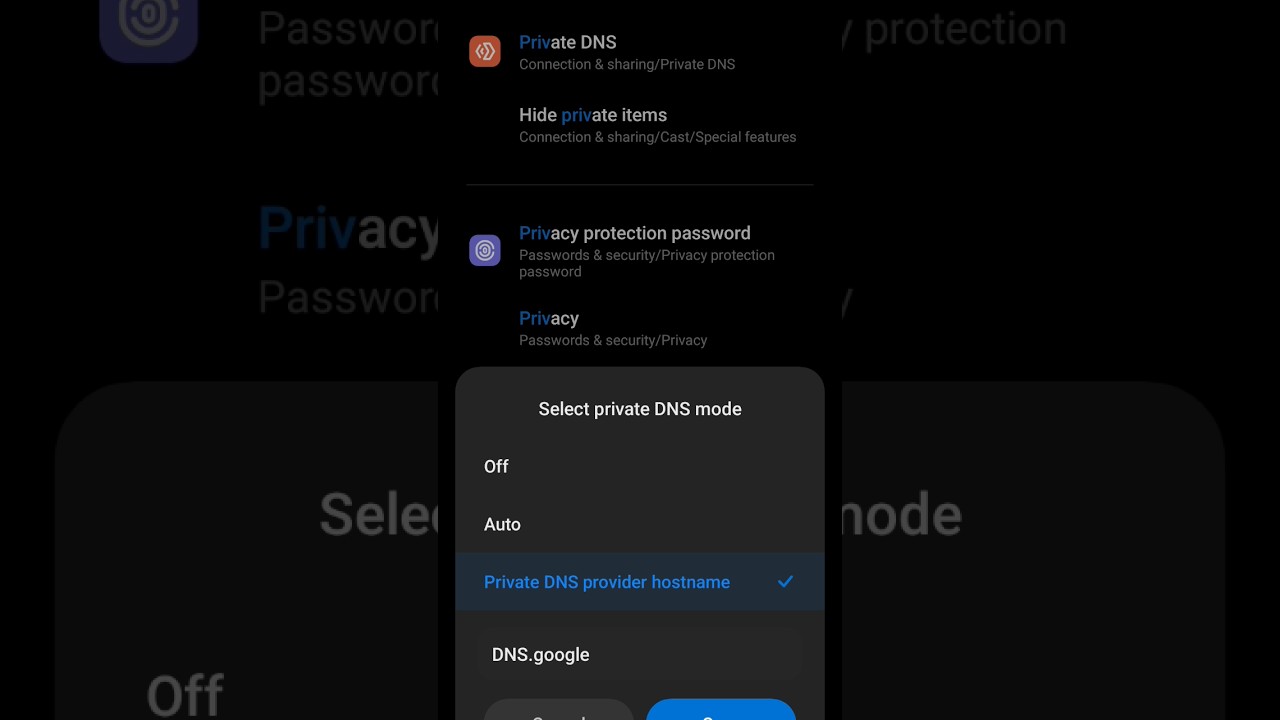
⚡ Quick Answer:
To fix a WireGuard Handshake Failure on Android, first verify your public and private key pairs match perfectly. Next, check your endpoint IP address and port configuration. Finally, disable battery optimization for the WireGuard app, switch from Wi-Fi to mobile data, or change your MTU size to 1280.
Written by JompaTech Network Security Team | Updated January 2026 | Editorial Guidelines Compliant
📑 Table of Contents
Understanding WireGuard Handshake Failure on Android
Initially, we must understand what this error actually signifies. Specifically, a WireGuard Handshake Failure occurs when the Android client sends an initiation packet but receives no response from the server within a set timeframe. Consequently, the secure tunnel cannot be established, leaving your connection unprotected. Therefore, identifying the root cause is essential for restoring your privacy. For example, this issue frequently stems from mismatched cryptographic keys or blocked network ports. However, because WireGuard operates silently, it does not always display explicit error messages. In addition, network transitions between Wi-Fi and mobile data can trigger this state. Consequently, systematic troubleshooting is required to pinpoint the exact breakdown in communication.
Common Causes of WireGuard Handshake Failure
To resolve this issue effectively, we must first examine the most frequent culprits. Specifically, configuration mismatches represent the primary cause of connection failures. For example, a single incorrect character in your public or private key will completely block the handshake. Furthermore, aggressive Android battery management systems often terminate the background VPN service unexpectedly. Consequently, the connection drops without warning. In addition, incorrect Maximum Transmission Unit (MTU) settings can cause packets to be fragmented and discarded by intermediate routers. Therefore, adjusting these parameters is crucial. Finally, local firewalls or mobile carrier restrictions may block the specific UDP port utilized by your WireGuard server. However, we can systematically address each of these factors using the steps below.

Diagnostic Comparison Table
Before diving into the detailed steps, please review this quick diagnostic table. Consequently, you can identify your specific symptoms and find the corresponding solution immediately.
| Symptom | Likely Cause | Recommended Action |
|---|---|---|
| Infinite connecting status | Mismatched key pairs | Regenerate and re-import configuration |
| Immediate connection drop | MTU size too high | Reduce MTU to 1280 or 1360 |
| Disconnects in background | Battery optimization active | Set WireGuard battery usage to Unrestricted |
| No handshake on mobile data | Carrier blocking UDP ports | Change server port or use alternative network |
Step-by-Step Solutions to Resolve the Error
1. Verify Key Pairs and Configuration
Initially, you should double-check your cryptographic keys. Specifically, the public key on your Android device must correspond exactly to the private key on the server, and vice versa. If you generated these keys manually, a copy-paste error is highly likely. Therefore, we recommend regenerating the configuration file or scanning the QR code provided by your VPN administrator. Furthermore, if you are managing multiple devices, ensure that each client has a unique IP address assigned within the tunnel block. Consequently, address conflicts will be avoided. For those managing cross-platform setups, you might encounter similar issues on desktop systems; for instance, you can read our WireGuard Handshake Failed: 2026 Complete Diagnostic Guide to resolve Windows-specific configuration errors.
2. Adjust MTU Settings
In addition to key verification, optimizing the Maximum Transmission Unit (MTU) is a highly effective solution. Specifically, if your MTU is set too high, your mobile carrier may drop the oversized UDP packets. Consequently, the handshake will fail repeatedly. To resolve this, open your WireGuard app and edit your tunnel configuration. Next, locate the MTU field and change the value to 1280, which is the minimum MTU for IPv6 and highly stable on mobile networks. Alternatively, you can try 1360 or 1420 depending on your carrier. Therefore, reducing this value prevents packet fragmentation. Finally, save the configuration and restart the tunnel to apply the changes.
3. Disable Battery Optimization
Furthermore, Android’s aggressive battery saving features can severely disrupt VPN stability. Specifically, the operating system may put the WireGuard background service to sleep to conserve power. Consequently, this action terminates active handshakes. To prevent this, navigate to your Android system Settings, select Apps, and locate WireGuard. Next, tap on Battery or Power Usage and select “Unrestricted” or disable battery optimization entirely. Therefore, the operating system will allow the app to run continuously in the background. However, keep in mind that this might slightly increase battery consumption. Nevertheless, it is a necessary step to maintain a persistent, secure connection.
4. Check Network and Endpoint Settings
Finally, network-level blockages are a common source of connection failures. For example, public Wi-Fi networks often block UDP traffic entirely to conserve bandwidth. Consequently, switching to mobile data can instantly resolve the issue. In addition, verify that your endpoint address is correct and currently online. If your home server uses a dynamic IP address, you should configure a Dynamic DNS (DDNS) service. Therefore, your Android client will always resolve the correct IP address. For more detailed specifications on protocol standards, you can consult the official WireGuard documentation. However, if the issue persists, your mobile carrier might be throttling VPN ports.
Advanced Troubleshooting Tips
Clearing App Cache and Reinstalling
If the standard solutions fail, you may need to perform advanced troubleshooting. Initially, clear the WireGuard app cache by navigating to Settings, Apps, WireGuard, and selecting Storage. Next, tap “Clear Cache” and attempt to reconnect. If this does not work, we recommend completely uninstalling the application. Consequently, any corrupted local configuration files will be deleted. Furthermore, download the latest version of the app directly from the Google Play Store. Finally, re-import your configuration file. Therefore, you will ensure a clean slate, which typically resolves persistent software glitches.
Conclusion
In conclusion, resolving a WireGuard Handshake Failure on Android is highly achievable when following a structured diagnostic path. Specifically, by verifying cryptographic keys, adjusting MTU values, and disabling battery optimization, you can eliminate the vast majority of connection issues. Consequently, your mobile data security will be restored. Therefore, we recommend systematically applying these steps to maintain a reliable VPN tunnel. However, if you continue to experience difficulties, consult your network administrator or review your server-side firewall logs for deeper insights.
📺 Video Guide: VPN NOT CONNECT PROBLEM SOLUTION || @Facts_baz
Video walkthrough courtesy of Indian Hungry on YouTube. Follow along with the visual steps above.







