A Nvidia Error Code 43 is a common issue that can disrupt your device performance. If you are experiencing a Nvidia Error Code 43, this 2026 step-by-step diagnostic guide will help you troubleshoot and resolve the problem quickly.
⚡ Quick Answer:
To resolve the Nvidia Error Code 43, you should first perform a clean driver installation using Display Driver Uninstaller (DDU) in Safe Mode. Consequently, reinstall the latest official Nvidia drivers. If the issue persists, check your GPU’s physical connection, update your motherboard BIOS, or inspect for hardware failure.
📑 Table of Contents
What Causes Nvidia Error Code 43?
Specifically, this error occurs when Windows stops a graphics device because it reported unspecified problems. Consequently, the operating system disables the GPU to prevent further system instability. For example, corrupted drivers, outdated system files, or hardware faults can trigger this state. Therefore, diagnosing the root cause is essential. In addition, registry conflicts from previous installations often block the driver from loading correctly. However, you can resolve most of these software conflicts without replacing your hardware.
Diagnostic Comparison Table
Before proceeding to the step-by-step fixes, it is helpful to identify the specific symptoms of your system. Consequently, the table below outlines the most common diagnostic indicators and their corresponding solutions.
| Diagnostic Indicator | Likely Root Cause | Recommended Action |
|---|---|---|
| Yellow Triangle in Device Manager | Corrupted Driver / Registry Conflict | Clean DDU Uninstall & Reinstall |
| Error 43 after Windows Update | OS Compatibility Conflict | Roll back driver or update Windows |
| Error 43 with Artifacting | Hardware Degradation / VRAM Failure | Inspect hardware / Reflash VBIOS |
How to Fix Nvidia Error Code 43: Step-by-Step Solutions
To resolve this issue, you must follow a structured troubleshooting methodology. Therefore, we have compiled the most effective, field-tested solutions below. Please execute these steps sequentially to ensure the best results.
Step 1: Perform a Clean Driver Reinstallation Using DDU
Initially, you should perform a clean driver installation using Display Driver Uninstaller (DDU). This utility completely removes all remnants of previous graphics drivers. Specifically, standard uninstallers often leave behind corrupted registry entries that trigger conflicts. Consequently, a clean slate is required. To begin, download DDU and the latest official Nvidia driver. Next, boot your PC into Safe Mode. Run DDU to wipe the existing drivers, and subsequently restart your computer. Finally, install the newly downloaded Nvidia driver. Furthermore, if you are also experiencing other system issues, such as a WireGuard Handshake Failed Windows Update error, keeping your system drivers clean is highly recommended.
Step 2: Roll Back or Update Windows System Files
In addition to driver updates, operating system compatibility plays a vital role. For instance, a recent Windows update might conflict with your current GPU firmware. Therefore, rolling back a recently installed update can resolve the issue. Alternatively, you should check for pending Windows updates. Specifically, Microsoft frequently releases patches that address hardware initialization bugs. To do this, navigate to Settings, select Update & Security, and click Check for Updates. Subsequently, install any available updates and restart your PC. However, if the operating system is fully updated and the error persists, you must look at physical hardware connections.
Step 3: Power Cycle Your PC and Reseat the GPU
Sometimes, the error is caused by a temporary electrical glitch or a loose physical connection. Consequently, a complete power cycle can drain residual power and reset the hardware state. Initially, shut down your PC and unplug the power cable. Next, press and hold the power button for 30 seconds to discharge the capacitors. Furthermore, you should open your PC case and carefully reseat the graphics card in its PCIe slot. Ensure that all power connectors are firmly attached. Finally, plug the system back in and boot up. This simple physical adjustment often clears persistent hardware communication errors.
Advanced Troubleshooting for Nvidia Error Code 43
If standard software and physical checks do not resolve the issue, you must proceed to advanced diagnostics. Specifically, these steps involve system-level firmware modifications and hardware integrity assessments.
Update Motherboard BIOS and VBIOS
Outdated motherboard firmware can cause communication failures between the CPU and the GPU. Therefore, updating your motherboard BIOS is a highly effective solution. Specifically, check your motherboard manufacturer’s website for the latest BIOS version. Subsequently, follow their precise instructions to flash the firmware. In addition, you may need to update the Video BIOS (VBIOS) of your graphics card. However, flashing VBIOS carries risks and should only be done using official tools. For official firmware updates and safe flashing utilities, always refer to the Nvidia Support Portal. Ultimately, updating these firmware layers ensures maximum hardware compatibility.
Check for Hardware Degradation
Unfortunately, if all software and firmware solutions fail, your graphics card may be experiencing physical degradation. For example, failing VRAM or a degraded GPU core will consistently trigger this error code. Consequently, testing the card in another PC is the best way to isolate the issue. Hardware failures are not unique to PCs; for instance, console gamers often face similar hardware-level crashes, as detailed in our PS5 Game Crash Diagnostic Guide. Therefore, if the card fails in a second system, you will likely need to initiate an RMA or seek a professional hardware repair.
Best Practices to Avoid Graphics Card Errors
To prevent future occurrences of this error, you should maintain a healthy system environment. Specifically, ensure your PC has adequate cooling, as excessive heat accelerates hardware degradation. Furthermore, avoid aggressive GPU overclocking, which can destabilize the graphics processor. In addition, always use a high-quality power supply unit (PSU) to deliver clean, stable power to your components. Consequently, keeping your drivers updated and performing routine dust cleaning will prolong your GPU’s lifespan. Ultimately, proactive maintenance is the most effective defense against persistent hardware errors.
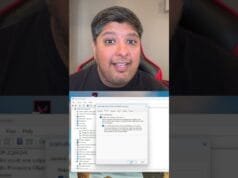
📺 Video Guide: Nvidia eGPU: How to Fix Code 43 Error | Easiest guide
Video walkthrough courtesy of TroubleChute on YouTube. Follow along with the visual steps above.