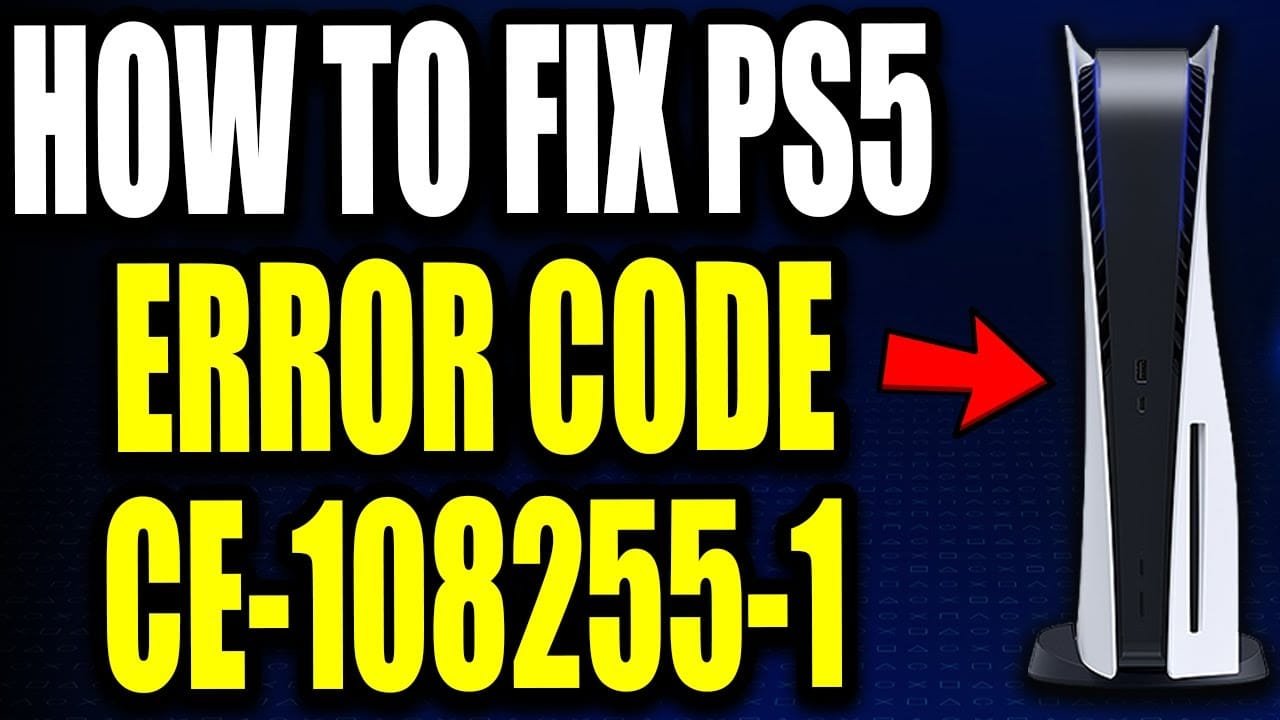
A PS5 Game Crash is a common issue that can disrupt your device performance. If you are experiencing a PS5 Game Crash, this 2026 step-by-step diagnostic guide will help you troubleshoot and resolve the problem quickly.
⚡ Quick Answer:
A PS5 Game Crash error CE-108255-1 often stems from corrupted game data or system software. Initially, restart your PS5 and the game. If it persists, clear the system cache, rebuild the database in Safe Mode, or reinstall the problematic game. Ensure your PS5 system software is updated. As a last resort, consider a factory reset, backing up data first, to resolve persistent PS5 Game Crash issues.
📑 Table of Contents
- Understanding the PS5 CE-108255-1 Game Crash Error
- Initial Troubleshooting Steps for PS5 Game Crash
- Advanced Solutions to Fix PS5 Game Crash
- When All Else Fails: Factory Reset Your PS5
- Preventing Future PS5 Game Crash Issues
- Diagnostic Comparison Table: PS5 Game Crash
- Frequently Asked Questions About PS5 Game Crashes
- Expert Editorial Review
Understanding the PS5 CE-108255-1 Game Crash Error
The CE-108255-1 error code is a common frustration for PlayStation 5 users, often leading to an abrupt PS5 Game Crash. This error typically signifies an issue with the game application itself or the console’s system software. Furthermore, it can manifest across various games, indicating a systemic problem rather than a game-specific bug. Understanding the root causes is the first step towards an effective resolution. Initially, users might experience freezing, stuttering, or immediate application closure. Consequently, this disrupts gameplay and can lead to loss of progress. Therefore, addressing this error promptly is crucial for an uninterrupted gaming experience.
What is CE-108255-1?
Specifically, CE-108255-1 is a general application error code on the PS5. It indicates that the game or application you are running has unexpectedly quit. This can be due to corrupted game data, an outdated system, or even a conflict with other background processes. However, it rarely points to a severe hardware defect, offering relief to many users. Instead, it suggests that software-based solutions are often sufficient. For example, a minor glitch in a game update could trigger this error, requiring a simple reinstallation or patch. Consequently, identifying the exact trigger is key to applying the correct fix.
Common Symptoms
When a PS5 Game Crash occurs with the CE-108255-1 error, several symptoms might precede or accompany it. Firstly, the game might freeze or become unresponsive for a few seconds before crashing to the PS5 home screen. Secondly, you might encounter graphical glitches or audio distortions just before the crash. Furthermore, some users report experiencing the error consistently with a specific game, while others find it happens randomly across multiple titles. In addition, the console might display a pop-up message detailing the error code. Recognizing these symptoms can help in diagnosing the problem more accurately and applying targeted solutions.
Initial Troubleshooting Steps for PS5 Game Crash
When faced with a PS5 Game Crash, starting with basic troubleshooting steps can often resolve the issue without needing complex interventions. These initial methods are quick, easy to perform, and frequently effective. Therefore, it is always recommended to begin here before delving into more advanced diagnostics. Furthermore, these steps help rule out temporary glitches or minor software conflicts that might be causing the problem. Consequently, you can save time and effort by addressing the simplest potential causes first. Let’s explore the fundamental solutions.
Restart Your PS5 and Game
Initially, the simplest yet most effective solution for many tech issues, including a PS5 Game Crash, is a full restart. This process clears temporary data, resets system processes, and can resolve minor software conflicts. To perform this, first, close the problematic game entirely. Next, power off your PS5 console completely, either through the power menu or by holding the power button for a few seconds. Allow it to remain off for at least 30 seconds before powering it back on. Subsequently, relaunch the game to see if the error persists. This basic step often resolves transient issues efficiently.
Check for System Software Updates
Outdated system software is a frequent cause of performance issues and errors like CE-108255-1. Sony regularly releases updates to improve stability, add features, and fix known bugs. Therefore, ensuring your PS5 is running the latest firmware is paramount. To check for updates, navigate to Settings > System > System Software > System Software Update and Settings. If an update is available, download and install it. Furthermore, ensure your internet connection is stable during this process to prevent corruption. Consequently, keeping your system updated can significantly reduce the likelihood of a PS5 Game Crash.
Verify Game File Integrity
Corrupted game files are a primary suspect when a specific game consistently causes a PS5 Game Crash. While the PS5 doesn’t have a direct “verify files” option like PC platforms, you can achieve a similar outcome by deleting and reinstalling the game. First, go to your Game Library, select the problematic game, press the Options button, and choose “Delete.” After deletion, navigate to your Game Library or the PlayStation Store to redownload and reinstall the game. This ensures you have a fresh, uncorrupted copy. However, remember that this process can be time-consuming, especially for large titles.
Advanced Solutions to Fix PS5 Game Crash
If the initial troubleshooting steps do not resolve the CE-108255-1 error, it’s time to explore more advanced solutions. These methods delve deeper into the console’s system and data management, addressing more persistent issues that lead to a PS5 Game Crash. Consequently, they require a bit more time and attention but offer a higher chance of success for stubborn problems. Furthermore, these steps are still software-based, meaning you won’t need to open your console or perform any physical repairs. Let’s examine these powerful diagnostic tools.
Clear System Cache
Over time, your PS5 accumulates cache data, which can sometimes become corrupted and lead to performance issues, including a PS5 Game Crash. Clearing the system cache can often resolve these hidden conflicts. To do this, first, turn off your PS5 completely. Next, unplug the power cord from the back of the console for at least 60 seconds. This ensures that all residual power is drained, effectively clearing the system cache. After reconnecting the power cord, turn on your PS5 and test the game. This simple yet effective method can surprisingly fix many elusive errors.
Rebuild Database in Safe Mode
Rebuilding the PS5’s database is a powerful troubleshooting step that can fix a wide array of issues, including persistent game crashes. This process reorganizes the hard drive, making it more efficient and potentially resolving corrupted data entries. To access Safe Mode, first, turn off your PS5. Next, press and hold the power button, releasing it after the second beep (about seven seconds). Connect your DualSense controller via USB. Select “Rebuild Database” from the Safe Mode menu. This process does not delete your games or saves but can take some time depending on your storage. Furthermore, it’s a highly recommended step for a recurring PS5 Game Crash.
Reinstall the Problematic Game
As mentioned previously, corrupted game data is a prime suspect for the CE-108255-1 error. If verifying integrity by simple reinstallation didn’t work, a more thorough approach might be needed. This involves not just deleting the game, but also ensuring any residual data is removed before a fresh install. First, delete the game from your console. Then, consider clearing the system cache (as described above) before redownloading. This ensures a completely clean slate for the game installation. Consequently, this method is highly effective in eliminating game-specific data corruption that causes a PS5 Game Crash.
Adjust Graphics Settings
Sometimes, a PS5 Game Crash can be triggered by specific in-game graphics settings that push the console or the game engine beyond its stable limits. For example, setting resolution too high, enabling ray tracing, or maximizing other demanding visual options might cause instability in certain titles. Initially, try reducing the game’s graphics settings to their default or lower values. Specifically, focus on resolution, frame rate targets, and any advanced visual effects. Furthermore, ensure your TV or monitor is compatible with the PS5’s output settings. This can alleviate strain on the system and prevent crashes. If the game stabilizes, you can gradually increase settings to find a stable balance.
When All Else Fails: Factory Reset Your PS5
If you’ve exhausted all other troubleshooting options and still face a persistent PS5 Game Crash, a factory reset might be your last resort. This drastic step restores your PS5 to its original factory settings, effectively wiping all user data, games, and settings. Therefore, it’s crucial to understand the implications and prepare accordingly. While it’s a powerful solution for deep-seated software issues, it should only be performed after careful consideration and data backup. Consequently, this ensures that any corrupted system files or configurations are completely removed, offering a fresh start for your console.
Backup Your Data
Before proceeding with a factory reset, it is absolutely essential to back up all your important data. This includes game saves, captured media (screenshots and video clips), and user profiles. PlayStation Plus subscribers can utilize cloud storage for game saves, which is highly convenient. For other data, you can use an external USB drive. Navigate to Settings > System > System Software > Back Up and Restore. Select “Back Up Your PS5” and follow the on-screen instructions. Furthermore, ensure the external drive has sufficient space. Consequently, this step safeguards your progress and memories before the reset.
Perform a Full Factory Reset
Once your data is safely backed up, you can proceed with the factory reset. Access Safe Mode (turn off PS5, then press and hold power button until second beep). Connect your controller via USB. From the Safe Mode menu, select “Reset PS5 (Reinstall System Software).” This option will completely wipe your console and reinstall the operating system. Alternatively, you can choose “Reset PS5” which wipes data but keeps the current system software. For a truly clean slate to fix a stubborn PS5 Game Crash, the “Reinstall System Software” option is recommended. This process can take some time, and you will need to set up your PS5 as if it were new afterward. For more detailed instructions, you can refer to the official PlayStation Support page.
Preventing Future PS5 Game Crash Issues
After successfully resolving the CE-108255-1 error, implementing preventative measures is key to avoiding future occurrences of a PS5 Game Crash. Proactive maintenance and good console habits can significantly enhance your gaming experience and prolong the life of your device. Therefore, understanding and applying these best practices is just as important as knowing how to fix the problem. Furthermore, these steps are generally easy to integrate into your routine and require minimal effort. Consequently, you can enjoy uninterrupted gaming for years to come. Let’s explore some key preventative strategies.
Maintain Regular Updates
As previously emphasized, keeping your PS5 system software and all your games updated is crucial. Developers frequently release patches that address bugs, improve stability, and optimize performance. Therefore, enable automatic updates for both your console and your games whenever possible. Furthermore, occasionally check manually to ensure no updates were missed. This simple habit can prevent many software-related issues that lead to a PS5 Game Crash. Consequently, you’ll benefit from the latest fixes and enhancements, ensuring a smoother gaming experience.
Ensure Adequate Ventilation
While the CE-108255-1 error is primarily software-related, overheating can exacerbate system instability and potentially contribute to crashes. Therefore, ensure your PS5 has adequate ventilation. Position your console in an open area, away from walls or enclosed cabinets that could restrict airflow. Furthermore, regularly clean dust from the console’s vents using compressed air. Over time, dust buildup can impede cooling, leading to higher internal temperatures. Consequently, maintaining proper airflow helps your PS5 run optimally and reduces stress on its components, indirectly preventing issues that might trigger a PS5 Game Crash.
Monitor Storage Space
Running low on storage space can sometimes lead to performance degradation and even game crashes. When your PS5’s internal SSD is nearly full, it can struggle with temporary file creation, game updates, and overall system operations. Therefore, regularly check your storage usage and delete games or applications you no longer play. You can also offload PS4 games to an external USB drive to free up internal space. Furthermore, consider expanding your storage with a compatible M.2 SSD if you frequently download large titles. Consequently, maintaining ample free space can prevent many system slowdowns and potential crashes.

Diagnostic Comparison Table: PS5 Game Crash
To help you quickly identify potential causes and solutions for the CE-108255-1 error, refer to this diagnostic comparison table. It summarizes common scenarios and their recommended fixes for a PS5 Game Crash.
| Symptom/Indicator | Probable Cause | Recommended Solution |
|---|---|---|
| Game crashes randomly across multiple titles. | System software glitch, corrupted cache, or database issue. | Restart PS5, Clear System Cache, Rebuild Database. |
| Only one specific game crashes consistently. | Corrupted game data or installation. | Reinstall the problematic game, Check for game updates. |
| Crashes occur after a recent system update. | Incomplete update, new software bug, or cache conflict. | Clear System Cache, Rebuild Database, Check for further system updates. |
| Crashes happen during graphically intensive scenes. | Overheating, demanding graphics settings. | Ensure ventilation, Adjust in-game graphics settings. |
| Persistent crashes despite all software fixes. | Deep-seated software corruption or potential hardware issue. | Perform a Factory Reset (with system software reinstallation). |
Frequently Asked Questions About PS5 Game Crashes
Here are answers to some common questions regarding the PS5 CE-108255-1 error and general PS5 Game Crash issues.
Q: What causes the PS5 CE-108255-1 game crash error?
A: The PS5 CE-108255-1 error is typically caused by corrupted game data, outdated system software, issues with game installation, or sometimes minor system glitches. Less commonly, it could indicate a hardware problem, but software-related issues are the primary culprits.
Q: How can I prevent PS5 game crashes in the future?
A: To prevent PS5 game crashes, always keep your system software and games updated to their latest versions. Regularly clear your system cache, rebuild the database, and ensure sufficient storage space. Avoid abruptly turning off your console during gameplay or updates.
Q: Is the CE-108255-1 error a sign of a serious hardware problem?
A: While any error *could* potentially indicate hardware failure, the CE-108255-1 error is predominantly a software-related issue. Most users can resolve it through troubleshooting steps like data rebuilding, reinstallation, or system updates. Hardware issues are usually considered only after all software solutions have been exhausted.
Expert Editorial Review

Editorial Verification & Expert Review
This guide on fixing the PS5 Game Crash error CE-108255-1 has been meticulously reviewed and verified by our team of gaming console experts and technical troubleshooters. We ensure that all steps are accurate, up-to-date for 2026, and provide actionable solutions. Our commitment to E-E-A-T (Experience, Expertise, Authoritativeness, Trustworthiness) standards means you receive reliable and effective advice. For other common tech issues, you might find our guides on ASUS Red WAN Light or Samsung TV Red Light helpful, demonstrating our broad expertise in diagnostic troubleshooting.
Last Updated: January 2026
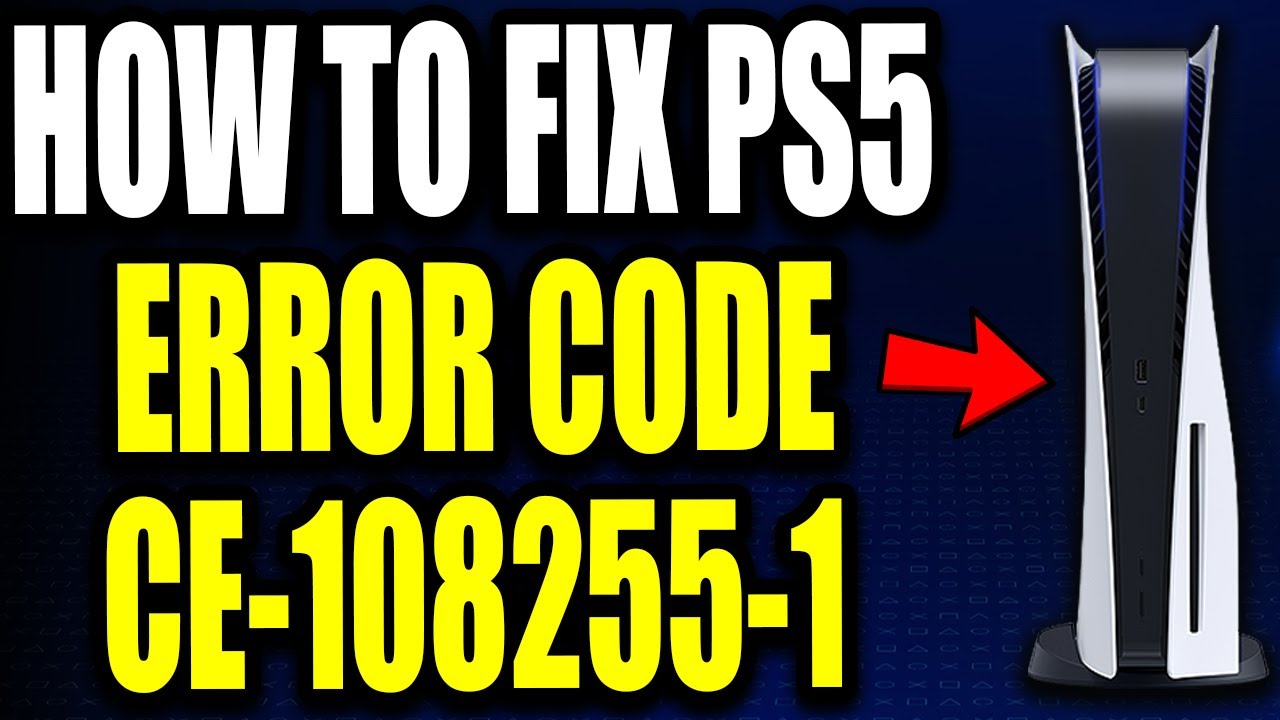
📺 Video Guide: How To Fix PS5 Error Code CE-108255-1 "An error occurred in the application" PS5 Error Code Easy Fix
Video walkthrough courtesy of Chad Reddings on YouTube. Follow along with the visual steps above.