
An ASUS Red WAN Light is a common issue that can disrupt your device performance. If you are experiencing an ASUS Red WAN Light, this 2026 step-by-step diagnostic guide will help you troubleshoot and resolve the problem quickly.

⚡ Quick Answer:
An ASUS Red WAN Light signals a lost internet connection. To resolve, power cycle both your modem and ASUS router. Ensure all Ethernet cables are securely connected. Check for ISP outages. Update router firmware if accessible. If these steps fail, a factory reset or contacting your internet service provider is recommended for a swift resolution.
📑 Table of Contents
- Understanding the ASUS Red WAN Light
- Initial Troubleshooting Steps for ASUS Red WAN Light
- Diagnostic Comparison Table: Router Status Indicators
- Advanced Solutions to Fix ASUS Router Red WAN Light
- When to Contact Your ISP or ASUS Support
- Preventative Measures for Stable Internet
- FAQs About ASUS Red WAN Light
- Editorial Verification & Expertise
Understanding the ASUS Red WAN Light
The ASUS Red WAN Light is a critical indicator on your router, signaling a fundamental problem with your internet connection. Specifically, it means your router is not receiving an internet signal from your modem or Internet Service Provider (ISP). Consequently, all devices connected to your ASUS router, whether via Wi-Fi or Ethernet, will be unable to access the internet. Understanding this indicator is the first step towards effective troubleshooting. Furthermore, recognizing the underlying causes can significantly speed up the diagnostic process, preventing prolonged downtime and frustration. This light serves as an immediate visual alert that your gateway to the digital world is currently disconnected.
What Does the Red WAN Light Mean?
When your ASUS router displays a solid red WAN light, it typically indicates a complete and persistent loss of internet connectivity. This state is distinct from a blinking red light, which might suggest a connection attempt or a temporary, intermittent issue. A solid red light implies a sustained failure to establish or maintain a connection with the wider internet. Therefore, your router is essentially isolated from the global network, preventing any data transmission beyond your local network. It’s a clear and unambiguous sign that external connectivity is compromised, impacting everything from browsing to streaming and online gaming. This condition effectively renders your home network offline.
Common Causes of a Red WAN Light
Several factors can contribute to an ASUS Red WAN Light, ranging from simple cable issues to more complex configuration problems. Initially, the most frequent culprits include issues with your modem, faulty Ethernet cables, or problems directly from your ISP. For example, your modem might be offline, malfunctioning, or simply not powered on, thus failing to provide the internet signal to your router. Additionally, incorrect router settings, outdated firmware, or even a temporary service outage from your ISP can trigger this warning. Furthermore, a misconfigured WAN connection type or a MAC address conflict can also prevent your router from obtaining an IP address. Consequently, a systematic approach is necessary to pinpoint the exact cause and apply the correct fix, ensuring you cover all potential problem areas.
Initial Troubleshooting Steps for ASUS Red WAN Light
Before delving into complex configurations, it’s crucial to perform some basic checks. These initial steps often resolve the ASUS Red WAN Light issue quickly and efficiently, as many problems stem from simple connectivity glitches. Furthermore, they help rule out common, easily fixable problems, saving you time and effort in the long run. Always start with the easiest solutions and progressively move to more involved diagnostics. This systematic approach ensures you don’t overlook any obvious fixes that could restore your internet connection promptly.
Power Cycling Your Network Devices
One of the most effective and simplest troubleshooting steps is power cycling your network equipment. This process clears temporary glitches, refreshes IP addresses, and re-establishes connections between your modem and router, and between your modem and your ISP. First, turn off your ASUS router and your modem. Unplug both devices from their respective power outlets. Wait for at least 30-60 seconds to allow all residual power to drain completely. Next, plug in your modem first and wait until its indicator lights stabilize, typically meaning it has fully connected to your ISP and obtained an IP address. Finally, plug in your ASUS router and allow it to boot up completely. Observe the WAN light; it should ideally turn blue or white, indicating a successful connection. This method often resolves many connectivity issues by simply giving the devices a fresh start.
Checking Cable Connections
Loose or damaged cables are a surprisingly common cause of network problems, often leading to a persistent ASUS Red WAN Light. Therefore, meticulously inspect all Ethernet cables connecting your modem to your ASUS router, and any other relevant network devices. Ensure the WAN cable, specifically, is securely plugged into the WAN port on your ASUS router and the corresponding LAN/Ethernet port on your modem. Furthermore, check for any visible damage to the cables themselves, such as kinks, cuts, or frayed wires. Even a minor imperfection can disrupt the signal. If a cable appears faulty or is old, replacing it with a known good, high-quality Ethernet cable (Cat5e or Cat6) is advisable. A secure and intact physical connection is paramount for stable internet access and proper signal transmission.
Verifying ISP Status
Sometimes, the problem isn’t with your equipment but with your Internet Service Provider. Consequently, it’s wise to check if there’s an outage in your area before proceeding with more complex troubleshooting. You can do this by visiting your ISP’s website on a mobile device (using cellular data), checking their official social media channels, or calling their customer support line. Many ISPs have dedicated status pages that provide real-time updates on service disruptions, planned maintenance, or widespread outages. If there is an ongoing outage, you will simply need to wait for your ISP to resolve the issue. In such cases, your ASUS Red WAN Light is merely reflecting an external problem, and no amount of local troubleshooting will fix it until service is restored.
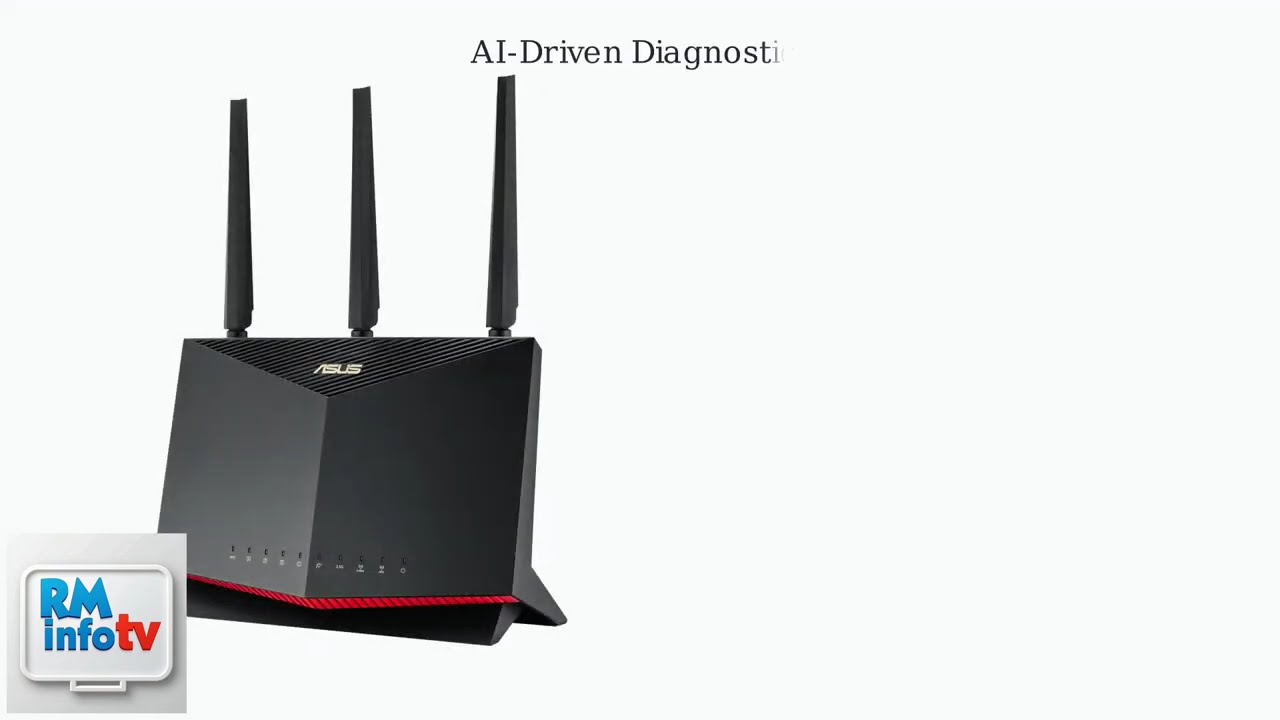
Diagnostic Comparison Table: Router Status Indicators
Understanding the various light indicators on your ASUS router can provide valuable clues about its operational status. This table summarizes common light behaviors and their typical meanings, helping you quickly diagnose issues beyond just the red WAN light. For instance, a blinking power light might indicate a firmware update, whereas a solid green LAN light confirms a successful wired connection. This knowledge is crucial for comprehensive troubleshooting, similar to diagnosing a Nighthawk Blinking Red Light. By observing these lights, you can often narrow down the problem area before diving into router settings.
| Indicator Light | Color/State | Meaning | Common Solution |
|---|---|---|---|
| WAN | Red (Solid) | No internet connection from modem/ISP. | Power cycle modem/router, check cables, verify ISP status. |
| WAN | Blue/White (Solid) | Internet connection is active and stable. | Normal operation. |
| LAN | Green/Orange (Solid/Blinking) | Device connected via Ethernet (Green for 1Gbps, Orange for 10/100Mbps). Blinking indicates activity. | Check cable/device if no connection. |
| Wi-Fi | Solid/Blinking | Wireless network active (Solid) or data transmission (Blinking). | Ensure Wi-Fi is enabled in settings if off. |
| Power | Solid | Router is powered on. | Normal operation. |
| Power | Blinking | Router is booting up or firmware update in progress. | Do not power off during update. |
Advanced Solutions to Fix ASUS Router Red WAN Light
If the basic troubleshooting steps haven’t resolved your ASUS Red WAN Light issue, it’s time to explore more advanced solutions. These steps typically involve accessing your router’s settings and making specific configurations that directly impact its ability to connect to the internet. Therefore, ensure you have your router’s login credentials handy before proceeding. Furthermore, proceed with caution when changing settings, as incorrect configurations can lead to further connectivity problems. Always document any changes you make, just in case you need to revert them to a previous working state. This methodical approach is key to successfully resolving persistent issues.
Accessing Your ASUS Router’s Web Interface
To implement most advanced solutions, you’ll need to log into your ASUS router’s web interface, also known as the ASUSWRT. First, connect a computer directly to your router via an Ethernet cable, or connect wirelessly if your local network is still functioning. Next, open a web browser (e.g., Chrome, Firefox, Edge) and type your router’s default IP address into the address bar. Commonly, this is 192.168.1.1 or router.asus.com. Enter your username and password when prompted. If you’ve never changed them, the default credentials are often ‘admin’ for both, but always check the sticker on your router or its manual for specific details. Once successfully logged in, you can access various settings and diagnostic tools crucial for resolving the red WAN light issue. This interface is your control panel for the entire network.
Updating Router Firmware
Outdated firmware can cause a myriad of issues, including the ASUS Red WAN Light, by introducing bugs or compatibility problems with your ISP’s network. Consequently, keeping your router’s firmware up-to-date is crucial for optimal performance, enhanced security, and stable internet connectivity. Within the router’s web interface, navigate to the ‘Administration’ section, then look for ‘Firmware Upgrade’ or ‘Firmware Restoration’. You can often perform an automatic update directly from the router if it has a temporary internet connection. However, if you have no internet, you may need to download the latest firmware from the official ASUS Support website on another device (e.g., smartphone using cellular data) and then manually upload it to your router. Be patient during this process and, crucially, do not power off the router until the update is complete and it has rebooted, as this could brick the device.
Configuring WAN Connection Settings
Incorrect WAN settings are a common and often overlooked cause of a red WAN light. Specifically, you need to ensure your router is configured to receive an internet connection correctly from your ISP. Navigate to the ‘WAN’ section in your router’s interface. Here, you’ll find options for ‘WAN Connection Type’. Your ISP typically uses one of three primary types: Automatic IP (DHCP), PPPoE, or Static IP. Most home users will be on Automatic IP, where the router automatically obtains an IP address. If your ISP requires PPPoE, you’ll need to enter a specific username and password provided by them. If it’s Static IP, you’ll need to manually input specific IP address, subnet mask, gateway, and DNS server details. Verify these settings precisely with your ISP if you are unsure, as even a minor typo can prevent connection. Furthermore, ensure DNS settings are correct, either automatic or specific ones provided by your ISP or a public DNS service like Google DNS (8.8.8.8).
Cloning MAC Address
Some ISPs register the MAC address of the first device connected to their modem for security and network management purposes. If you replace your old router or connect a new one, the ISP’s system might not recognize the new device’s MAC address, leading to a red WAN light. Therefore, MAC Address Cloning can be a viable solution. In your ASUS router’s WAN settings, look for a ‘MAC Clone’ or ‘MAC Address’ section. You can often clone the MAC address of your computer (if it previously connected directly to the modem) or the previous router. This makes your ASUS router appear as the previously registered device to your ISP, bypassing their MAC filtering. After cloning, it is essential to restart both your modem and router to allow the changes to take effect and for the ISP’s system to register the “new” MAC address. This step is particularly relevant if your internet worked fine with a different router or directly connected computer but stopped working with the new ASUS router.
Performing a Factory Reset
If all other troubleshooting steps fail, a factory reset can often resolve persistent issues, including the ASUS Red WAN Light, by eliminating any corrupted configurations or software glitches. This action reverts your router to its original, out-of-the-box settings. To perform a factory reset, locate the ‘Reset’ button on your ASUS router, usually a small pinhole button found on the back or bottom. With the router powered on, use a paperclip or similar pointed object to press and hold the reset button for about 5-10 seconds until the power light starts blinking. Release the button and allow the router to reboot completely. Consequently, you will need to reconfigure your router from scratch, including your Wi-Fi name (SSID), password, and crucially, your WAN connection settings. While a last resort, this method is highly effective for clearing deep-seated software problems.
When to Contact Your ISP or ASUS Support
Despite your best efforts, there are instances where the ASUS Red WAN Light persists, indicating a problem beyond standard user troubleshooting. At this point, it becomes necessary to seek professional assistance. Knowing when to escalate the issue can save you further frustration and ensure a quicker resolution. Furthermore, attempting to fix hardware issues without proper expertise can sometimes void warranties or cause more damage. Therefore, recognize the limits of self-troubleshooting and understand when to reach out to the experts.
Persistent Red WAN Light
If you have systematically gone through all the troubleshooting steps—power cycling, meticulously checking cables, verifying ISP status, updating firmware, correctly configuring WAN settings, and even performing a factory reset—and the red WAN light remains, it’s a strong indication that the problem lies beyond your immediate control. Consequently, contacting your Internet Service Provider (ISP) should be your next logical step. They possess specialized diagnostic tools that can remotely check your line, verify their equipment, and confirm if there’s an issue on their end, such as a line fault or a problem with their central office equipment. They might also dispatch a technician to your location if necessary, which is often the quickest way to resolve external network problems.
Hardware Malfunction
In some cases, the red WAN light might signify a more serious hardware malfunction within your ASUS router or your modem. For example, if your modem’s indicator lights are also abnormal despite your ISP confirming service, the issue could be with the modem itself. Similarly, if your ASUS router is relatively old, has experienced physical damage (e.g., from a power surge or fall), or simply stopped working after a power outage, its internal components might be failing. If your ISP confirms their service is active and stable, and your modem appears to be working correctly, then the router itself might be faulty. In this scenario, contacting ASUS Support for warranty claims, repair options, or technical guidance is advisable. They can provide specific diagnostic tools or suggest a replacement if the device is indeed defective.
Preventative Measures for Stable Internet
Preventing the ASUS Red WAN Light from appearing in the first place is always better than troubleshooting it. Implementing a few best practices can significantly enhance the stability and reliability of your home network, ensuring consistent internet access. Furthermore, proactive maintenance can extend the lifespan of your networking equipment and minimize future disruptions. Therefore, consider adopting these habits to maintain a robust and trouble-free internet connection.
- Regular Firmware Updates: Always keep your router’s firmware updated to the latest version. Manufacturers frequently release updates that improve performance, enhance security, and fix bugs that could lead to connectivity issues. Regularly checking for and installing these updates can prevent many common problems.
- Invest in Quality Cables: Cheap or damaged Ethernet cables are a common point of failure. Invest in high-quality Cat5e or Cat6 Ethernet cables and ensure they are not bent, crimped, or run through high-traffic areas where they could be damaged. Replace old or worn cables periodically, especially if you suspect a physical issue.
- Ensure Proper Ventilation: Overheating can significantly degrade router performance and lead to premature hardware failure. Ensure your router and modem have adequate airflow and are placed in an open area, away from direct sunlight or heat sources. Avoid stacking other devices on top of them.
- Use a Surge Protector: Connect all your networking equipment (modem, router, switches) to a reliable surge protector. This protects them from sudden power fluctuations, voltage spikes, and electrical surges that can cause irreparable damage to sensitive electronics.
- Scheduled Reboots: Consider scheduling a weekly or monthly reboot of both your router and modem. This simple act can clear temporary caches, refreshes network connections, and can prevent minor glitches from accumulating, thus reducing the likelihood of an ASUS Red WAN Light appearing due to software hang-ups.
- Optimal Router Placement: Place your router in a central location in your home, elevated if possible, and away from obstructions like thick walls, large metal objects, and other electronic devices (microwaves, cordless phones) that might cause interference. This optimizes Wi-Fi signal strength and overall network performance.
FAQs About ASUS Red WAN Light
Here are some frequently asked questions regarding the ASUS Red WAN Light and internet connectivity issues, providing quick and direct answers to common concerns.
Q: Why is my ASUS router WAN light red but my modem lights are normal?
A: If your modem lights are normal, it suggests the internet signal is successfully reaching your modem. The ASUS Red WAN Light then points to an issue between the modem and the router, or within the router itself. Specifically, check the Ethernet cable connecting them for damage or looseness, ensure proper WAN configuration in your router settings (e.g., connection type, MAC address cloning), or consider a router firmware update or factory reset to clear any internal software conflicts. This scenario often indicates a router-specific problem rather than an ISP outage.
Q: Does a red WAN light always mean no internet?
A: Yes, a solid ASUS Red WAN Light almost universally indicates that your router is not receiving an internet connection from your modem or ISP. It signifies a failure in establishing or maintaining the Wide Area Network (WAN) link, meaning there is no internet access for any connected devices, whether wired or wireless. While a blinking light might indicate an attempt to connect, a solid red light points to a complete and persistent disconnection from the external network.
Q: How often should I power cycle my ASUS router and modem?
A: While not strictly necessary daily, a monthly or bi-monthly power cycle of both your ASUS router and modem is a good preventative measure. This routine helps clear temporary data caches, refreshes network connections, and can prevent minor glitches from accumulating into larger problems. By performing this simple maintenance regularly, you can often avoid the appearance of an ASUS Red WAN Light and ensure more stable and reliable internet performance.
Editorial Verification & Expertise
📺 Video Guide: How To Fix ASUS Router WAN Light Red – What It Means & How To Fix Internet Issues
Video walkthrough courtesy of RM info TV on YouTube. Follow along with the visual steps above.