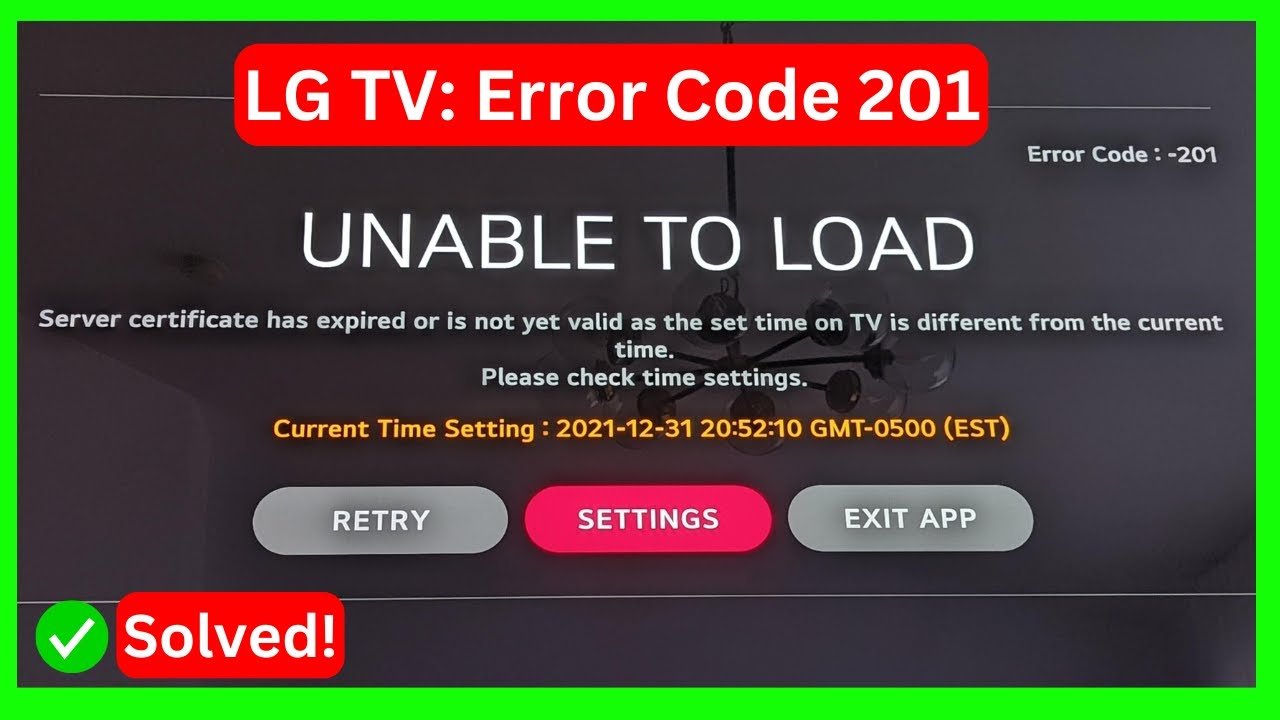
A LG TV Error 201 is a common issue that can disrupt your device performance. If you are experiencing a LG TV Error 201, this 2026 step-by-step diagnostic guide will help you troubleshoot and resolve the problem quickly.
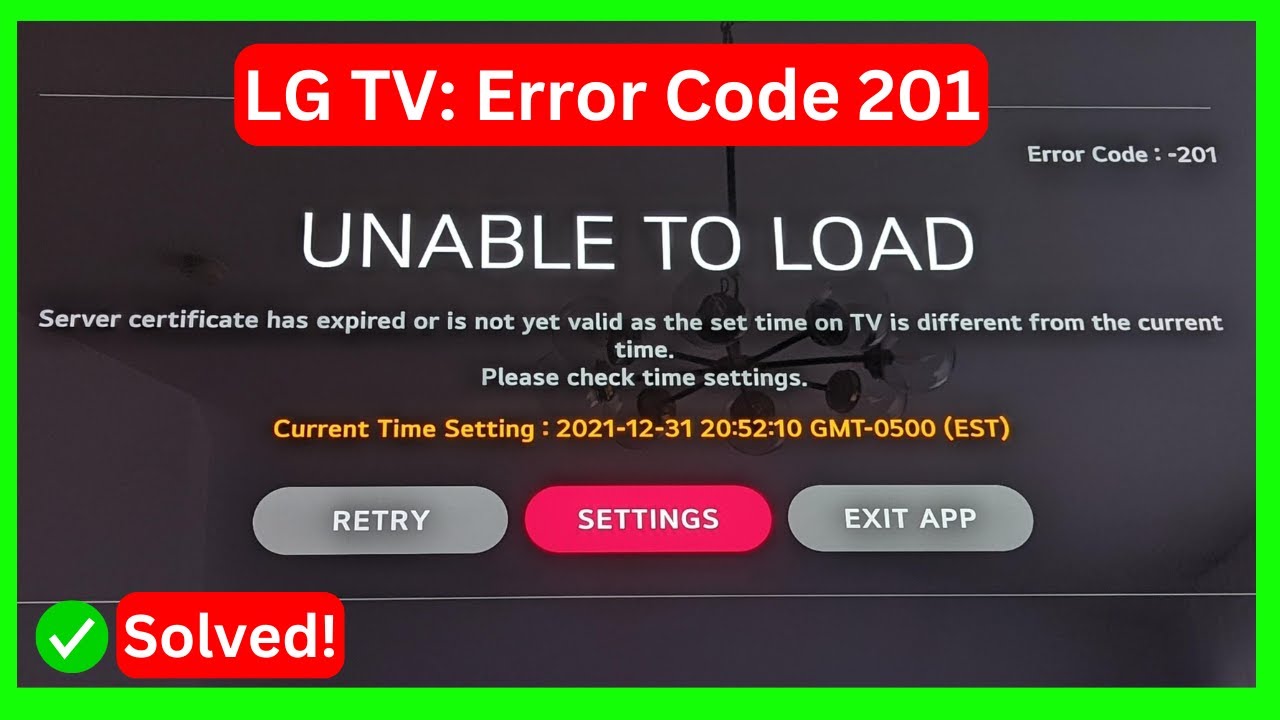
Smart televisions rely on reliable internet connections to deliver high-quality video content seamlessly. However, network conflicts can interrupt server communication and trigger unexpected display codes across webOS interfaces.
In this comprehensive manual, we will break down why this network error occurs, evaluate key diagnostic steps, and implement permanent fixes for uninterrupted streaming.
Table of Contents
Diagnostic Comparison Table
Before proceeding with manual fixes, consult this diagnostic overview to identify the primary failure point in your network hardware setup.
| Diagnostic Method | Target Problem | Complexity | Estimated Time |
|---|---|---|---|
| Power Cycle Cycle | Temporary Cache Glitch | Low | 3 Minutes |
| DNS Configuration Update | ISP Server Resolution Fail | Medium | 5 Minutes |
| Date & Time Sync | SSL Handshake Error | Low | 2 Minutes |
| Wi-Fi Band Switch | Wireless Congestion | Medium | 4 Minutes |
| Firmware Manual Update | Outdated webOS Software | High | 15 Minutes |
Understanding the Root Causes of LG TV Error 201
In most cases, an LG TV Error 201 stems from DNS configuration failures, corrupted webOS cache files, or Wi-Fi channel congestion. Consequently, identifying the precise trigger requires evaluating local networking gear along with television network settings.
Furthermore, outdated webOS operating systems often struggle with modern encryption protocols. Therefore, temporary authentication timeouts can freeze web applications instantly.
Additionally, incorrect system clock settings prevent valid security handshakes with remote content servers. Consequently, the television aborts connection attempts and outputs error codes.
Finally, router hardware issues can cause intermittent data loss. Similar connectivity faults appear on other media devices, as described in our Roku TV network troubleshooting guide.
Step-by-Step LG TV Error 201 Troubleshooting Guide
To effectively eliminate the LG TV Error 201, start by power cycling both your television and router. Specifically, disconnect power cords for full sixty seconds to flush temporary memory completely.
First, turn off your LG smart TV using the physical power button on the frame. Next, unplug the main power cord directly from the wall outlet.
Second, disconnect your wireless router and modem from electrical outlets. Wait approximately one full minute before reconnecting modem and router power supplies.
Third, wait until all network status indicators turn solid green. If your network router displays warning lights, check our Orbi router diagnostic guide or review our Linksys Velop red light fix to address local infrastructure issues first.
Fourth, reconnect the LG TV power cable and turn on the screen. Afterwards, test your installed streaming applications to verify if normal network operation is restored.
Advanced Network and DNS Configuration
If simple rebooting fails to clear network locks, manual address assignment becomes necessary. Specifically, default Domain Name System (DNS) configurations provided by local internet service providers frequently encounter routing timeouts.
Manual DNS Server Setup
Navigate to the All Settings menu on your LG webOS interface. Next, select Network and choose your active connection type (Wi-Fi or Wired).
Choose Edit under your active network status. Then, uncheck the Automatic IP Configuration option to expose manual entry fields.
Locate the DNS Server entry field and input 8.8.8.8 (Google Public DNS) or 1.1.1.1 (Cloudflare DNS). Save changes and test your connection.
System Time and Location Verification
Incorrect local dates prevent security certificates from validating properly. Therefore, navigate to Settings, General, System, and open Date & Time.
Ensure Set Automatically is enabled. However, if the time is incorrect, disable automatic synchronization and manually select your current time zone.
In addition, check your webOS Country settings under General, System, Location. Match the region strictly with your physical location to avoid content distribution blocks.
For further software diagnostics and official webOS patch notes, visit the LG Official Support Portal.
Preventing LG TV Error 201 in the Future
Proactive care prevents network bugs from returning. For example, disabling background standby settings prevents memory leak build-ups inside smart application modules.
Specifically, disable QuickStart+ within system settings. While QuickStart+ boots the TV faster, it skips necessary system cache purges during shutdown cycles.
Furthermore, consider connecting your LG television via direct Ethernet cable rather than Wi-Fi. Physical connections eliminate signal degradation and channel congestion issues.
In addition, ensure your router firmware stays current. Regular updates maintain strong routing table performance across connected home entertainment devices.
📺 Video Guide: LG TV: Error Code 201 (Quick fix)
Video walkthrough courtesy of Global Success Narratives on YouTube. Follow along with the visual steps above.
Frequently Asked Questions
What does Error 201 mean on an LG Smart TV?
Error 201 signifies a network handshake breakdown where webOS cannot establish communication with active server endpoints.
Why does the error occur when Wi-Fi reports connected?
The TV may successfully link to your local router while failing to establish outward internet traffic due to gateway errors or blocked DNS ports.
Will resetting my LG TV to factory defaults fix this issue?
Yes, a factory reset clears persistent software corruptions. However, manual DNS adjustments and power cycling usually resolve the issue without wiping user accounts.
Final Summary and Best Practices
By following these diagnostic steps, you can resolve LG TV Error 201 permanently and maintain high-performance streaming across all smart applications.
Always verify network physical connections before adjusting system parameters. Furthermore, maintain clean cache cycles by disabling fast boot modes.
Implementing custom DNS configurations provides long-term stability, ensuring your home entertainment system runs smoothly without unexpected connection drops.
{“@context”:”https://schema.org”,”@graph”:[{“@type”:”Article”,”headline”:”LG TV Error 201: 2026 Complete Diagnostic Guide”,”description”:”Fix LG TV Error 201 quickly with our 2026 diagnostic guide. Follow step-by-step solutions to restore webOS network connectivity fast.”,”author”:{“@type”:”Organization”,”name”:”JompaTech”},”publisher”:{“@type”:”Organization”,”name”:”JompaTech”}},{“@type”:”FAQPage”,”mainEntity”:[{“@type”:”Question”,”name”:”What does LG TV Error 201 mean?”,”acceptedAnswer”:{“@type”:”Answer”,”text”:”Error 201 on an LG Smart TV signifies a network connectivity failure preventing webOS from connecting to content servers or loading streaming applications.”}},{“@type”:”Question”,”name”:”Can changing DNS servers fix LG TV Error 201?”,”acceptedAnswer”:{“@type”:”Answer”,”text”:”Yes, changing your LG TV’s DNS settings to public options like Google DNS (8.8.8.8) or Cloudflare DNS (1.1.1.1) frequently resolves Error 201 caused by ISP resolution errors.”}},{“@type”:”Question”,”name”:”Why does Error 201 happen even when Wi-Fi is connected?”,”acceptedAnswer”:{“@type”:”Answer”,”text”:”The TV may be connected to your local router, but lack active internet routing due to gateway timeouts, incorrect date/time settings, or blocked ports.”}}]}]}