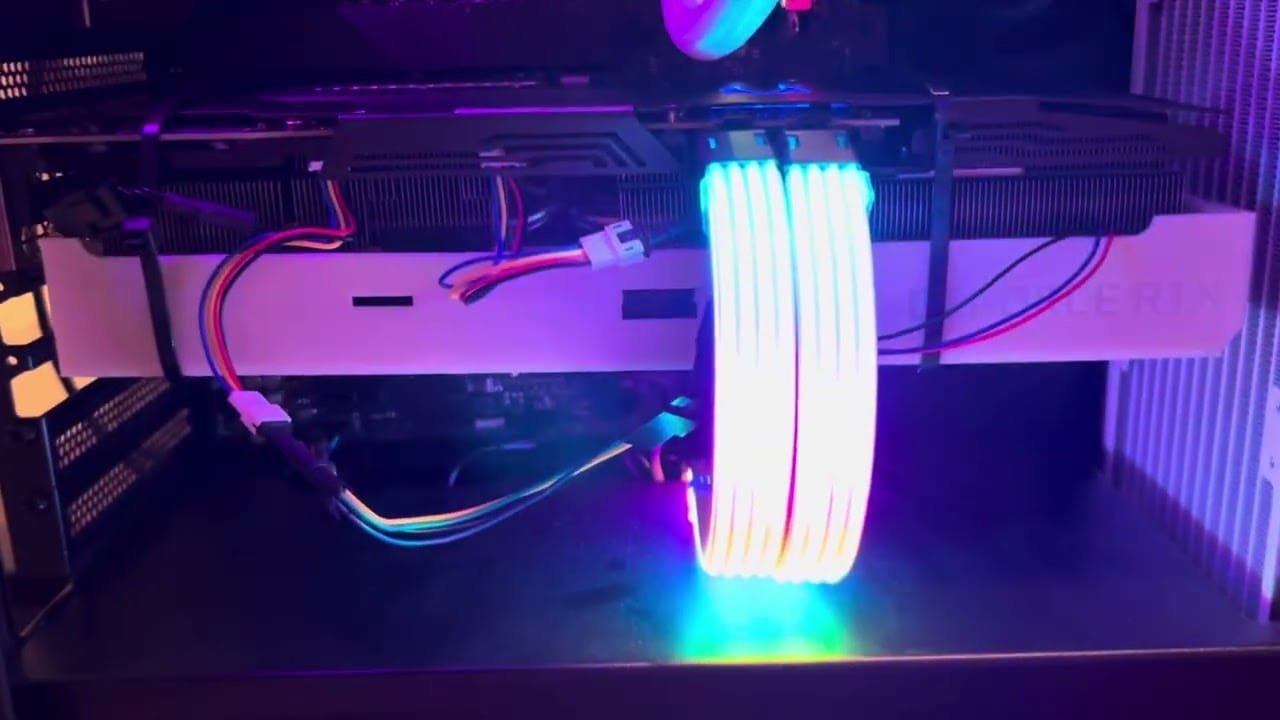
A White VGA Light is a common issue that can disrupt your device performance. If you are experiencing this GPU detection failure, this 2026 step-by-step diagnostic guide will help you troubleshoot and resolve the problem quickly.
Interactive Navigation Menu
Understanding the White VGA Light Warning
Modern motherboards feature EZ Debug LEDs designed to diagnose power-on self-test (POST) failures. Consequently, when the system encounters a White VGA Light during POST, it signifies that the system BIOS cannot establish proper communication with the graphics controller.
However, this diagnostic illuminated LED does not automatically confirm hardware destruction. In fact, simple communication handshakes, loose cables, or power delivery delays frequently trigger this alert on ASUS, MSI, Gigabyte, and ASRock motherboards.
Therefore, systematically checking physical connections before purchasing replacement hardware will save both time and money. Understanding how signal detection works helps identify whether the failure stems from cables, slots, or display devices.
Primary Causes of a White VGA Light
Several underlying hardware conflicts frequently trigger a White VGA Light on modern systems. For example, an unseated graphics card in the top primary PCIe slot remains one of the most frequent triggers for desktop users.
In addition, unpowered external monitors or incorrect display input modes prevent the system from registering a display sink during boot. Consequently, the motherboard halts POST execution and lights up the VGA indicator.
Furthermore, bent socket pins, loose 8-pin PCIe power cables, or damaged retention mechanisms compromise signal integrity. If you suspect structural damage near the expansion slot, review our detailed guide on how to fix a Broken GPU PCIe Latch to restore physical stability.
Fixing White VGA Light Boot Issues
To resolve hardware boot failures, start by inspecting external display connections carefully. Specifically, ensure your monitor turns on before powering up the desktop computer.
Next, replace low-quality DisplayPort or HDMI cables with certified High-Speed hardware. In addition, connect your video cable directly to the dedicated graphics card rather than motherboard video outputs.
Moreover, aggressive fan behavior often accompanies video detection errors. If your graphics card cooling system spins wildly during boot loops, consult our guide on resolving a GPU Fan Spinning Fast scenario for complementary troubleshooting steps.
Diagnostic Comparison Table
Use the detailed quick diagnostic reference table below to evaluate error behaviors, likely root causes, and recommended corrective actions.
| LED Status | Primary Cause | System Behavior | Recommended Solution |
|---|---|---|---|
| Solid White VGA LED | Unseated card or loose PCIe power | No display output, fans spinning | Reseat GPU and securely re-plug 8-pin connectors |
| Flashing White VGA LED | Monitor handshake timeout | Delayed black screen boot | Turn monitor on prior to powering PC system |
| White LED + Beep Code | PCIe Slot or VBIOS mismatch | Complete system boot halt | Clear CMOS and update motherboard BIOS |
Hardware Inspection and Reseating Guide
Initially, shut down your power supply unit completely and disconnect the main AC power cord. Subsequently, press the chassis power button for ten seconds to drain residual electrical charge.
Next, unclip the PCIe retention latch and carefully remove the graphics processing unit from the slot. Inspect the golden PCIe contacts for dust, debris, or oxidation residue.
Clean contacts using 99% isopropyl alcohol and a lint-free microfiber cloth. Afterward, reinsert the card firmly until the safety retention latch clicks securely into place. This quick physical maintenance frequently resolves the stubborn White VGA Light without replacing hardware.
Advanced Firmware and CMOS Reset Steps
When physical reseating fails to solve boot issues, clearing motherboard CMOS memory resets system hardware configuration parameters to factory defaults. Therefore, locate the CR2032 coin cell battery or clear CMOS pins on your motherboard.
Remove the coin cell battery for five minutes while power remains fully disconnected. Consequently, the BIOS clears stored hardware states that cause initialization loops.
Additionally, older graphics card firmware may lack compatibility with modern UEFI DisplayPort protocols. Official technical standards from PCI-SIG confirm that updating your display firmware can eliminate a persistent White VGA Light trigger.
Preventative Hardware Maintenance
To prevent recurring display detection failures, install a dedicated GPU support bracket to minimize heavy graphics card sag over extended usage periods. Sagging cards exert mechanical tension on internal motherboard contact pins.
Furthermore, avoid using daisy-chained PCIe split cables for high-draw graphics processing units. Instead, utilize dedicated independent power cables running directly from your power supply unit.
Finally, keeping your system BIOS updated improves PCI Express device negotiation upon cold starts. If you are considering upgrading your graphics hardware to eliminate recurring stability faults, explore our top recommendations in the Best Budget 1440p GPU guide.
Frequently Asked Questions
Can a bad DisplayPort cable cause a motherboard White VGA Light?
Yes, a damaged or incompatible DisplayPort cable can prevent communication between the GPU and monitor during POST, triggering the motherboard LED error.
Does a White VGA Light always mean the GPU is dead?
No, this warning light usually indicates a connection fault, seating issue, power delivery failure, or monitor handshake delay rather than hardware failure.
How do I clear the motherboard VGA light error?
You can clear the error by reseating the GPU, checking PCIe power cables, cycling monitor power before turning on the PC, or resetting CMOS.
📺 Video Guide: How to fix White VGA light on motherboard
Video walkthrough courtesy of Skidder on YouTube. Follow along with the visual steps above.