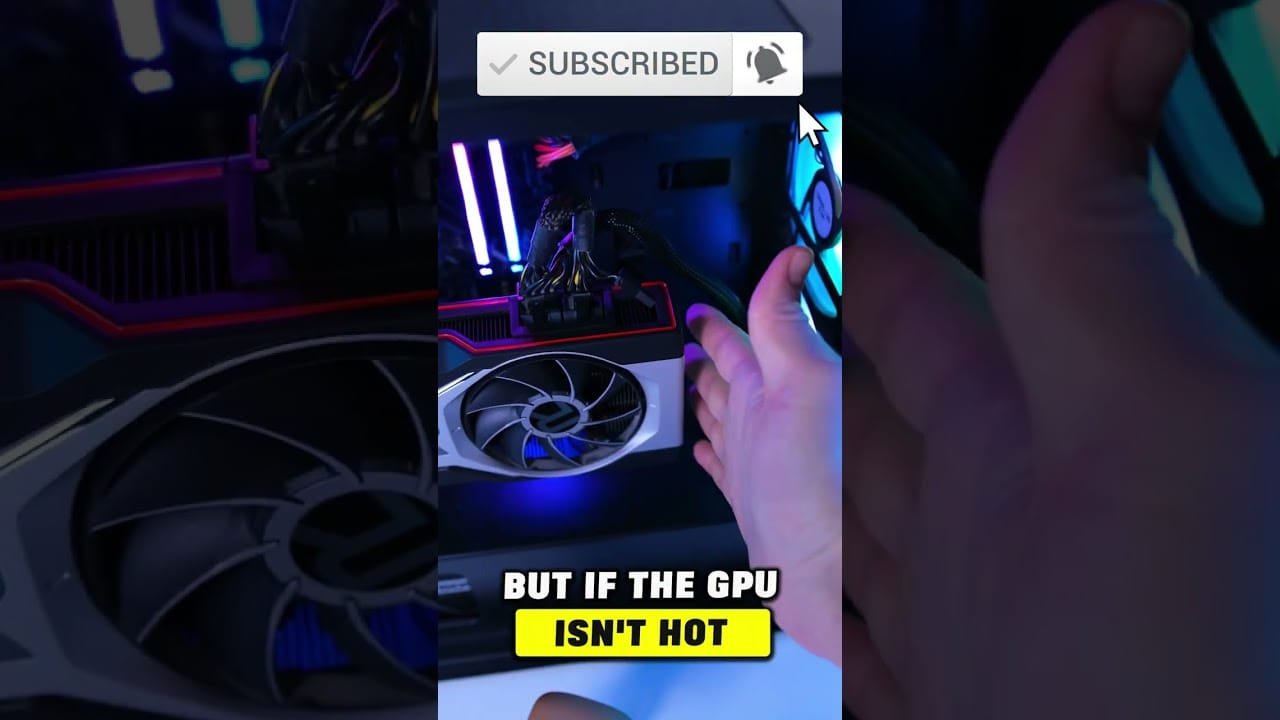
A GPU Fan Spinning Fast is a common issue that can disrupt your device performance. If you are experiencing a GPU Fan Spinning Fast, this 2026 step-by-step diagnostic guide will help you troubleshoot and resolve the problem quickly.
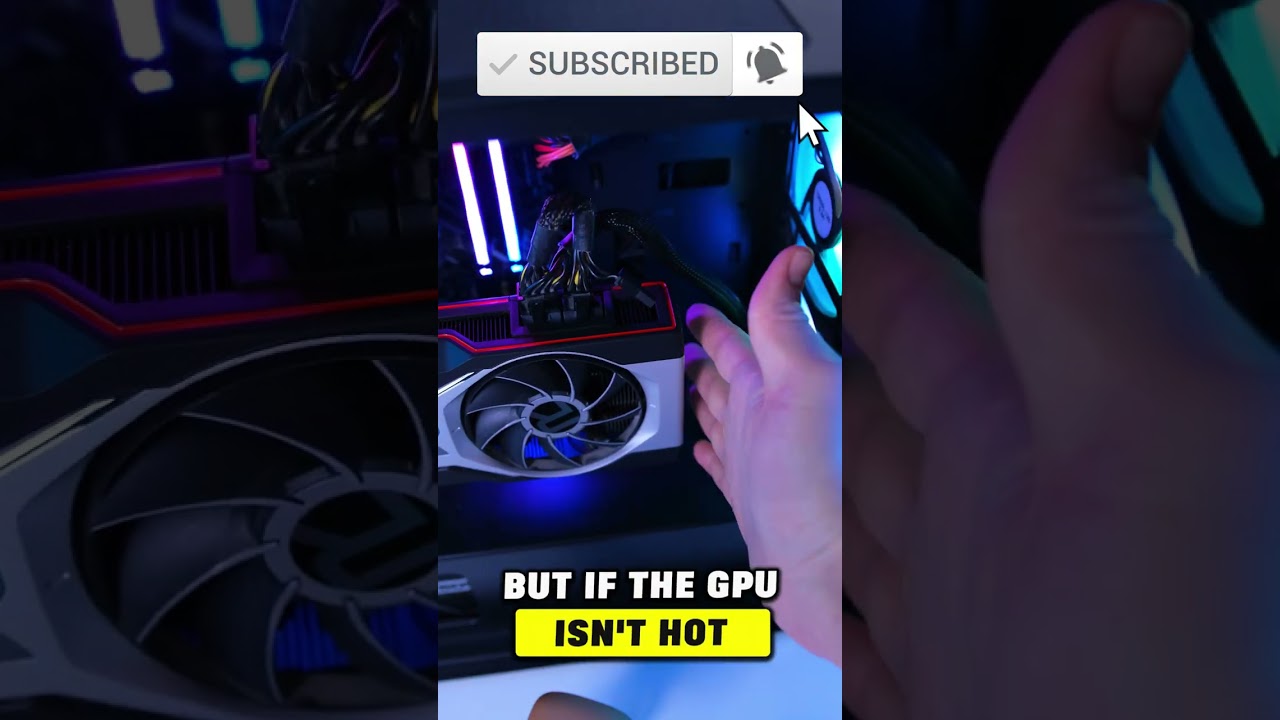
Modern graphics cards rely on precise thermal sensors to regulate fan speeds dynamically. However, when temperatures spike dramatically, cooling fans immediately ramp up to maximum RPM to protect critical silicon components from heat damage.
Furthermore, aggressive fan noise and high rotational speeds often indicate underlying thermal throttling or software configuration conflicts. Therefore, identifying the exact root cause early prevents permanent hardware degradation.
Table of Contents
- Understanding the GPU Fan Spinning Fast Causes
- Diagnostic Comparison Table
- Troubleshooting GPU Fan Spinning Fast Issues
- Adjusting Graphics Software Fan Profiles
- Resolving Hardware GPU Fan Spinning Fast Problems
- Preventative Best Practices
Understanding the GPU Fan Spinning Fast Causes
Before applying hardware fixes, understanding thermal behavior is essential. Specifically, several factors force graphics processing unit (GPU) fans into high-speed emergency cooling modes.
In addition, dust buildup across heatsink fins restricts natural airflow. Consequently, the cooling assembly struggles to dissipate heat, forcing the thermal controller to increase fan velocity.
Another frequent cause involves degraded thermal paste between the GPU core and copper heatsink. Over time, thermal compound dries out, reducing heat transfer efficiency dramatically.
Finally, driver glitches or corrupted display software can trigger runaway fan speeds even when the graphics card remains completely idle. For example, driver crashes often disable dynamic speed profiles, locking fans at 100% RPM safety defaults.
If your graphics card is also displaying driver communication errors, check out our guide on Nvidia Error Code 43: 2026 Complete Diagnostic Guide to repair software conflicts effectively.
Diagnostic Comparison Table
To identify your specific hardware state, review this diagnostic matrix before proceeding with repairs:
| Symptom | Probable Cause | Primary Fix | Difficulty Level |
|---|---|---|---|
| Fans at 100% on Idle | Corrupted Driver / Sensor Error | Clean Install Drivers via DDU | Beginner |
| Sudden Speed Spikes | Aggressive Fan Curve | Adjust Curve via MSI Afterburner | Intermediate |
| High Temp + Loud Fans | Dust Build Up / Dried Paste | Clean Heatsink / Re-paste GPU | Advanced |
| One Fan Spinning Fast | Faulty Fan Controller / PWM Wire | Replace Cooler Assembly | Advanced |
Troubleshooting GPU Fan Spinning Fast Issues
When systematically diagnosing hardware behavior, starting with simple software checks yields fast results. Initially, inspect real-time thermal metrics using monitoring utilities.
Specifically, open software tools like HWMonitor or GPU-Z to check current core temperatures and hot-spot readings. If hot-spot temperatures exceed 95°C, immediate cooling intervention is required.
Next, perform a complete graphics driver reset. Driver corruption frequently disrupts Pulse Width Modulation (PWM) signals, leading to sudden speed spikes.
To fix software anomalies when dealing with a GPU Fan Spinning Fast condition, run Display Driver Uninstaller (DDU) in Windows Safe Mode. Subsequently, reinstall the latest stable display drivers directly from the manufacturer website.
For users evaluating hardware upgrades due to aging components, read our Best Budget 1440p GPU: 2026 Complete Buyer’s Guide for optimized power-to-thermal hardware recommendations.
Adjusting Graphics Software Fan Profiles
Software customization allows precise control over acoustic levels and cooling efficiency. However, misconfigured profiles can unintentionally lock fans at maximum velocity.
In addition, modern utilities like MSI Afterburner enable custom fan curves tailored to your PC case environment. Therefore, creating a gradual linear slope prevents sudden thermal ramping.
For example, set your custom fan curve to maintain 30% speed up to 50°C, scaling smoothly to 70% speed at 75°C. Consequently, noise levels remain low during routine desktop browsing.
Furthermore, ensure third-party tuning utilities do not conflict with native manufacturer control centers like AMD Software or Nvidia Control Panel. Verify hardware specs directly on the official TechPowerUp GPU Database to check default fan thermal thresholds.
Resolving Hardware GPU Fan Spinning Fast Problems
If software adjustments fail to resolve high speeds, physical maintenance is necessary. Initially, power down your desktop PC entirely and disconnect all external cables.
Next, remove the graphics card from the PCIe slot carefully. Inspect the heatsink fins and fan blades for accumulated dust, pet hair, or debris obstruction.
Use compressed air held vertically to clear dust from heatsink channels. When addressing a GPU Fan Spinning Fast error caused by dust, hold fan blades steady to prevent over-spinning during cleaning.
In addition, re-applying thermal paste significantly lowers core temperatures on older graphics cards. Carefully detach the heatsink, clean residual paste using isopropyl alcohol, and apply fresh non-conductive thermal compound.
Finally, reassemble the graphics card securely and re-seat it into the primary PCIe slot. Verify all PCI-e power connections are fully latched before powering on.
Preventative Best Practices
Maintaining optimal thermal performance prevents high fan speeds from recurring. Therefore, establishing regular maintenance habits preserves overall PC component longevity.
Specifically, ensure your PC chassis maintains positive static pressure with clean intake filters. Good ambient airflow prevents heat trap zones around the GPU shroud.
Furthermore, clean computer dust filters every three months to ensure unrestricted fresh air supply to internal fans. Consequently, fans run quieter while maintaining target operating temperatures.
To prevent a GPU Fan Spinning Fast behavior from returning, avoid running extreme overclocks without verifying fan curves. Regular maintenance ensures quiet, reliable graphics performance for years to come.
📺 Video Guide: GPU Fans Not Spinning? Try This #shorts
Video walkthrough courtesy of RBN Hardware on YouTube. Follow along with the visual steps above.