Embarking on the journey to build your very own personal computer can seem daunting at first glance. However, for any first-time PC builder, it’s an incredibly rewarding endeavor that unlocks unparalleled customization, significant long-term savings, and a deep sense of accomplishment. Consequently, forget the one-size-fits-all approach of pre-built systems; this guide will illuminate your path to crafting a machine perfectly tailored to your needs, whether you're a gamer, a creative professional, or someone simply seeking a powerful, personalized workstation.
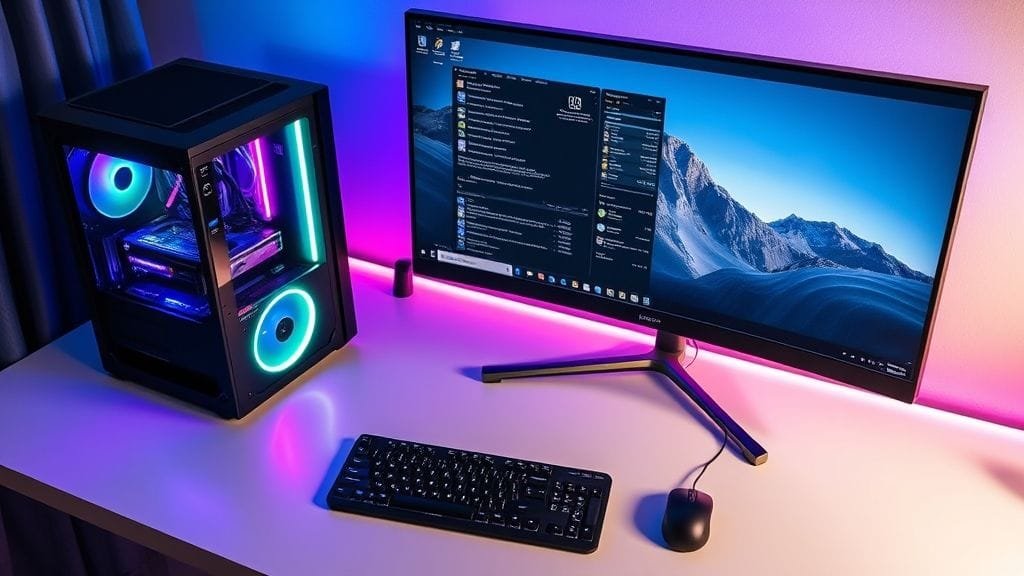
A stylized, clean desktop setup featuring a custom-built PC with RGB lighting, a large monitor, keyboard, and mouse, ready for use
Why Build Your Own PC? Unlocking Customization and Value
The decision to build a PC over buying a pre-built one often boils down to a desire for control and a shrewd eye for value. Indeed, when you assemble your own system, you become the architect of your digital world. Furthermore, this hands-on approach offers distinct advantages that resonate deeply with many aspiring builders.
Precision Customization for Your Unique Needs
One of the most compelling reasons for any first-time PC builder is the unparalleled ability to customize every single component. Specifically, think of it as a bespoke suit versus off-the-rack attire. Thus, you select the exact CPU, GPU, RAM, and storage solutions that align precisely with your intended use. Are you an avid gamer chasing ultra-high settings and frame rates? In that case, you can prioritize a top-tier graphics card. Alternatively, perhaps you're a video editor requiring copious amounts of RAM and fast storage? Therefore, your build will reflect that. Ultimately, this level of precise control ensures your PC is optimized for peak performance in its primary role, avoiding unnecessary costs on features you don't need or settling for underpowered components where it truly matters.
A Smarter Investment: Long-Term Savings and Upgradability
While the initial cost savings compared to some pre-built systems can sometimes be marginal, especially with aggressive sales from system integrators, the long-term financial benefits of a custom build are undeniable. Moreover, as a first-time PC builder, you have the freedom to hunt for deals on individual components, meticulously researching sales and promotions to stretch your budget further. More importantly, building your own PC opens the door to cost-effective future upgrades. Consequently, when a component becomes outdated, you can replace only that specific part, rather than having to buy an entirely new system. Ultimately, this modularity means your initial investment continues to pay dividends for years to come.
The Intangible Rewards: Satisfaction and Understanding
Beyond the practical advantages, there's an immense sense of satisfaction that comes with turning a pile of parts into a fully functional, powerful machine. Indeed, it's a journey of discovery, offering a deeper understanding of how your computer truly works. Furthermore, this knowledge empowers you to troubleshoot minor issues, perform maintenance, and confidently navigate the technological landscape. Many builders describe the first successful "Power-On Self-Test" (POST) as a truly triumphant moment – a feeling you simply don't get from unboxing a pre-built system.
A split image showing on one side a person looking frustrated at a tangled mess of wires, and on the other side, the same person smiling proudly next to a tidily cable-managed PC.
The Pre-Built Alternative: Convenience vs. Control
Of course, pre-built PCs have their own set of advantages. For instance, they offer unparalleled convenience and immediate usability, arriving ready to go right out of the box. Likewise, for those with limited technical expertise or time, pre-builts also typically come with comprehensive warranties and dedicated technical support, providing peace of mind. However, this convenience often comes at the cost of customization options and a potentially higher price point for comparable specifications. Ultimately, the choice hinges on your priorities: convenience or control. For many, the allure of crafting a personalized machine outweighs the immediate ease of a pre-built.
Essential Components for Your First-Time PC Build
Before you dive into assembly, it's crucial to understand the fundamental building blocks of any computer. Specifically, think of these as the vital organs of your machine, each playing a critical role. Therefore, choosing the right components is the first and most important step for any first-time PC builder.
The Core Hardware List
Here’s a breakdown of the essential parts you’ll need for your first-time PC build:
Understanding Key Components
Core Performance Components
Central Processing Unit (CPU): Often called the "brain," this component executes instructions and performs calculations. Significantly, your choice here heavily influences overall system performance and dictates compatible motherboards.
Graphics Processing Unit (GPU): Absolutely critical for gaming, video editing, and other graphically intensive tasks. In fact, for gaming, this is often the most significant investment, determining your visual fidelity and frame rates.
Motherboard: The central nervous system, connecting and coordinating all other components. Crucially, it determines what CPU, RAM, and storage types are compatible.
Memory (RAM): Random Access Memory provides temporary, high-speed storage for active applications and data. Furthermore, more RAM allows your PC to handle more tasks simultaneously without slowing down.
Storage (SSD/HDD): This is where your operating system, games, and files reside long-term. Notably, Solid State Drives (SSDs) offer vastly superior speed compared to traditional Hard Disk Drives (HDDs) and are highly recommended for your OS and frequently used applications.
Essential Supporting Hardware
Power Supply Unit (PSU): Supplying power to every component, the PSU is the heart of your system. Indeed, never compromise on quality here; a reliable PSU ensures system stability and longevity.
PC Case: This houses and protects all your components. Moreover, consider size (form factor), aesthetics, and critically, airflow for optimal cooling.
CPU Cooling System: Essential for dissipating the heat generated by your CPU. For example, options include air coolers (fans with heatsinks) or liquid coolers (AIOs).
Operating System (OS):For instance, software like Windows or Linux is necessary to manage your hardware and run programs.
Peripherals: Don't forget the essentials: a monitor, keyboard, and mouse to interact with your new machine.
https://www.youtube.com/watch?v=gcy-Q99gvw8
Budgeting for Your First Custom PC
The cost of building a PC can vary dramatically, much like buying a car. Therefore, your budget dictates the performance tier you can achieve. Ultimately, understanding these tiers helps a first-time PC builder set realistic expectations and make informed decisions.
Cost Tiers for PC Builds
Here's a general breakdown of what to expect:
Budget Build ($300 - $600): Perfect for basic tasks, browsing, streaming, and very light gaming (eSports titles at lower settings). Typically, these builds focus on integrated graphics or entry-level discrete GPUs.
Mid-Range Build ($800 - $1,200): The sweet spot for most gamers, offering excellent performance for 1080p and often 1440p gaming at high settings. They are also suitable for entry-level content creation.
High-End Build ($1,500 - $2,500+): For enthusiasts, professional content creators, or hardcore gamers demanding uncompromised performance, 4K gaming, and future-proofing.
Extreme Builds ($3,000+): These systems push the boundaries with top-tier components, exotic cooling, and often aesthetic flair, delivering maximum performance and bragging rights.
Remember, the CPU and GPU typically represent the largest portions of your budget. Thus, smart allocation means prioritizing these based on your primary use case. For example, a gamer will likely spend more on the GPU, while a video editor might allocate more to the CPU, RAM, and fast storage.A simple bar chart comparing average costs of budget, mid-range, and high-end PC builds, with key components like CPU and GPU highlighted as major cost drivers.
Common Challenges and How to Conquer Them
Even experienced builders make mistakes, and for a first-time PC builder, certain pitfalls are common. Therefore, forewarned is forearmed; knowing these challenges ahead of time can save you hours of frustration.
Avoiding Compatibility Catastrophes
One of the most frequent and frustrating issues is purchasing incompatible parts. Specifically, a common mistake is pairing a CPU with a motherboard that doesn't support its socket type or generation. Similarly, RAM must be compatible with your motherboard's specifications.
Expert Tip:Before buying anything, leverage online tools like [PCPartPicker](https://pcpartpicker.com/) to check component compatibility. This invaluable resource automatically flags potential issues, from incompatible sockets to insufficient power supply wattage.
Installation Slip-ups: The Finer Details Matter
Several installation errors plague new builders:
CPU Placement: Handle your CPU with extreme care. Indeed, incorrect placement can bend fragile pins, rendering it useless. Therefore, line up the gold arrow on the CPU with the arrow on the motherboard socket.
I/O Shield: The metal plate that covers the ports on the back of your motherboard is often forgotten until the motherboard is already screwed into the case. Thus, install it before mounting the motherboard!
CPU Cooler Mounting: Proper contact and even pressure are crucial for effective cooling. Hence, ensure thermal paste is applied correctly (or pre-applied) and the cooler is securely fastened.
Fan Placement: Incorrect fan orientation can lead to poor airflow, trapping hot air inside your case. Generally, front fans intake cool air, while rear and top fans exhaust hot air.
Poor Cable Management:While primarily aesthetic, messy cables can obstruct airflow and make future upgrades or troubleshooting a nightmare. Therefore, plan your cable routes early.
Powering Your Rig: Don't Skimp on the PSU
A common, yet critical, error is trying to save money by purchasing a cheap or underpowered Power Supply Unit. Indeed, your PSU is the backbone of your system. In fact, a low-quality PSU can lead to instability, component damage, and shortens the lifespan of your entire PC. Consequently, invest in a reputable brand with a sufficient wattage rating for your components, plus a little headroom for future upgrades.
Post-Build Essentials: Drivers and BIOS Updates
Assembling the hardware is only half the battle. Thus, after your first-time PC build is physically complete, you must:
Install Your Operating System: Typically from a USB drive.
Install Drivers:These are crucial for your components (especially the GPU, chipset, and network adapter) to function correctly and optimally. Therefore, download the latest drivers directly from the manufacturers' websites.
Update BIOS/UEFI: Your motherboard's Basic Input/Output System (BIOS) or Unified Extensible Firmware Interface (UEFI) may need updating to support newer CPUs or improve stability. Accordingly, refer to your motherboard manual for instructions.
The Power of Planning and Patience
Failing to plan your build thoroughly can lead to costly mistakes. Thus, define your PC's primary purpose and budget before you start buying parts. Moreover, remember that building a PC is not a race. Rushing leads to errors, frustration, and potential damage. Therefore, take breaks, consult manuals, and double-check every step. Ultimately, a first-time PC builder should allocate 3-4 hours, not including software installation or troubleshooting.
Static Electricity: A Silent Threat
While modern components are more resilient, static electricity can still damage sensitive parts. Therefore, before handling any component, ground yourself by touching a metal part of your PC case while it's plugged into an outlet (but switched off), or use an anti-static wristband. Ideally, work on a non-carpeted surface if possible.
The Building Process: A Step-by-Step Approach
With your components gathered and common pitfalls understood, it's time for the exciting part: assembly! Ultimately, a logical order and methodical approach will make your first-time PC build smooth and enjoyable.
Essential Tools and Preparation
First, you won't need a massive toolkit for your first-time PC build:
Phillips Head Screwdriver: Your primary tool. Furthermore, a magnetic tip is a bonus.
Zip Ties or Velcro Straps:Next, for cable management.
Small Bowl or Magnetic Mat:Additionally, to keep track of tiny screws.
Flashlight (Optional but Recommended):Moreover, for illuminating tight spaces.
Your Motherboard Manual:Indeed, this is your bible! Therefore, keep it open and consult it frequently.
A Clean, Well-Lit Workspace:Finally, preferably a non-carpeted table.
The Logical Assembly Order
While there's no single "right" way to build, this order generally provides ample working room and reduces the chance of complications for a first-time PC builder:
Initial Assembly Steps
1. Out-of-Case Motherboard Prep
Install CPU:First, carefully open the CPU retention arm, align the gold arrow on the CPU with the arrow on the socket, gently drop the CPU into place (no force needed!), and close the retention arm.
Install CPU Cooler (If applicable):Then, apply thermal paste (unless pre-applied) and mount the CPU cooler according to its instructions. Next, connect the cooler's fan cable to the "CPU_FAN" header on the motherboard.
Install RAM:Afterward, open the RAM slot clips, align the notch on the RAM stick with the notch in the slot, and firmly push down on both ends until the clips snap into place.
Install M.2 SSD (if you have one):Finally, slide it into its slot, then secure it with the tiny screw provided by your motherboard.
Case Preparation and Mounting
2. Prepare the PC Case
Install I/O Shield:First, this is the most forgotten step! Hence, snap the I/O shield into the rectangular opening at the back of your case.
Install Standoffs:Moreover, ensure your case has the correct standoffs installed for your motherboard's form factor (ATX, Micro-ATX, etc.).
3. Mount the Motherboard
Next, carefully lower the prepared motherboard into the case, aligning its screw holes with the standoffs. Finally, secure it with screws. However, don't overtighten.
Power and Connectivity
4. Install Power Supply Unit (PSU)
Mount the PSU into its designated bay, usually at the bottom or top of the case. Crucially, ensure its fan faces the correct direction (often downward for bottom-mounted PSUs with a bottom intake vent).
5. Connect Essential Cables
Motherboard Power:First, connect the large 24-pin ATX power cable and the 4/8-pin CPU power cable (usually at the top-left of the motherboard).
Case Wires:Next, connect the small front panel connectors (power button, reset button, USB, audio jacks, LED indicators) to the motherboard. Importantly, this is where your motherboard manual is indispensable!
SATA Cables:Finally, connect SATA data cables to your motherboard and storage drives, then connect SATA power cables from the PSU to the drives.
Graphics Card and Finishing Touches
6. Install Graphics Card (GPU)
Open the PCIe slot latch, align the GPU with the slot, and firmly push down until it clicks into place. Then, secure it with a screw or latch on the case. Finally, connect the necessary PCIe power cables from your PSU to the GPU.
7. Final Touches
Cable Management: Spend time routing cables behind the motherboard tray for a clean look and improved airflow. Therefore, use zip ties or Velcro.
Connect Case Fans: Plug case fans into appropriate headers on the motherboard. Lastly, double-check all connections: Ensure everything is firmly seated and connected.
A clear, step-by-step infographic showing the assembly process of a PC, from CPU installation on the motherboard to final cable management inside the case.
The First Power-On (POST Test)
Before buttoning up your case completely, many experienced builders recommend a "Power-On Self-Test" (POST). Connect your monitor, keyboard, and mouse. Then, power on the PC. Does it turn on? Do fans spin? Does anything appear on the screen? If yes, congratulations! If not, don't panic.
Troubleshooting Your First-Time PC Build
Troubleshooting is a natural part of the building process. Therefore, if your PC doesn't POST, consider these common solutions:
No Display:First, ensure your monitor is plugged into the graphics card (not the motherboard, unless you have integrated graphics and no GPU).
No Power:Next, double-check all power connections: PSU to wall, PSU to motherboard, PSU to CPU, PSU to GPU.
Fans Spin, No Display:If fans spin but there's no display, reseat RAM modules. Alternatively, try booting with only one stick of RAM.
Consult Online Communities:Additionally, websites like Reddit's r/buildapc are fantastic resources for quick help from experienced builders. Furthermore, don't be afraid to ask for assistance.
Overall, remember, building a PC is a marathon, not a sprint. Indeed, patience is your most powerful tool.A person proudly showcasing their newly built PC, with the system powered on and displaying a working operating system on a monitor.
After the Build: Software and Beyond
Your journey doesn't end when the hardware is assembled. Instead, the final steps for any first-time PC builder involve installing the operating system, crucial drivers, and setting up your new machine for optimal performance.
Operating System and Drivers
Install OS: Create a bootable USB drive (e.g., Windows Media Creation Tool) and follow the on-screen prompts.
Install Chipset Drivers: Download these from your motherboard manufacturer's website.
Install GPU Drivers:These are absolutely essential for graphics performance. Therefore, download the latest drivers from NVIDIA or AMD's website.
Install Network Drivers:If your Ethernet or Wi-Fi isn't working, download these from your motherboard manufacturer. In such a case, use another computer and a USB stick if needed.
BIOS/UEFI Updates
Periodically check your motherboard manufacturer's website for BIOS/UEFI updates. These updates, specifically, can improve stability, add support for new hardware, or fix bugs. However, follow the instructions precisely, as a failed BIOS update can render your motherboard inoperable.
Enjoy Your Creation!
Once everything is installed and updated, take a moment to appreciate what you’ve accomplished. You've built your own custom PC! Now, dive into your favorite games, tackle demanding creative projects, or simply enjoy the snappiness of a machine perfectly tuned to your needs. This first-time PC build is more than just a computer; it's a testament to your patience, problem-solving skills, and dedication to craftsmanship.
Ready to Start Your Building Adventure?
Building a PC is an incredibly rewarding experience that offers unmatched control, long-term value, and a deep understanding of your technology. While it requires patience and attention to detail, the journey is just as satisfying as the destination. Indeed, we've covered the components, the costs, common challenges, and a step-by-step guide to get you started. So now, what part of the PC building process are you most excited (or nervous) to tackle first? Therefore, share your thoughts in the comments below!