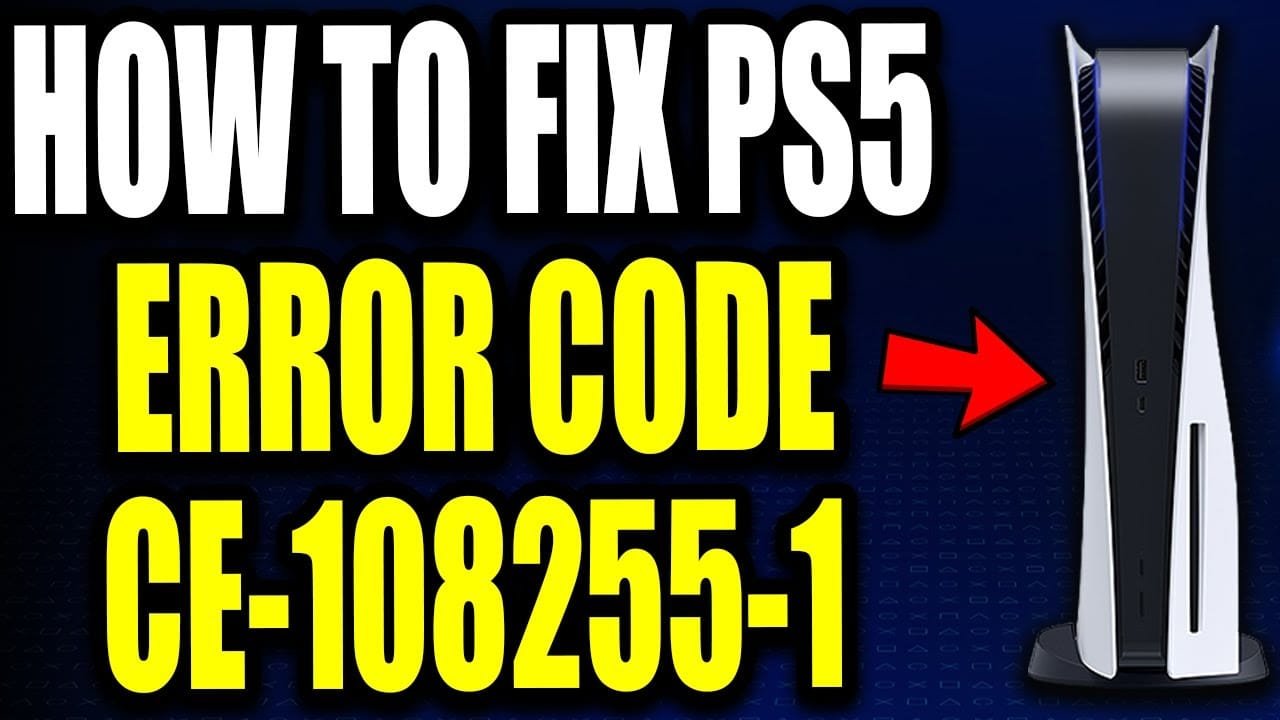
A PS5 Error CE-108255-1 is a common issue that can disrupt your device performance. If you are experiencing a PS5 Error CE-108255-1, this 2026 step-by-step diagnostic guide will help you troubleshoot and resolve the problem quickly.
Consequently, many gamers feel frustrated when their gameplay is suddenly interrupted by this crash. Fortunately, you can resolve this issue by following a systematic troubleshooting approach. In this comprehensive guide, we will explore the root causes and provide verified, step-by-step solutions.
Table of Contents
Understanding the PS5 Error CE-108255-1 Cause
Initially, we must analyze why this error occurs on your PlayStation 5 console. Specifically, this error code indicates a general application crash, which usually happens during game launch or intense gameplay sequences. Therefore, identifying the exact trigger is essential for a permanent fix.
In addition, software conflicts, corrupted game files, or outdated system firmware are primary culprits. Similar to how graphics driver failures like the VIDEO_TDR_FAILURE disrupt PCs, console crashes point to system file corruption. Consequently, resolving this PS5 Error CE-108255-1 requires addressing both software and hardware layers.
Furthermore, external storage devices can sometimes introduce file reading delays. If your console cannot access game assets quickly enough, the system will force-close the application. Thus, checking your storage configuration is a critical diagnostic step.

Diagnostic Comparison Table
To help you identify the most likely cause of your console crashes, we have compiled a diagnostic table. Consequently, you can pinpoint whether your issue stems from software, storage, or hardware limitations. Please review the comparison below before proceeding to the steps.
| Trigger Source | Primary Symptom | Recommended Action | Success Rate |
|---|---|---|---|
| Corrupted Game Files | Crash on launch | Reinstall Game | High |
| Outdated Firmware | System-wide instability | Update System Software | Medium |
| Database Fragmentation | Stuttering before crash | Rebuild Database | High |
| SSD Bottlenecks | Random mid-game freezes | Check SSD Speeds | Medium |
As shown above, different triggers require distinct troubleshooting paths. However, starting with the simplest software fixes is always the most efficient strategy. Let us dive into the step-by-step solutions immediately.
Step-by-Step PS5 Error CE-108255-1 Solutions
Initially, you should focus on game-specific troubleshooting to rule out isolated file corruption. Specifically, if the crash only occurs on a single game, the issue is likely localized. Therefore, follow these steps to fix the PS5 Error CE-108255-1 permanently.
Step 1: Reinstall the Affected Game
First, navigate to your game library and highlight the game that is causing the crash. Subsequently, press the Options button on your DualSense controller and select Delete. This action will completely remove the game files from your console storage.
Next, restart your console to clear any temporary cache files. Afterward, insert the game disc or download the game again from the PlayStation Store. Consequently, this fresh installation will replace any corrupted assets that were causing the application to fail.
Step 2: Delete Corrupted Save Data
Sometimes, the game files are perfectly fine, but your saved progress has become corrupted. To resolve this, navigate to Settings, then select Saved Data and Game/App Settings. From there, choose Saved Data (PS5) and select Console Storage.
Subsequently, click on Delete and select the save files for the problematic game. However, we highly recommend backing up your saves to the PlayStation Plus cloud storage first. Consequently, you can restore your progress if the save data is not the root cause.
Step 3: Resetting Console Cache
In addition to deleting save files, clearing the system cache can resolve deep-seated software conflicts. To do this, you must completely power down your console. Subsequently, unplug the power cord from the back of the device for two minutes.
Furthermore, this physical disconnection forces all capacitors to drain completely. Once you plug the cord back in and power on, the system will rebuild its temporary runtime cache. Consequently, this simple step often resolves minor software glitches instantly.
Step 4: Restoring Default Settings
If the issue persists, restoring your console’s default settings can eliminate conflicting configuration files. To perform this, navigate to Settings, select System, and then choose System Software. From there, select Reset Options.
Subsequently, choose Restore Default Settings and follow the on-screen prompts. However, please note that this action will not delete your games or saved data. It merely resets your system preferences, network configurations, and audio settings to factory defaults.
Rebuilding the Database
If reinstalling the game does not resolve the issue, you may need to clean up your console’s storage database. Over time, file fragmentation can occur, leading to read errors. Therefore, rebuilding the database is an excellent way to optimize system performance.
Specifically, this process reorganizes the hard drive or SSD, making it easier and faster for the system to access files. Consequently, this is highly effective for preventing the PS5 Error CE-108255-1 from recurring during heavy gameplay sessions.
Accessing Safe Mode
Initially, turn off your console completely by holding the power button for three seconds. Next, press and hold the power button again, releasing it only after you hear a second beep. This second beep will occur approximately seven seconds after the first.
Subsequently, connect your DualSense controller using a USB cable and press the PS button. Your console will now display the Safe Mode menu. From here, you can access advanced diagnostic tools safely.
Executing Option 5
Once you are in Safe Mode, navigate down to Option 5, which is labeled Clear Cache and Rebuild Database. Select this option, and then choose Rebuild Database. Consequently, the system will begin scanning your drive and creating a new index of all content.
Furthermore, this process can take several minutes depending on how much data is stored on your console. However, it will not delete your games or saved data. Once completed, your console will restart automatically in normal mode.
Step 5: Testing with a Different User Profile
Sometimes, profile-specific cloud synchronization issues can cause games to crash on launch. To test this, create a temporary guest profile on your console. Subsequently, launch the problematic game using this new profile.
If the game runs without crashing, your primary user profile’s local database is likely corrupted. Consequently, you may need to unlink and relink your PlayStation Network account to resolve the synchronization conflict.
System Software Updates
Outdated system firmware is another common trigger for application crashes. Specifically, Sony regularly releases system updates that contain stability patches for newly released games. Therefore, keeping your console updated is absolutely vital.
In addition, running outdated software can cause compatibility issues with modern game engines. If you still see the PS5 Error CE-108255-1 after updating, you may need to perform a manual update. Let us explore how to do this easily.
Updating via Internet
First, navigate to the Settings menu from your home screen. Next, select System, then System Software, and finally System Software Update and Settings. From here, select Update System Software.
Subsequently, choose Update Using Internet to download and install the latest firmware. Consequently, your console will reboot during this process. Please ensure you do not turn off the power while the update is installing.
Updating via USB Drive
If your console cannot connect to the internet, you can update it manually using a USB drive. Initially, format a USB drive to FAT32 or exFAT on your computer. Next, create a folder named “PS5” and a subfolder named “UPDATE”.
Subsequently, download the official update file from the PlayStation Support website. Save this file as “PS5UPDATE.PUP” inside your UPDATE folder. Finally, connect the USB drive to your console, boot into Safe Mode, and select Update System Software.
Step 6: Reinstalling System Software via Safe Mode
If standard updates fail, a complete reinstallation of the system software may be necessary. To perform this, select Option 7 in Safe Mode, labeled Reset PS5 (Reinstall System Software). However, please be aware that this will completely wipe all data from your console.
Consequently, you must back up all critical files before proceeding with this step. Once the process is complete, your console will be restored to its original factory state. This extreme measure is highly effective at resolving deep system-level corruption.
Resolving PS5 Error CE-108255-1 Hardware Issues
In some rare cases, the crash may be caused by physical hardware limitations or storage bottlenecks. Specifically, if you have expanded your console storage, check your SSD speeds. Much like troubleshooting a PCIe 5 NVMe running at PCIe 4 speeds, storage bottlenecks can trigger system crashes.
Furthermore, overheating can cause the console’s APU to throttle, resulting in sudden application closures. Therefore, ensuring proper ventilation is essential for maintaining hardware stability. Let us look at how to address these hardware concerns.
Checking SSD Compatibility
If you installed an M.2 SSD, ensure it meets Sony’s minimum read speed requirement of 5,500 MB/s. Consequently, slower drives may fail to load assets in time, triggering the crash. If necessary, try moving the game back to the console’s internal storage to test performance.
In addition, make sure your SSD has a proper heatsink installed. Without adequate cooling, the SSD will overheat and throttle its performance. Consequently, this thermal throttling can lead directly to system instability and error codes.
Power Cycle and Overheating
Initially, shut down your console and unplug all cables from the back. Next, let the console rest for at least ten minutes to cool down completely. During this time, use a can of compressed air to gently clear any dust from the ventilation vents.
Subsequently, plug the cables back in and power on the console. This complete power cycle clears the system cache and resets the hardware components. Consequently, this simple maintenance step can resolve many persistent crashing issues.
Step 7: Checking HDMI and HDCP Settings
Sometimes, display handshake issues can cause the console’s graphics processor to crash. To resolve this, navigate to Settings, select System, and choose HDMI. Subsequently, toggle off the Enable HDCP setting.
Furthermore, this action disables high-bandwidth digital content protection, which can occasionally conflict with older television sets. Consequently, disabling this setting can stabilize your video output and prevent sudden game crashes.
Step 8: Contacting PlayStation Support
If all software and basic hardware troubleshooting steps fail, your console may have a faulty GPU or motherboard. Specifically, if the crash occurs on every single game you try to play, hardware failure is highly likely.
Therefore, you should contact PlayStation Support to arrange for a professional repair or replacement. If your console is still under its one-year warranty, Sony will typically repair or replace the unit free of charge.
Preventative Best Practices
To avoid the PS5 Error CE-108255-1 entirely in the future, you should adopt several preventative habits. Specifically, always close games properly through the home menu rather than putting the console directly into Rest Mode. This ensures that game files are saved and closed cleanly.
Furthermore, avoid filling your console storage to its absolute maximum capacity. Always leave at least 10% to 15% of free space on your SSD. Consequently, this allows the system to manage temporary cache files and virtual memory efficiently.
Finally, keep your console in a well-ventilated area, away from walls and enclosed cabinets. Good airflow prevents thermal stress on the internal components. Therefore, your console will run cooler, quieter, and much more reliably over time.
Maintaining Clean Ventilation
In addition to proper placement, regularly cleaning your console’s dust catchers is highly recommended. Specifically, dust accumulation blocks airflow and forces the cooling fan to work harder. Consequently, this leads to thermal throttling and system instability.
Therefore, make it a habit to vacuum the dust ports every few months. This simple maintenance task keeps the internal temperatures low and extends the lifespan of your console’s hardware components significantly.
Managing External Storage Devices
If you use an external USB hard drive for storing PS4 games, ensure it is connected to a high-speed USB port. Specifically, use the USB-A ports on the back of the console or the USB-C port on the front. Consequently, this ensures stable data transfer rates and prevents read errors.
Furthermore, always safely disconnect the external drive through the system settings before unplugging it physically. Unplugging a drive while it is active can corrupt the file system, leading to persistent application crashes.
Avoiding Rest Mode Glitches
Although Rest Mode is a convenient feature, it has been known to cause stability issues with certain games. Specifically, resuming a game from Rest Mode can sometimes cause memory leaks. Consequently, we recommend saving your progress and closing the game completely before putting the console to sleep.
📺 Video Guide: How To Fix PS5 Error Code CE-108255-1 "An error occurred in the application" PS5 Error Code Easy Fix
Video walkthrough courtesy of Chad Reddings on YouTube. Follow along with the visual steps above.
Frequently Asked Questions
In this section, we address some of the most common questions regarding console crashes. Consequently, you can find quick answers to specific scenarios without reading the entire guide. Please review these FAQs for additional clarity.
Is CE-108255-1 a hardware failure?
Not necessarily. While it can indicate a hardware issue in extreme cases, it is most commonly caused by corrupted game files or system software conflicts. Therefore, you should always try all software troubleshooting steps before assuming your hardware is faulty.
Will rebuilding the database delete my games?
No, rebuilding the database will not delete your games, saved data, or user profiles. Specifically, it only reorganizes the file system and creates a new index of your content. Consequently, this process is completely safe and highly recommended for optimizing performance.
Can a faulty HDMI cable cause this error?
While rare, a faulty HDMI cable or a bad display handshake can cause the console’s graphics processor to crash. Therefore, trying a different HDMI cable or disabling HDCP in the system settings can help rule out display-related issues.
Why does this error only happen on one game?
If the crash is isolated to a single game, the issue is almost certainly caused by corrupted game files or a specific bug in that game’s code. Consequently, deleting and reinstalling the game, or waiting for a developer patch, will usually resolve the problem.
How long does it take to rebuild the PS5 database?
Typically, the database rebuild process takes between two to five minutes, depending on how much data is stored on your drive. However, if your drive is nearly full, it may take slightly longer. Please do not turn off your console during this process.
Ultimately, we hope this comprehensive guide has successfully resolved your console crashing issues and restored your console to peak performance. Happy gaming!