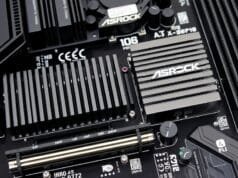
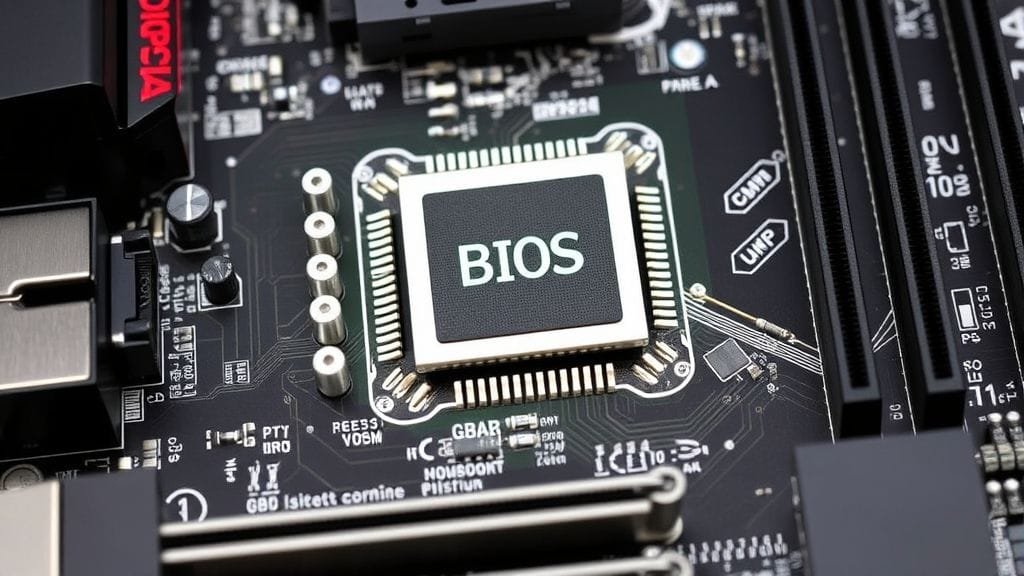
The BIOS (Basic Input/Output System) acts as the fundamental bridge between your operating system and your ASRock motherboard’s hardware. Therefore, it’s the very first software that runs when you power on your PC, ensuring all components are ready for action. Indeed, learning how to update BIOS in ASRock motherboard is a crucial skill for any PC enthusiast or builder. In fact, this seemingly complex task is actually a straightforward process that can unlock new performance, improve stability, and even enable compatibility with cutting-edge hardware.
Why would you need to undertake an ASRock BIOS update? For instance, imagine purchasing a brand-new, powerful CPU only to find your existing motherboard doesn’t recognize it. Alternatively, perhaps your system experiences inexplicable crashes, and you suspect an underlying stability issue. Clearly, these are precisely the scenarios where updating your BIOS becomes not just beneficial, but often essential. Ultimately, a timely update can transform a temperamental system into a perfectly stable one, breathing new life into your setup.

Why Update Your ASRock BIOS? More Than Just Maintenance
Updating your motherboard’s BIOS might seem like a daunting task, often surrounded by tales of bricked systems. However, for an ASRock motherboard owner, it’s an empowering maintenance step that offers significant advantages. Essentially, think of it as a software patch for your hardware, refining its core programming.
Specifically, here’s why performing an ASRock BIOS update can be a game-changer:
- Improved System Stability and Performance: Developers constantly fine-tune the BIOS to iron out bugs, optimize hardware interactions, and ensure your system runs smoother and more reliably. For example, a new BIOS version can resolve persistent crashes or freezes you might be experiencing.
- Enhanced Hardware Compatibility: Indeed, this is often the primary driver for many updates. Consequently, newer CPUs, faster RAM modules, or even certain graphics cards may require a specific BIOS version to function correctly. Therefore, an update ensures your ASRock motherboard supports the latest components.
- Crucial Security Patches: Furthermore, just like your operating system, BIOS can have security vulnerabilities. Thus, manufacturers release updates to patch these flaws, protecting your system from potential threats.
- New Features and Functionality: Moreover, sometimes, an update introduces exciting new capabilities. For example, this could include improved overclocking options, more granular fan control, or even support for new storage technologies.
Ultimately, the decision to update your ASRock BIOS is an important one, as it carries both benefits and a small degree of risk. However, with careful preparation and adherence to the correct procedures, you can confidently enhance your system’s capabilities.
The Golden Rules: Essential Preparations Before an ASRock BIOS Update
First and foremost, before you even think about initiating an ASRock BIOS update, preparation is paramount. Indeed, rushing this stage can lead to critical errors, potentially rendering your motherboard unusable. Therefore, taking these crucial preliminary steps ensures a smooth and successful flashing process.
Identifying Your Motherboard and Current BIOS Version
First and foremost, you must accurately identify your ASRock motherboard model and its current BIOS version. Consequently, this information is vital for downloading the correct update file. Indeed, trying to flash your motherboard with the wrong BIOS is a surefire way to cause problems.
For example, you can find this information easily:
- Within Windows: Specifically, press `Win + R`, type `msinfo32`, and hit Enter. Then, look for “BaseBoard Manufacturer” (ASRock), “BaseBoard Product” (your motherboard model), and “BIOS Version/Date.”
- Inside the BIOS Utility: Alternatively, restart your computer and repeatedly press `F2` or `Delete` during startup to enter the BIOS. Moreover, the model name and BIOS version are usually displayed on the main or “System Information” screen.

A screenshot of Windows System Information (msinfo32) showing motherboard model and BIOS version, with relevant sections highlighted
Downloading the Correct BIOS File
Next, once you have your exact motherboard model, head straight to the official ASRock website (www.asrock.com). Furthermore, navigate to the “Support” section, search for your specific motherboard, and then select the “BIOS” tab. In this section, you will find a list of available BIOS versions. Crucially, always download the latest non-beta version unless you have a specific reason (and clear instructions from ASRock support) to use a beta release. Consequently, beta versions are experimental and might introduce new instabilities.
Securing a Stable Power Supply
For example, imagine your computer losing power in the middle of a delicate brain transplant – that’s essentially what a power interruption during a BIOS update entails. Indeed, this is perhaps the single greatest risk. Therefore, a sudden power loss will corrupt your BIOS, likely rendering your motherboard unbootable.
Consequently, for desktop PCs, consider investing in an Uninterruptible Power Supply (UPS) for crucial tasks like this. In other words, a UPS provides backup power, giving you enough time to complete the update or safely shut down if the power goes out. Similarly, for laptops, simply ensure your battery is fully charged and the AC adapter is securely plugged in. Ultimately, a stable power source is non-negotiable for any ASRock BIOS update.
Backing Up Your Precious Data
However, while a BIOS update typically does not affect your hard drive or SSD data, a failed update can lead to an inoperable system. Consequently, this means you might not be able to access your operating system or files. Therefore, it’s always prudent to back up any critical documents, photos, or other personal data to an external drive or cloud storage before proceeding. Ultimately, this precaution ensures peace of mind, protecting you from the rare but severe consequences of a problematic update.
Handling BitLocker and TPM
Furthermore, if your system uses BitLocker drive encryption or has Trusted Platform Module (TPM) enabled, you must take an extra step. Indeed, updating the BIOS can sometimes trigger BitLocker’s recovery mode, requiring your recovery key to access your drive. Therefore, suspend BitLocker before starting the ASRock BIOS update process. In other words, this action tells BitLocker to expect hardware changes and prevents it from locking you out. Furthermore, ensure you have your BitLocker recovery key saved in a secure location, just in case. Specifically, for more details on BitLocker, you can refer to authoritative sources like [Wikipedia on BitLocker](https://en.ogasrock.org/wiki/BitLocker).
Loading UEFI Defaults for a Clean Slate
Crucially, before initiating any flash, navigate into your current BIOS setup and load the default settings. In essence, this action resets any custom configurations, such as overclocking profiles or boot order changes, which could potentially conflict with the new BIOS version. Subsequently, after loading defaults, remember to save the changes before exiting. Ultimately, this ensures that the update starts from a known, stable configuration, minimizing potential compatibility issues with the new firmware.
Unveiling the ASRock BIOS Update Methods
To begin with, ASRock offers several user-friendly methods to update your motherboard’s BIOS. Specifically, each method caters to different scenarios and levels of convenience. Therefore, understanding them empowers you to choose the best approach for your specific ASRock motherboard.
Method 1: Instant Flash via USB – The Go-To ASRock BIOS Update
Indeed, Instant Flash is arguably the most common and recommended method for updating the BIOS on most ASRock motherboards. Consequently, it’s performed directly within the UEFI environment, reducing dependencies on your operating system.
Preparing Your USB Drive
First, grab a USB flash drive. Generally, a small one (1GB or 2GB) is usually sufficient, as BIOS files are typically quite small. Crucially, you must format this USB drive to the FAT32 file system with an MBR (Master Boot Record) partition style. However, modern tools usually handle MBR by default when formatting to FAT32, but it’s worth double-checking.
Next, extract the downloaded BIOS ZIP file. Typically, inside, you’ll find the actual BIOS file, often named with a `.ROM` or `.CAP` extension. Then, copy this unzipped BIOS file directly to the root directory of your FAT32 formatted USB drive. Furthermore, avoid placing it inside any folders.

Entering UEFI and Using Instant Flash
Once your USB drive is prepared, restart your computer. Immediately, as soon as it powers on, repeatedly press the `F2` or `Delete` key on your keyboard. Thus, this action will take you into the BIOS setup utility. Subsequently, once inside, navigate to the “Tool” menu. Alternatively, on some ASRock models, you might find “Instant Flash” under the “Advanced” menu. In this case, if you are currently in “EZ Mode,” you’ll usually need to press `F6` to switch to the “Advanced Mode” interface first.
Select “Instant Flash.” Then, the utility will automatically scan your connected USB drives and detect compatible BIOS files. Afterward, choose the correct BIOS version from the list and confirm you wish to proceed with the update. Next, the system will then begin the flashing process. Crucially, during this critical phase, it is absolutely vital that you do not power off, restart, or remove the USB drive. Indeed, any interruption can fatally corrupt your BIOS.
Post-Update Steps
After the programming is successfully completed, your system will prompt you to reboot. Then, allow it to restart. Immediately after rebooting, press `F2` or `Delete` again to re-enter the BIOS setup. Next, navigate to the “Exit” menu and select “Load UEFI Default Settings.” Subsequently, confirm this choice, then select “Exit Saving Changes.” Ultimately, this step ensures your system boots with optimized, stable settings after the ASRock BIOS update.
Method 2: BIOS Flashback – Recovery for Advanced ASRock Motherboards (Specific Models)
Furthermore, BIOS Flashback is an invaluable feature found on select high-end ASRock motherboards. Specifically, it provides a unique way to update or even recover your BIOS without the need for a CPU, RAM, or graphics card to be installed. Consequently, this makes it perfect for situations where you’re building a new PC with a CPU that’s newer than the motherboard’s initial BIOS supports, or if your existing BIOS becomes corrupted.
Renaming the BIOS File and Preparing USB
Indeed, the preparation for BIOS Flashback is very specific. First, start by formatting a USB drive (32GB or smaller is recommended) to FAT32 with an MBR partition style, just like with Instant Flash. Now, download the latest BIOS file for your specific motherboard. However, this is where it gets unique: you must rename this BIOS file to “CREATIVE.ROM.” Thus, this exact filename is crucial for the Flashback utility to recognize it. Finally, copy this renamed file to the root directory of your prepared USB drive.
The Flashback Process
First, begin by connecting only the 24-pin ATX power connector to your ASRock motherboard. Additionally, make sure the 8-pin CPU power connector is not connected unless specifically instructed by your motherboard manual. Crucially, flip the AC power switch on your power supply to the “on” position, but do not power on the system itself.
Next, insert the USB drive into the designated “BIOS Flashback” USB port. Generally, this port is usually highlighted in your motherboard manual and often marked on the rear I/O panel. Then, press and hold the “BIOS Flashback Switch” (a small button typically found on the rear I/O) for about three seconds. Consequently, an LED light will begin to blink, indicating the update process has started.
Crucially, wait until the LED stops blinking. Essentially, this signifies that the update is complete. Conversely, if the LED turns solid green, it usually indicates an error, such as an incorrect USB port or an improperly named BIOS file. Finally, once the LED stops, turn off the PC’s power supply for a couple of minutes to clear any residual charge before proceeding to power on your system normally.
Method 3: Internet Flash – Seamlessly Updating Your ASRock BIOS Online
Moreover, Internet Flash offers a convenient way to update your BIOS directly from within the UEFI setup utility, bypassing the need for a USB drive or even downloading files beforehand. Naturally, it requires an active internet connection.
Connecting and Initiating the Update
First, to use Internet Flash, restart your computer and repeatedly press `F2` or `Delete` to enter the BIOS setup utility. Then, once inside, navigate to the “Tool” menu and select “Internet Flash.”
Crucially, ensure your system has a live internet connection, typically via an Ethernet cable connected to your motherboard’s LAN port. Subsequently, the utility will then attempt to connect to ASRock’s servers. Moreover, if successful, it will check for available newer UEFI firmware versions. In that case, if it finds one, you can select the desired version to download and update your ASRock BIOS. Then, the process will then proceed automatically. Finally, after a successful flash, the system will prompt you to press Enter to reboot.
Method 4: Windows-Based Utility – A Convenient Option for ASRock Users
Additionally, ASRock also provides a Windows-based utility, sometimes called the “Flash Memory Writer utility,” that allows you to initiate a BIOS update from within your Windows 10 or 11 environment. However, while it starts in Windows, the actual flashing process still occurs outside the operating system in a UEFI environment for safety.
Running the Utility and Completing the Update
First, begin by downloading the BIOS package for your specific ASRock motherboard from the official website. Then, unzip the downloaded file to a local directory on your computer. Specifically, inside, you’ll typically find an executable file, often named something like `BIOSfilename.exe`.
Crucially, close all other running programs to prevent any conflicts. Next, right-click on the executable file and select “Run as administrator.” Consequently, the utility will usually prompt you to restart your system to perform the BIOS update. Therefore, confirm this by clicking “Yes.” Then, your system will then reboot, and the BIOS update will proceed automatically in a UEFI environment, not directly within Windows. During this UEFI update phase, it’s critical not to power off your system.
Once the update completes, your system will reboot again. Then, enter the BIOS setup (`F2` or `Del`) and, as a final verification step, load default settings and save changes before exiting. Ultimately, this completes the ASRock BIOS update using the Windows utility.
ASRock BIOS Update Methods: A Quick Comparison
Ultimately, choosing the right method for your ASRock BIOS update depends on your comfort level and the specific situation. Therefore, this table offers a concise overview of each approach.
| Feature / Method | Instant Flash (USB) | BIOS Flashback (USB) | Internet Flash (UEFI) | Windows-Based Utility |
|---|---|---|---|---|
| Requires OS? | No (UEFI environment) | No (even without CPU/RAM) | No (UEFI environment) | Yes (initiates from Windows) |
| Requires USB? | Yes | Yes | No | No (file downloaded to PC) |
| Requires Internet? | No | No | Yes | Yes (for download) |
| CPU/RAM Required? | Yes | No (for specific models) | Yes | Yes |
| Use Case | Standard, recommended update | New CPU compatibility, BIOS recovery | Convenient, no USB needed | User-friendly from Windows |
| Key Precaution | FAT32, correct file, no power loss | Rename file to `CREATIVE.ROM`, designated port | Stable internet connection | Close all programs, run as admin |
| Complexity | Moderate | Moderate to Advanced (model specific) | Easy | Easy |

The Power and Peril: Benefits and Risks of Updating Your ASRock BIOS
Indeed, an ASRock BIOS update can significantly improve your system. However, like any powerful tool, it comes with responsibilities and potential pitfalls. Therefore, understanding these helps you make an informed decision.
The Clear Advantages
Specifically, as discussed, the advantages are compelling: improved stability, compatibility with new hardware, essential security patches, and the introduction of new features. Consequently, these benefits often outweigh the risks, especially if you’re experiencing issues or upgrading components. Ultimately, a well-executed update can breathe new life into an aging system or ensure your new build runs flawlessly.
Understanding the Risks: When to Update and When to Hold Back
Despite the benefits, BIOS updates carry inherent risks. Specifically, the primary danger is a power failure or using an incorrect BIOS file. Therefore, either scenario can corrupt the BIOS chip, turning your motherboard into an expensive paperweight. Indeed, this is why strict adherence to preparation steps and a stable power supply are paramount.
When to Update:
- For instance, you are experiencing specific, persistent system bugs or instabilities that are known to be addressed by a newer BIOS version.
- Alternatively, you are upgrading to new hardware (e.g., a newer generation CPU, high-speed RAM) that explicitly requires a newer BIOS version for compatibility.
- Finally, there are critical security updates released by ASRock.
When to Avoid Unnecessary Updates:
- Conversely, if your system is running perfectly stable and you are not encountering any issues, an unnecessary BIOS update might introduce new, unforeseen instabilities. In short, “If it ain’t broke, don’t fix it” often applies here.
- Furthermore, ASRock typically warns that users may not be able to flash to a previous BIOS version after updating. However, while unofficial methods might exist, they carry additional risks and are not recommended.
Ultimately, approach an ASRock BIOS update as a targeted solution rather than routine maintenance.
Navigating Bumps: Troubleshooting Common ASRock BIOS Update Issues
However, even with careful preparation, sometimes issues arise during or after an ASRock BIOS update. Therefore, knowing how to troubleshoot common problems can save you considerable stress.

A simple infographic showing a checklist for BIOS update preparations, including “Backup Data”, “Stable Power”, “Correct File”, and “Load Defaults”
Instant Flash Not Detecting Files
For instance, if Instant Flash isn’t showing any BIOS files on your USB drive, here’s a checklist of things to investigate:
- Motherboard Model: First, double-check you downloaded the BIOS for your exact motherboard model.
- Notes: Additionally, review any specific instructions on the BIOS download page on ASRock’s website; some boards have unique requirements.
- USB Format: Crucially, ensure your USB drive is formatted to FAT32 with an MBR partition.
- USB Drive: Moreover, trying a different USB drive might be necessary, as some drives are simply not compatible.
- USB Port: Additionally, experiment with different USB ports, especially USB 2.0 ports if available.
- Root Directory: Furthermore, confirm the unzipped BIOS file is in the root directory, not in a folder.
- Other Storage: Then, temporarily disconnect other storage devices (HDDs/SSDs) to simplify the system’s search.
- Clear CMOS: Finally, as a last resort, try clearing your CMOS (Complementary Metal-Oxide-Semiconductor) settings. In essence, this resets your BIOS to factory defaults and can sometimes resolve detection issues. Specifically, look for a “Clear CMOS” jumper on your motherboard or remove the CMOS battery for 5-10 minutes. Therefore, this is a common troubleshooting step for any significant motherboard change.
System Instability After Update
However, if your system freezes, crashes, or behaves erratically after an ASRock BIOS update, don’t panic immediately.
- Load Defaults: First, re-enter the BIOS setup (`F2` or `Del`) and explicitly load “UEFI Default Settings,” then save and exit. Consequently, this often resolves issues caused by old settings conflicting with the new BIOS.
- Clear CMOS: Alternatively, perform a full CMOS clear (as described above). Essentially, this ensures a truly fresh start.
- Re-flash: Furthermore, if stability issues persist and you suspect a corrupted flash, you might attempt to re-flash the BIOS using the same or even the previous stable version (if allowed by ASRock for your specific board, which is rare). Indeed, this should be done with extreme caution.
- Check Components: Finally, if the update was meant for new hardware, ensure all new components are correctly seated and functioning.
BIOS Flashback Troubles
However, when using BIOS Flashback, specific issues can arise:
- USB Format: Again, ensure the USB drive is FAT32 with MBR.
- Filename: Specifically, verify the BIOS file is exactly renamed to `CREATIVE.ROM`. Consequently, any deviation will cause failure.
- Designated Port: Furthermore, confirm you are using the specific “BIOS Flashback” USB port on your motherboard’s rear I/O.
- LED Behavior: For instance, a solid green LED during Flashback typically indicates a problem (incorrect file, port, or drive). Therefore, if this happens, power off, re-verify your steps, and try again.
Ultimately, updating your ASRock BIOS is a powerful way to maintain and enhance your system. Thus, by following these guidelines and understanding the nuances of each method, you can approach the task with confidence and ensure a successful outcome.
Final Thoughts and Your Experience
Indeed, successfully performing an ASRock BIOS update can feel incredibly rewarding, knowing you’ve actively optimized your system’s foundation. Moreover, it’s a testament to the robust engineering behind modern motherboards and the tools ASRock provides to keep them up-to-date. Therefore, this comprehensive guide has walked you through every step, from crucial preparations to specific methods and troubleshooting tips.
Now that you’re equipped with this knowledge, we’d love to hear from you. Have you updated your ASRock BIOS recently? Specifically, which method did you use, and what was your experience like? Consequently, share your insights and help build our community’s collective wisdom!