

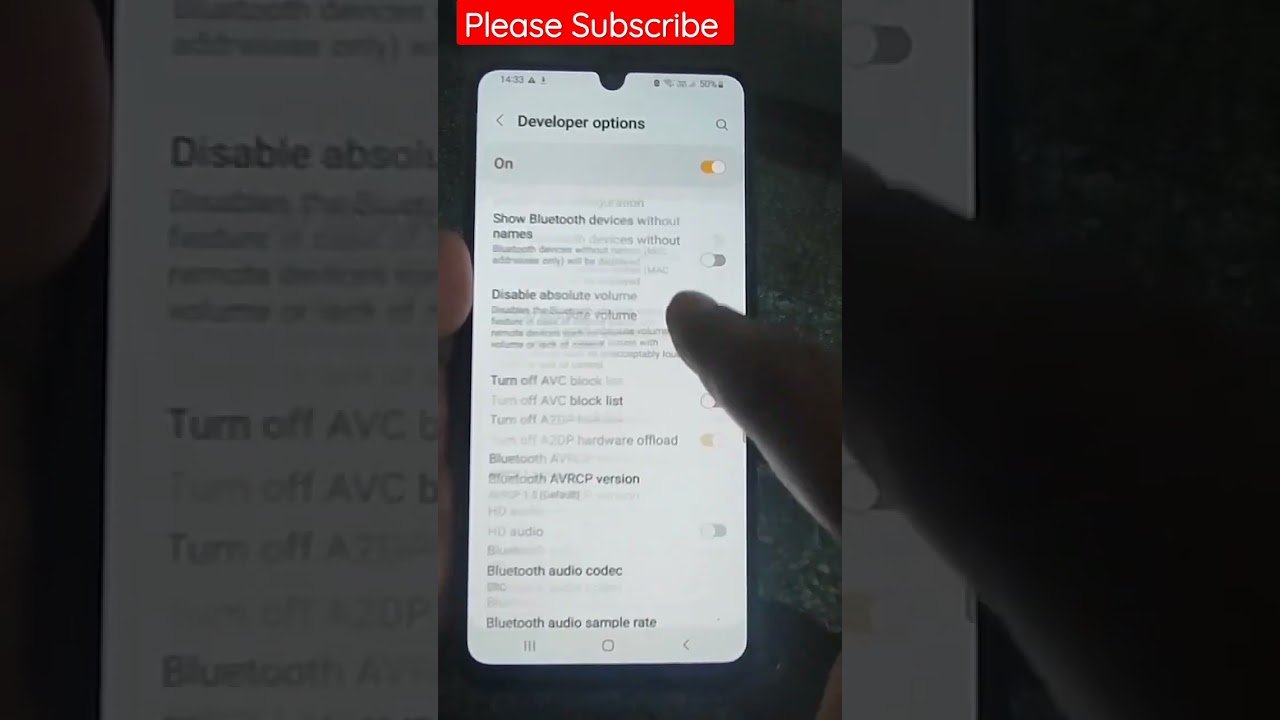
A Samsung display flickering problem is a common issue that can disrupt your device performance. If you are experiencing a Samsung display flickering issue, this 2026 step-by-step diagnostic guide will help you troubleshoot and resolve the problem quickly.
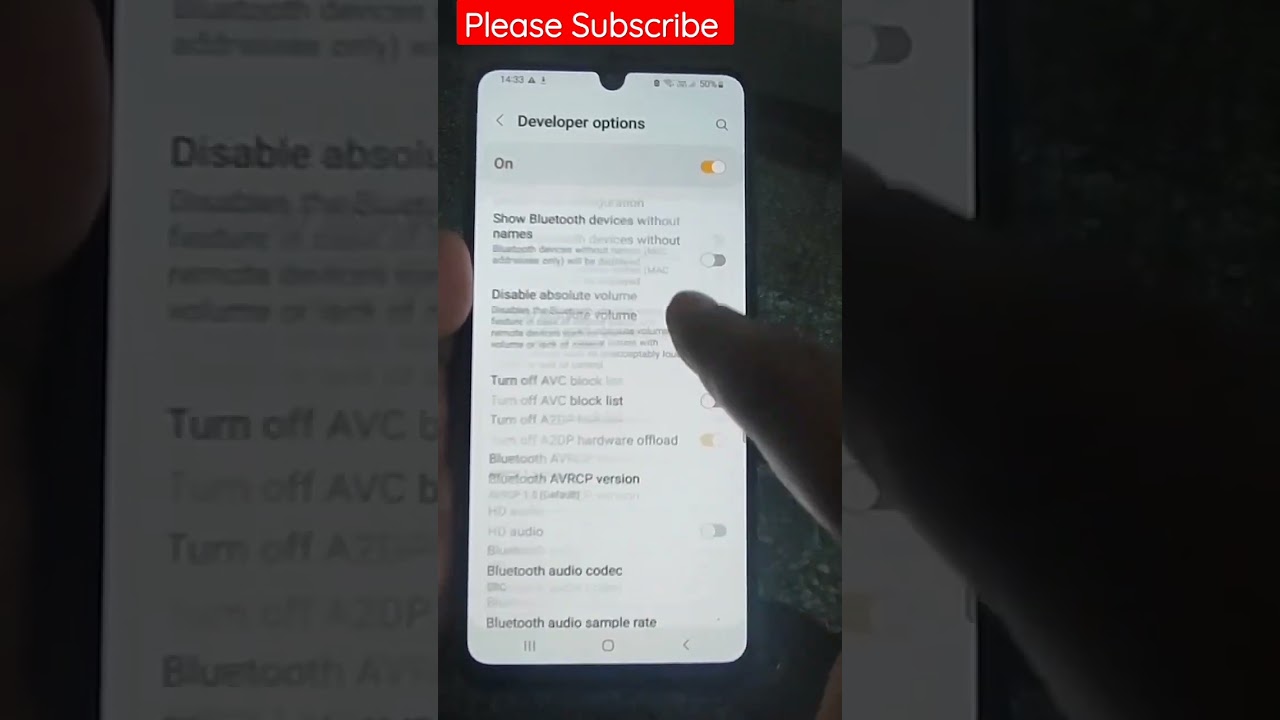
Display anomalies on modern high-resolution panels can stem from hardware faults, signal bandwidth limitations, or corrupted graphics software. Fortunately, systematically isolating these variables allows you to eliminate screen strobe effects without replacing your expensive hardware.
Table of Contents
- Root Causes of Samsung Display Flickering
- Hardware Diagnostics and Cable Integrity
- Fixing Samsung Display Flickering via Refresh Rate Settings
- Software Driver Reinstallation Steps
- Disabling FreeSync and G-Sync Conflicts
- Hardware vs Software Diagnostic Comparison
- Preventative Best Practices for Display Stability
Root Causes of Samsung Display Flickering
Understanding why visual instability occurs is the first step toward a permanent resolution. Consequently, identifying why Samsung display flickering occurs requires a systematic approach to hardware and operating system signals.
Initially, external interference or unseated video connections account for a high percentage of display disruptions. In addition, outdated graphics processing unit drivers frequently fail to sync frame timing correctly with high-refresh Samsung panels.
Furthermore, internal power board fluctuations or aging backlights can manifest as rapid light pulsing. For detailed insight into graphics subsystem failures, consult our comprehensive graphics driver crash troubleshooting guide.
Quick Diagnostic Isolation Test
Before modifying software configuration parameters, determine whether the flickering originates from the monitor itself or the connected computer. Specifically, open your monitor On-Screen Display (OSD) menu using the physical directional joystick on the back panel.
If the built-in setup menu flickers alongside your desktop wallpaper, the underlying fault is hardware-based. Conversely, if the system menu remains completely stable while your desktop stutters, the root cause involves software configuration or cable signal integrity.
Therefore, isolating the control menu saves substantial diagnostic time. If your display drops signal entirely during testing, refer to our guide on monitor signal failure solutions for additional connection steps.
Hardware Diagnostics and Cable Integrity
Physical connections represent the primary vulnerability point in high-bandwidth display configurations. For example, 4K resolution at 144Hz demands immense data throughput over HDMI 2.1 or DisplayPort 1.4 cables.
Initially, power down both your monitor and workstation completely. Next, disconnect all display cables, examine the pin connectors for physical bending, and firmly re-seat them back into the GPU ports.
However, if you are using uncertified third-party extensions, remove them entirely during testing. Cheap adapters often suffer from electromagnetic interference, which triggers sudden voltage drops along data lanes.
Finally, inspect your power strip and wall outlet connection. Fluctuating electrical currents into the monitor power brick directly induce visible backlight strobing across modern LED arrays.
Fixing Samsung Display Flickering via Refresh Rate Settings
Mismatched refresh rates between the operating system and panel controller cause severe frame stuttering. In addition, resolving Samsung display flickering often involves turning off variable refresh rates or aligning desktop frequency manually.
To adjust your display frequency on Windows 11, follow these direct operating system steps:
- Right-click your desktop background and select Display settings.
- Scroll down to the Related settings section and click Advanced display.
- Locate the Choose a refresh rate drop-down menu.
- Lower the frequency from maximum (e.g., 240Hz) down to standard 60Hz or 120Hz temporarily.
Consequently, if the flickering ceases immediately at lower frequencies, your video cable lacks the bandwidth needed for peak operation. Replacing standard cords with VESA-certified DisplayPort cables permanently resolves high-frequency signal collapse.
Software Driver Reinstallation Steps
Corrupted display drivers prevent your graphics card from managing hardware frame buffers efficiently. Therefore, conducting a clean driver reinstallation eliminates lingering software anomalies completely.
Initially, download the latest stable driver package directly from your GPU manufacturer (NVIDIA, AMD, or Intel). Next, download the Display Driver Uninstaller (DDU) utility to wipe corrupted legacy registry entries completely.
Boot your system into Windows Safe Mode, execute DDU, and select clean restart options. Once rebooted into normal Windows, install the fresh graphics driver driver package immediately.
If you encounter specific installation glitches during AMD software setups, review our dedicated AMD driver update guide for safe driver recovery steps.
Disabling FreeSync and G-Sync Conflicts
Adaptive sync technologies synchronize display refresh rates dynamically with GPU frame output. However, timing handshakes between Samsung panel scalar chips and graphics hardware occasionally malfunction under windowed application modes.
Specifically, aggressive voltage modulation during variable refresh rate transitions produces subtle brightness pulsing across dark software windows. For instance, web browsers rendering hardware-accelerated video content frequently trigger localized panel flickering.
To resolve sync timing conflicts, open your Samsung monitor physical OSD menu. Navigate to the System or Game sub-menu and set AMD FreeSync or Adaptive-Sync to Off.
Similarly, open the NVIDIA Control Panel on your desktop, navigate to Set up G-SYNC, and uncheck the enablement box. Test your desktop applications for several minutes to verify overall frame stability.
Hardware vs Software Diagnostic Comparison
Utilizing a systematic comparison table helps pinpoint whether Samsung display flickering is driven by software configurations or physical hardware degradation.
| Symptom Observed | Primary Cause | Recommended Action |
|---|---|---|
| Flicker occurs inside OSD Menu | Internal Panel / Power Board | Power cycle hardware; request manufacturer service. |
| Random black screen flashing | Cable Bandwidth / Loose Port | Replace HDMI/DP cord with VESA-certified cable. |
| Brightness pulsing in games | FreeSync / G-Sync Conflict | Disable Variable Refresh Rate settings in GPU panel. |
| Line flickering after sleep mode | GPU Driver Handshake Error | Perform clean driver reinstall using DDU tool. |
Preventative Best Practices for Display Stability
Maintaining optimal display performance requires proactive system maintenance. Therefore, adopting a few baseline operational habits prevents unexpected hardware glitches over extended usage periods.
First, avoid tightly wrapping or bending video cables behind desk setups. Severe cable tension degrades internal shielding, creating signal leakage that triggers sudden desktop flickering.
Second, connect high-performance monitors to dedicated surge protectors rather than overloaded power strips. Stable line voltage prevents capacitor wear inside external power adapters.
Finally, consult official manufacturer resources when persistent visual defects occur despite software troubleshooting. Review official Samsung Support documentation for device-specific firmware updates and warranty claims.
Ultimately, taking these steps will prevent Samsung display flickering from returning, ensuring smooth desktop visuals for gaming, content creation, and professional productivity.
📺 Video Guide: How to fix Flickering in Samsung Mobile || 1 setting #samsung #shorts #flickering
Video walkthrough courtesy of Mobile Digital Tricks & Solutions on YouTube. Follow along with the visual steps above.







[…] Review Samsung Display Flickering Guide […]